.svg)
.webp)


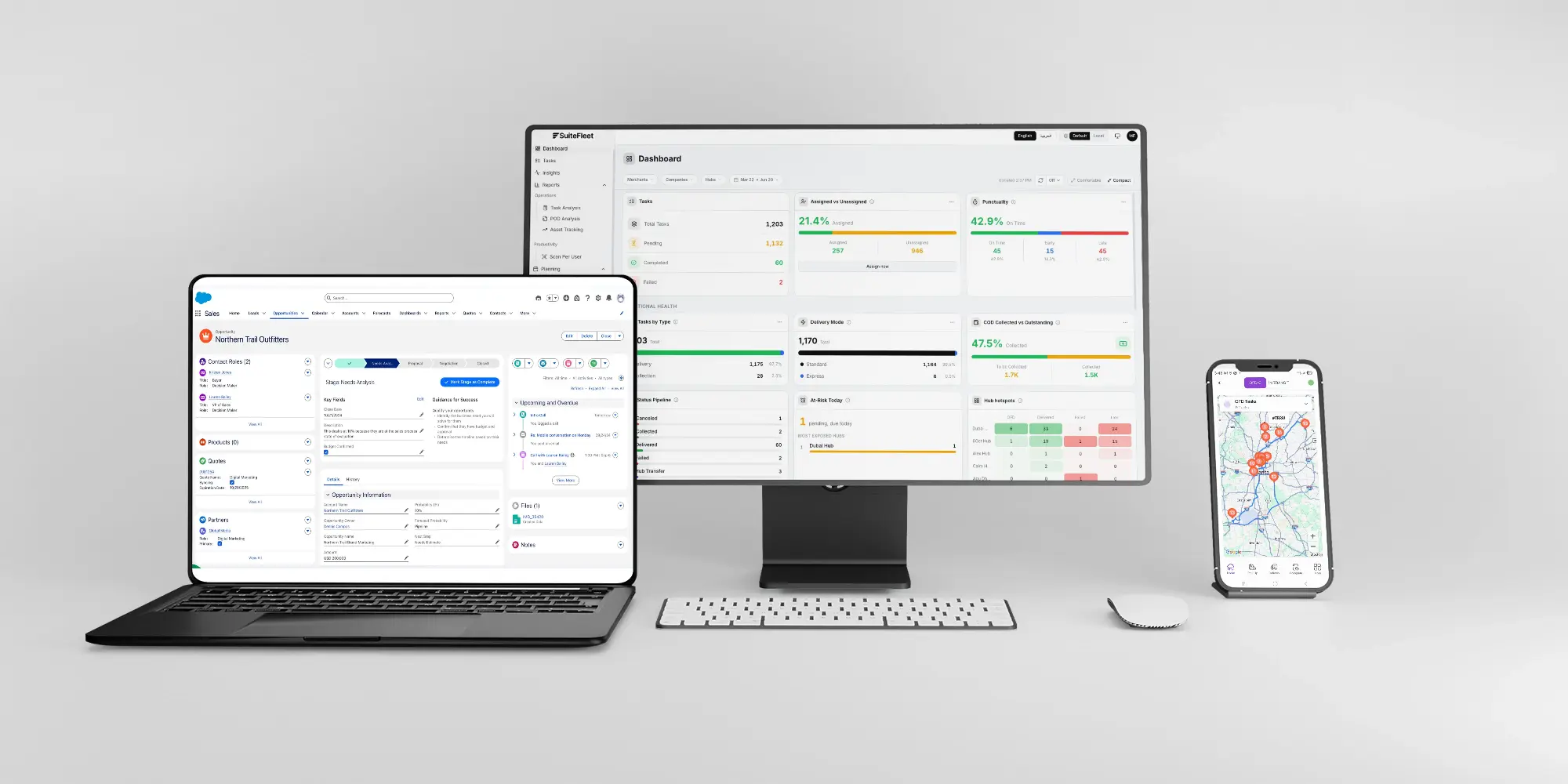
Electronic proof of delivery (ePOD) is the evidence recorded at handover: who received the goods, when delivery was completed, and the photos or signature supporting the result. The SuiteFleet connector for Salesforce, coming soon to Salesforce AppExchange, connects that evidence to the originating order.
Configure the integration around one traceable relationship: Salesforce order pending fulfillment → SuiteFleet task → proof capture → Salesforce update. Keep evidence status separate from delivery status so a completed delivery with a pending file transfer remains visible.
1. Start with a Salesforce order pending fulfillment
Start when the Salesforce sales order reaches the configured fulfillment-release status, such as Waiting to Fulfill. Confirm the shipping address, receiving contact, delivery date, and quantities before creating the linked SuiteFleet delivery task.
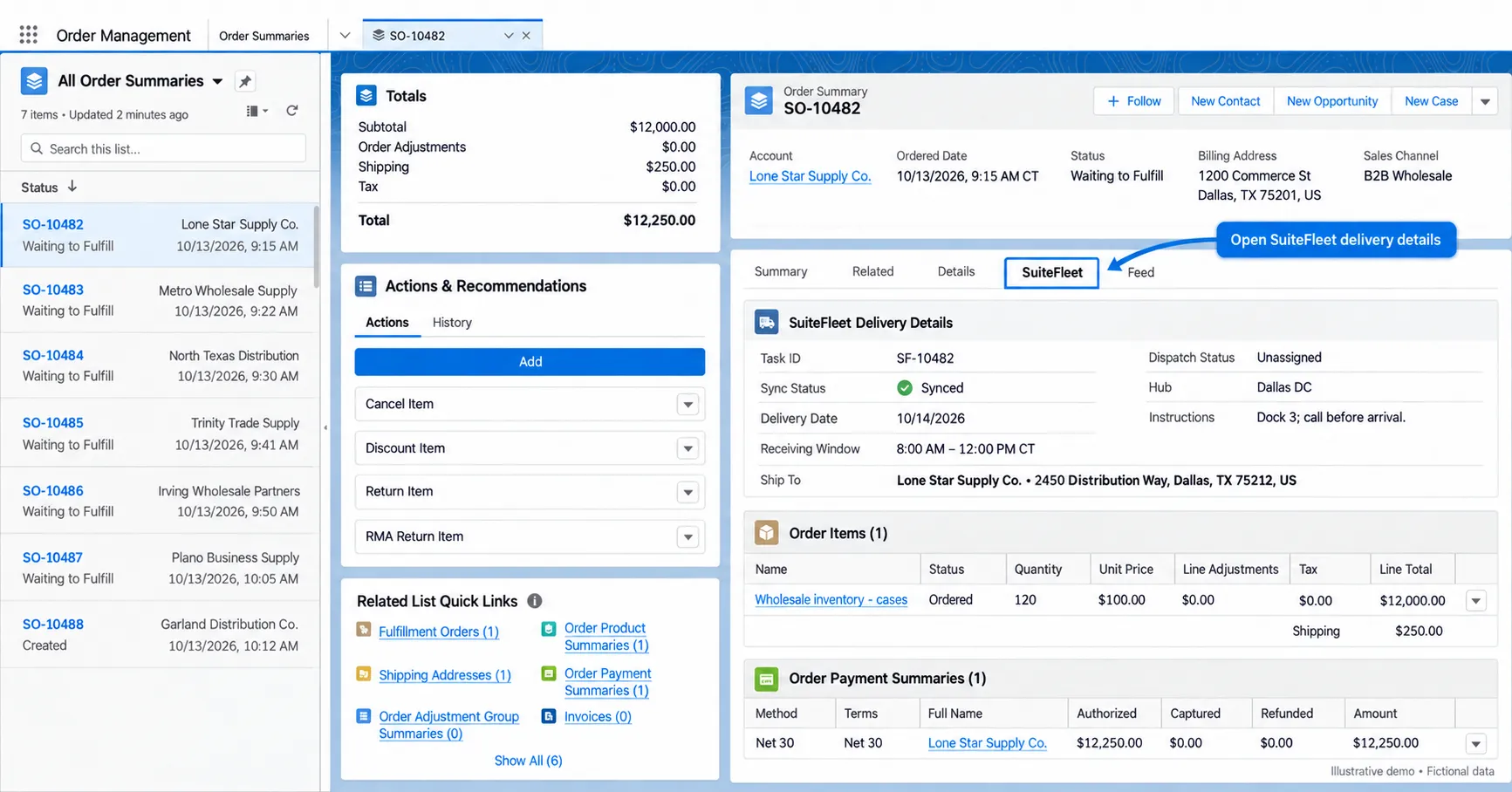
Map the Salesforce record ID, shipment reference, and order lines to the task. Retain the SuiteFleet task ID on the associated Salesforce delivery record so the returned proof can be matched to the original shipment. Check for an existing task before retrying an export.
Keep proof status pending until the required handover evidence is recorded. Creating a task does not confirm delivery or receipt.
2. Select the proof-of-delivery methods
Define the evidence required for each delivery type before configuring the Salesforce writeback. The SuiteFleet demo shows the following proof components.
| Method | What to record | How to use it |
|---|---|---|
| Recipient signature | Signature image and recipient name | Review the recorded acceptance of the handover. |
| Delivery photos | One or more images associated with the task | Inspect goods, placement, and visible condition. |
| Delivery timestamp | Actual completion date and time | Establish when the handover was recorded. |
| GPS proximity | Available location evidence and distance from the address | Check location context alongside the signature and photos. |
For attended deliveries, require the recipient name and the configured signature or photo evidence. For unattended deliveries, define the permitted drop-off evidence and review criteria. GPS proximity supports the record; it does not establish who received the goods.
3. Capture evidence against the delivery task
Retain the Salesforce record ID and shipment reference when creating the SuiteFleet task. At handover, record the recipient, delivery outcome, completion time, and required evidence. Associate every file with that task and delivery attempt.
In the demo, Full proof groups the recipient name, delivery time, photos, signature, and GPS proximity in one view. Proof of pickup is shown separately from proof of delivery.
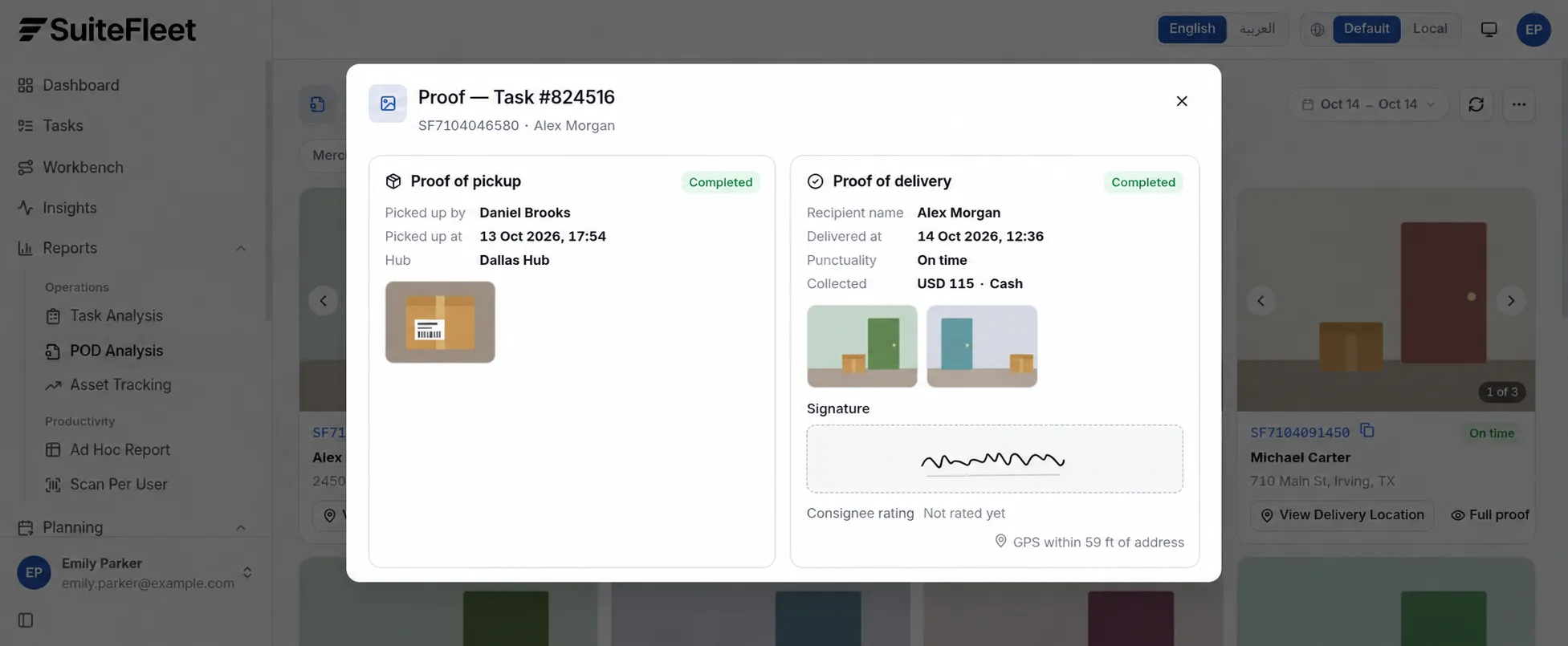
Validate the configured requirements before marking the proof complete. If a required signature or photo is missing, retain a pending or exception state for follow-up.
4. Review proof in POD Analysis
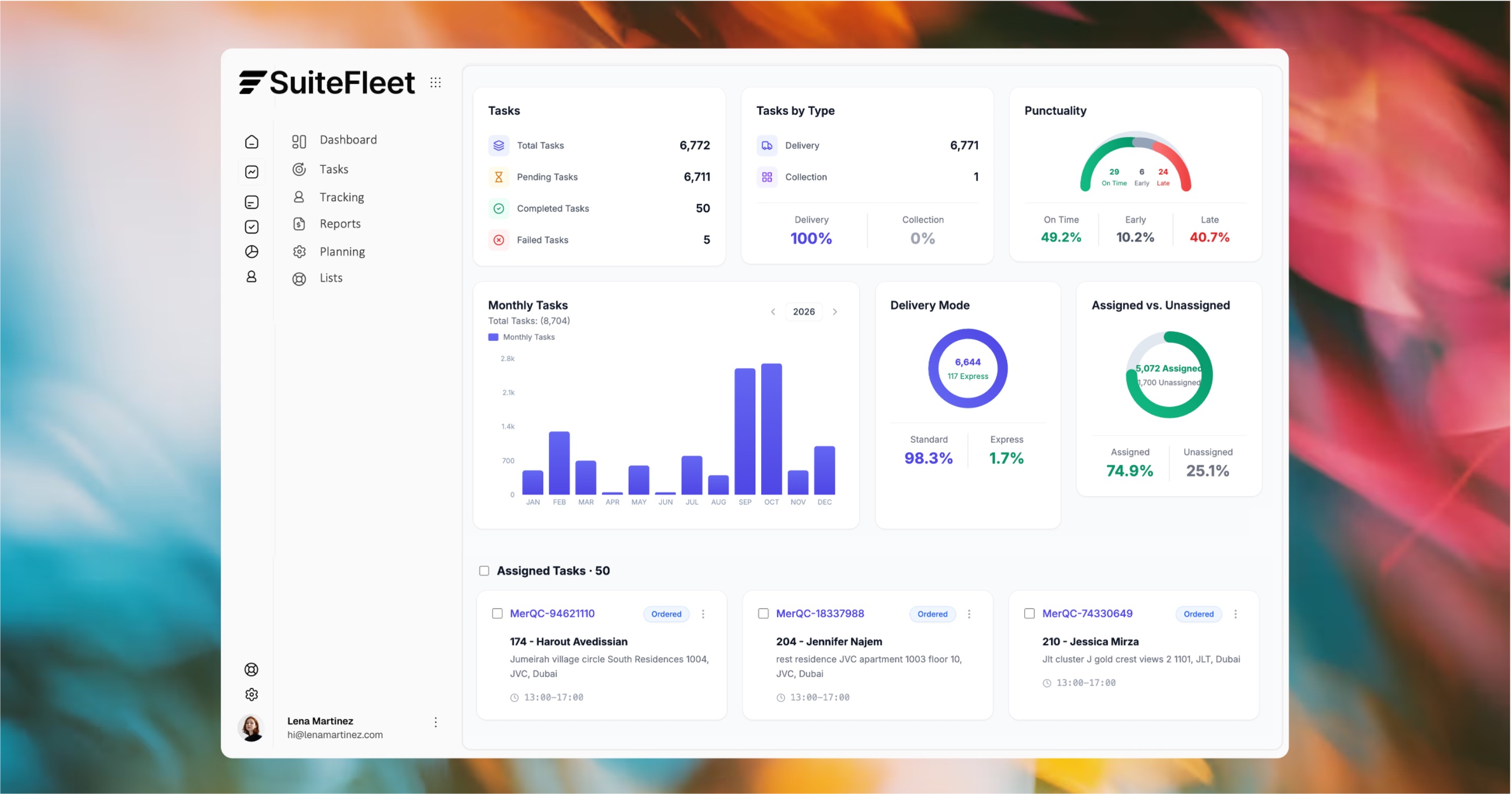
Open Reports → POD Analysis to review delivery evidence. Use the date range, merchant, and driver filters to narrow the records. Each card displays a task reference, recipient, address, and photo carousel.
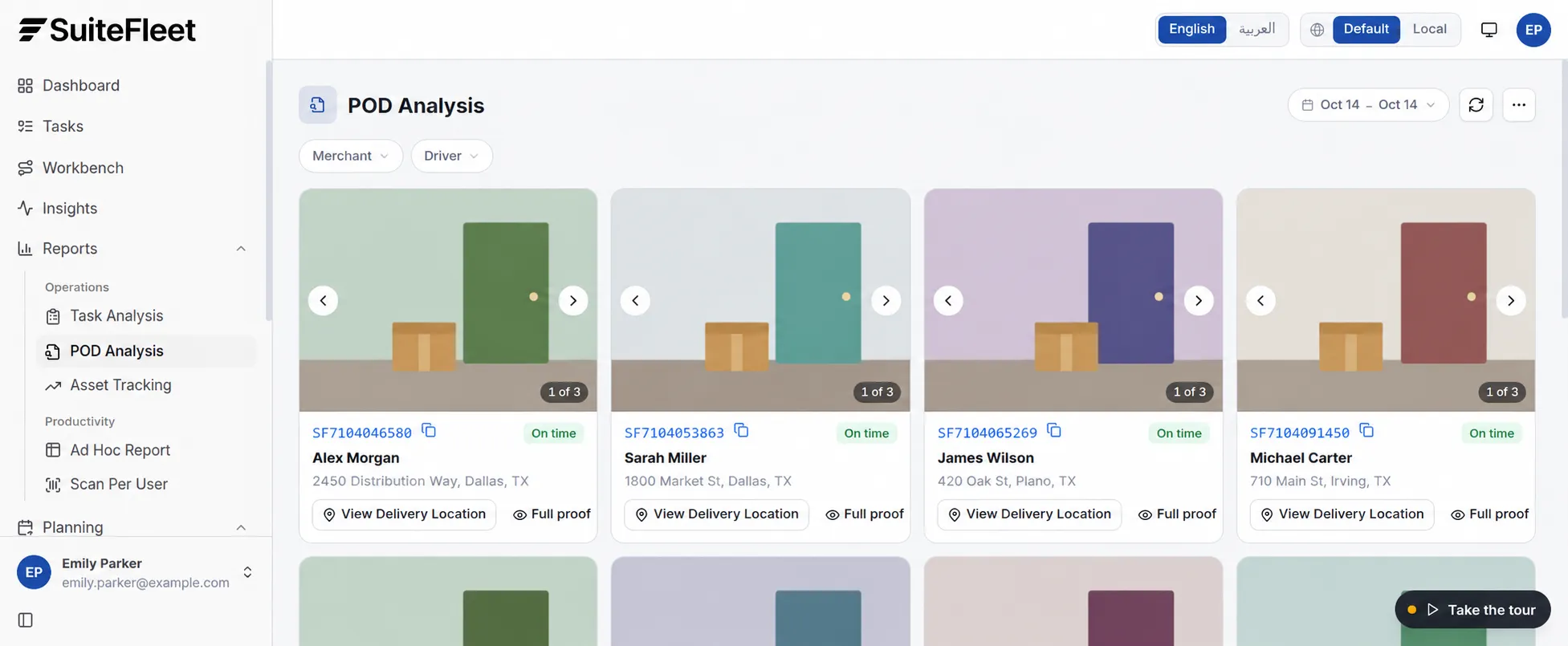
Check that the photos and recipient details match the delivery under review. Use Full proof to inspect the signature and completion details. Investigate missing or inconsistent evidence before releasing any workflow that depends on verified proof.
5. Update Salesforce with proof of delivery
Resolve incoming proof using the stored SuiteFleet task and Salesforce shipment mapping. Update the original order’s delivery fields or related delivery record with the recipient, completion time, outcome, and evidence references. Keep proof pending until the required files or links are available. A related delivery record keeps multiple shipments and attempts distinct.
| SuiteFleet data | Salesforce mapping |
|---|---|
| Task and shipment references | External reference fields that identify the originating delivery |
| Delivery outcome and completion time | Delivery status and delivered-at fields; store time in UTC |
| Recipient name | Received-by field on the delivery record |
| Signature and photo evidence | Salesforce Files or authorized evidence references, according to the integration design |
| Location evidence | Mapped coordinates or proximity details where exposed by the integration |
| Proof processing result | Proof status, last successful sync, and error details |
Store files or link to evidence
Choose the evidence storage model during implementation. To store files in Salesforce, create a ContentVersion and use FirstPublishLocationId for the initial record association. Use ContentDocumentLink to associate the document with additional authorized records. See Salesforce’s ContentVersion guidance.
If evidence remains in SuiteFleet, store an authorized reference and verify access for the intended Salesforce users. Preserve each evidence identifier so retries do not create duplicate files or links.
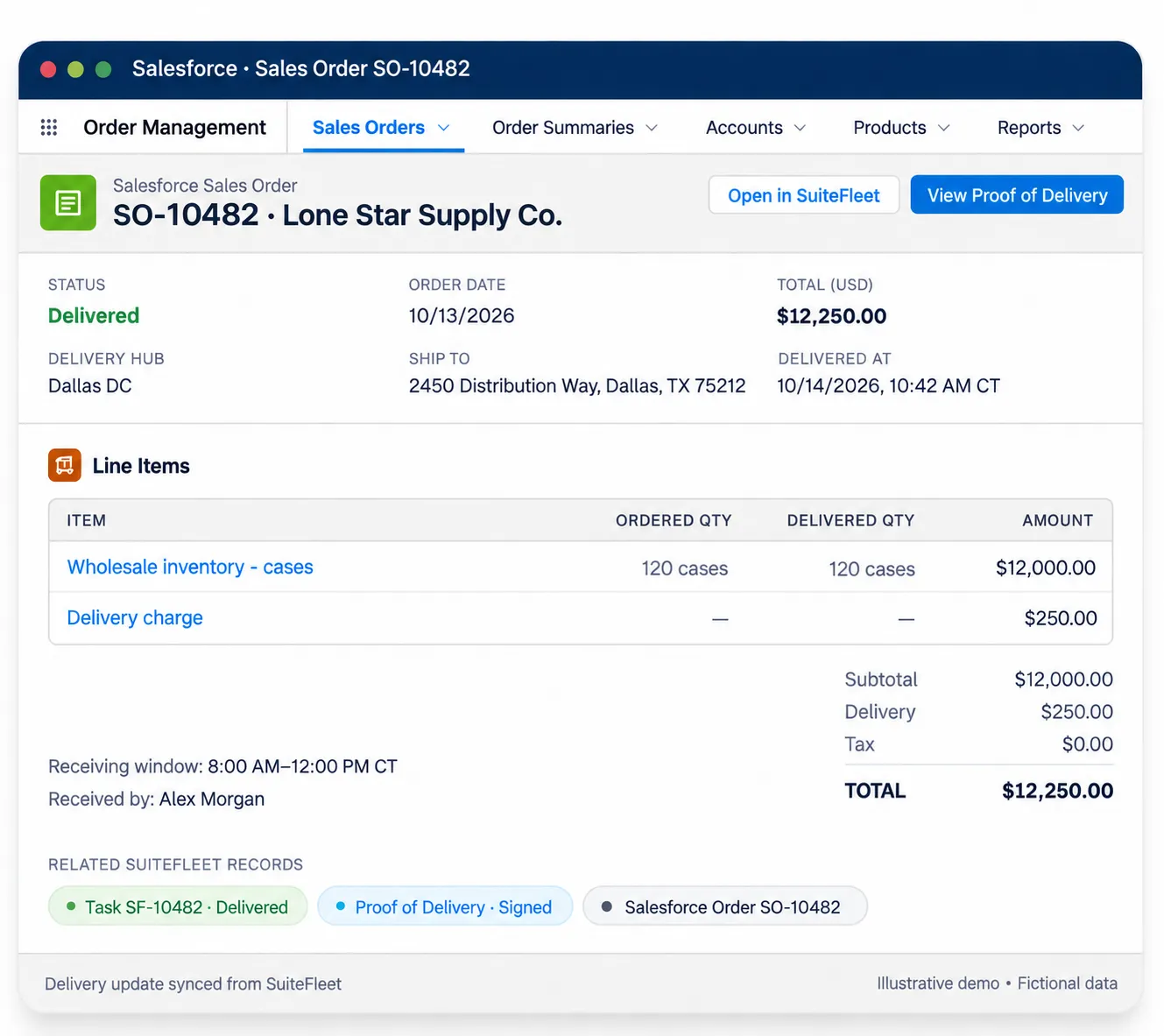
Trigger Salesforce Flow after proof is ready
Use a committed proof-status transition as the entry condition for follow-up automation. Check that required evidence is available before creating a billing review task, notifying a service owner, or sharing a delivery confirmation. Configure case closure explicitly against the case’s resolution criteria.
6. Handle incomplete proof and failed synchronization
- Partial delivery: associate evidence with the delivered shipment or lines. Keep outstanding quantities open.
- Refused or failed handover: retain the attempt, reason, and available evidence without reporting successful receipt.
- Missing evidence: keep proof pending and assign an owner to resolve it.
- File transfer failure: retry the failed file operation while preserving the recorded delivery result.
- Repeated event: deduplicate by task, attempt, and evidence identity before updating Salesforce.
Before activation, test a signed delivery, a photo-based delivery, missing evidence, a partial delivery, and a failed file transfer. Confirm record matching, file access, and that replaying a result does not trigger duplicate automation.
Salesforce proof-of-delivery FAQs
Which proof-of-delivery methods does SuiteFleet show?
The demo shows recipient signatures, delivery photos, recipient names, completion times, and GPS proximity. Select the required evidence for each delivery workflow.
Where is proof stored in Salesforce?
The integration can be designed to store evidence as Salesforce Files or retain authorized evidence references on an order or related delivery record.
Does proof automatically close a Salesforce case?
Case closure depends on the Salesforce Flow and resolution rules you configure. Proof availability can trigger review or follow-up without closing unresolved issues.
What happens when a photo fails to synchronize?
Keep the delivery result, mark the evidence transfer pending, and retry the failed operation. Complete the proof status after all required evidence is available.


.png)

.jpeg)



.svg)
.png)







.svg)
.svg)
.svg)