.svg)
.webp)


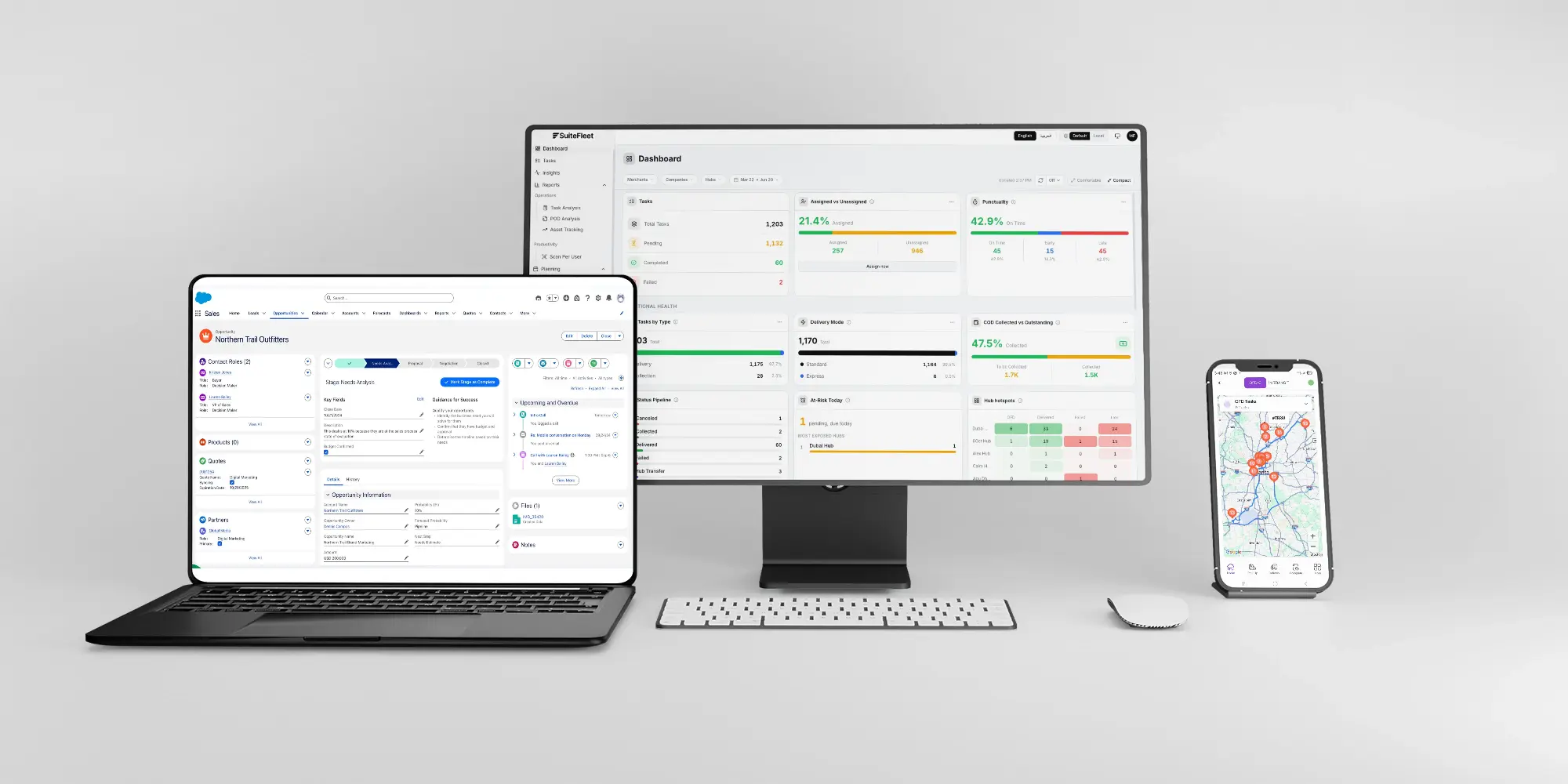
Salesforce route optimization connects order demand to the sequence and assignment of delivery stops. Salesforce provides the order and shipment data; SuiteFleet plans the routes and manages their execution. The SuiteFleet Salesforce connector is coming soon to Salesforce AppExchange.
1. Start with a Salesforce order pending fulfillment
The cycle starts with Salesforce sales order SO-10482 for Lone Star Supply Co., pending fulfillment. The order contains 120 cases for delivery to Dallas, Texas, with a receiving window of 8:00 AM–12:00 PM Central Time. Validate the address, delivery date, quantities, and shipment reference before creating the linked SuiteFleet task.
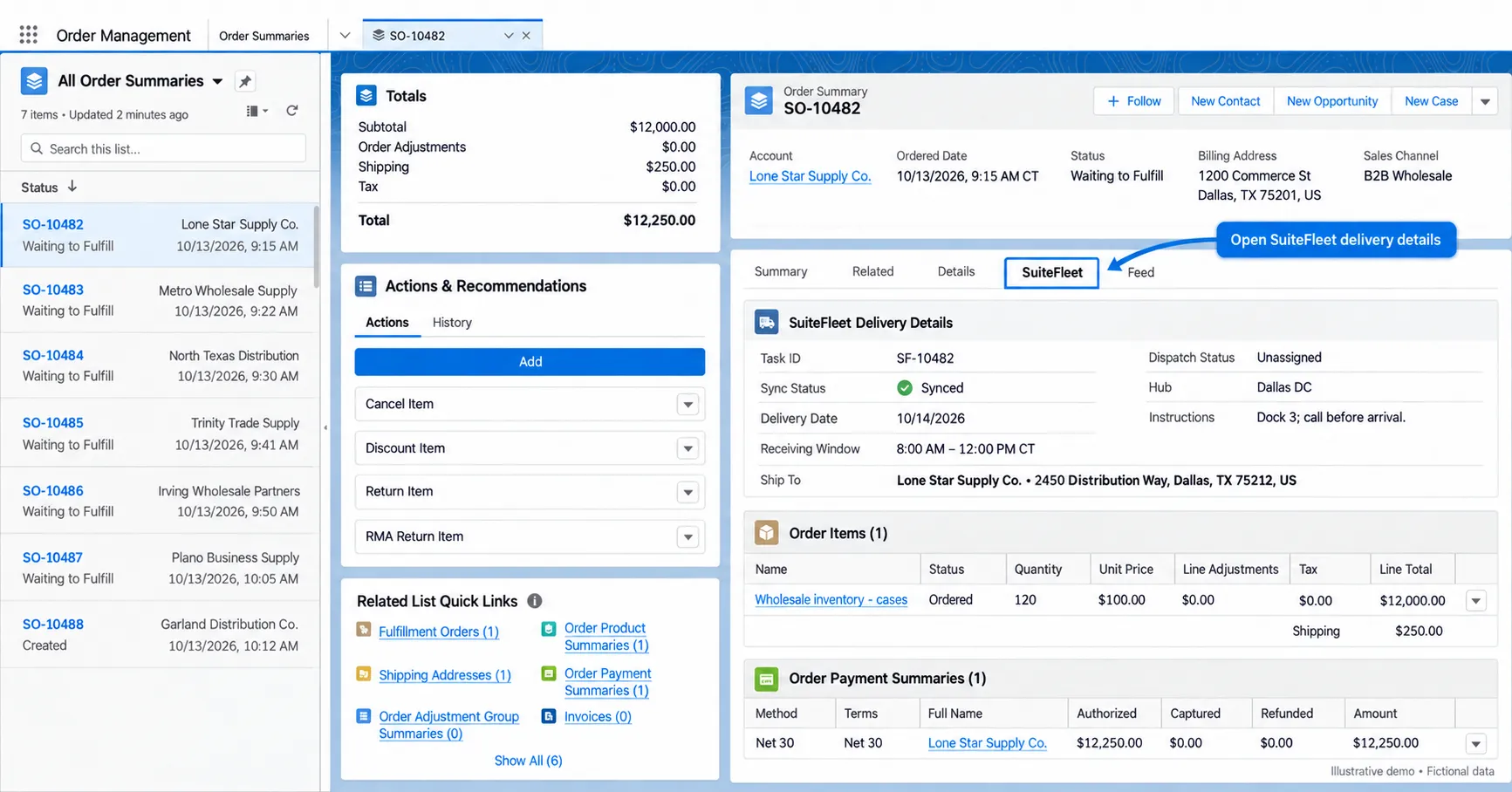
Persist the Salesforce record ID, shipment ID, and SuiteFleet task ID together. Route reassignment must retain this relationship. Use one task per shipment in this design, with separate task references for split deliveries.
| Salesforce input | Route-planning use |
|---|---|
| Shipping address and verified location | Position the delivery stop on the map. |
| Delivery date and receiving window | Set the planning day and customer time constraints. |
| Shipment and source line references | Preserve the order relationship through assignment and completion. |
| Delivery instructions | Provide access and handover details for execution. |
2. Select Salesforce delivery tasks on the map
Open Workbench and select the planning date. Use search, bulk search, and filters to isolate the relevant tasks. Toggle task, driver, hub, and geofence layers to review the operating area.
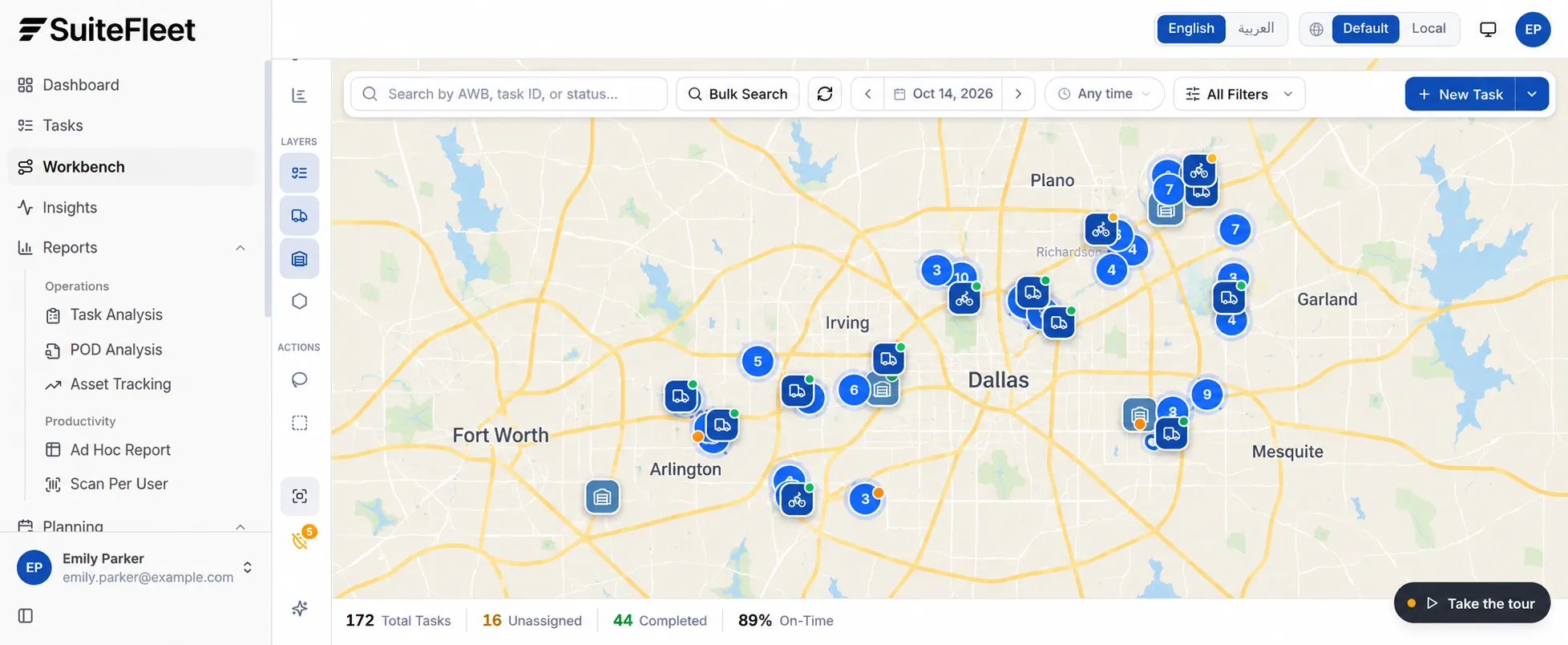
Use Lasso select, rectangle selection, or circle selection to define a geographic task group. In the optimizer, choose Selected Tasks for that group or All Visible Tasks for the current filtered view.
Resolve tasks without a map location before expecting them to appear in a route. Review the eligibility summary: the demo excludes completed and other non-routable statuses from the optimization run.
3. Configure the optimization run
Choose assignment and sequencing behavior
Plan & Optimize distributes eligible tasks across selected drivers and optimizes their routes. Optimize Existing Routes resequences tasks already assigned to a driver while keeping those assignments.
Check driver availability and limits
Select the enabled drivers and review each shift’s start and end time, available task limit, starting location, and return-to-depot setting. For the Dallas example, configure receiving windows in America/Chicago and display route distance in miles. Preserve time-zone information when exchanging timestamps with Salesforce. The demo exposes task-count capacity; configure any additional load constraints supported by your deployment separately.
Select the routing objective
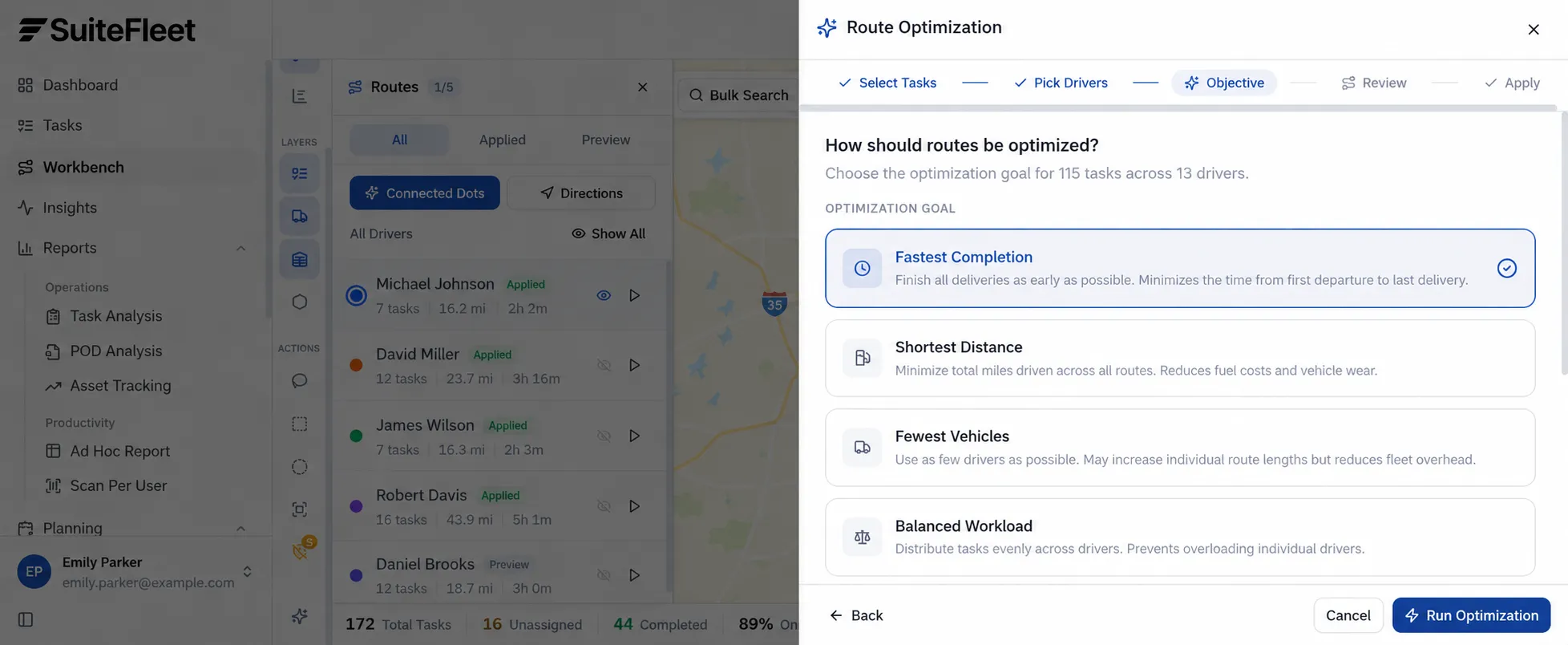
| Objective | Planning priority |
|---|---|
| Fastest Completion | Finish the overall delivery plan as early as possible. |
| Shortest Distance | Minimize total travel distance across routes. |
| Fewest Vehicles | Reduce the number of drivers used; individual routes may become longer. |
| Balanced Workload | Distribute tasks more evenly across drivers. |
Enable Respect Time Windows when customer receiving windows are mandatory. Set realistic Time Per Stop for parking, access, unloading, and handover. Keep Reassign Assigned Tasks off when existing driver assignments must remain fixed.
4. Review the proposed routes before applying
Run optimization and inspect total distance, completion time, vehicles used, and unassigned tasks. Expand a route to check its stop sequence, task references, ETAs, departure, and depot return.
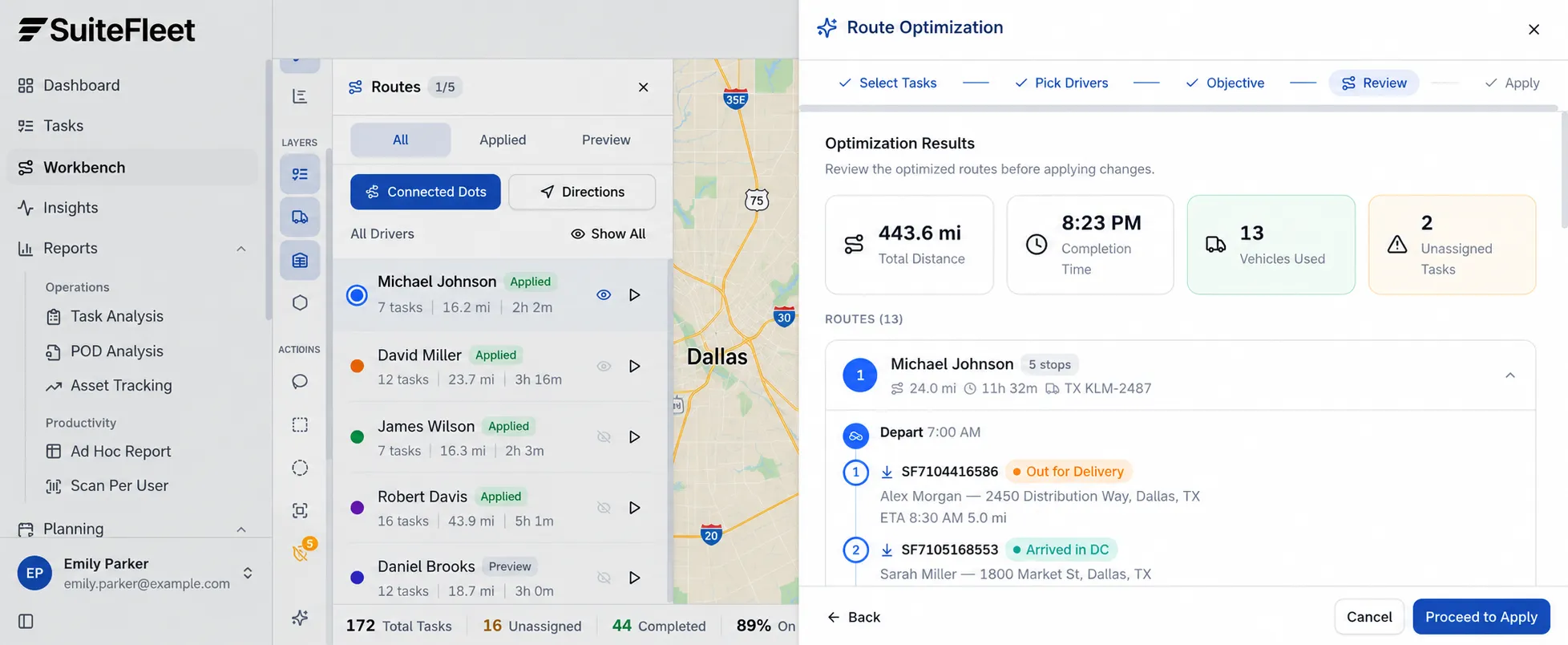
Investigate unassigned tasks individually. The source demo run leaves two tasks unassigned because they have no map location. Also compare proposed completion and return times with shift limits; a generated preview still needs an operational feasibility check.
Inspect routes on the map
Open the Routes panel to inspect individual drivers and distinguish Preview from Applied routes. Show or hide routes to reduce overlap. Use the numbered stops and route trace to review the sequence geographically.
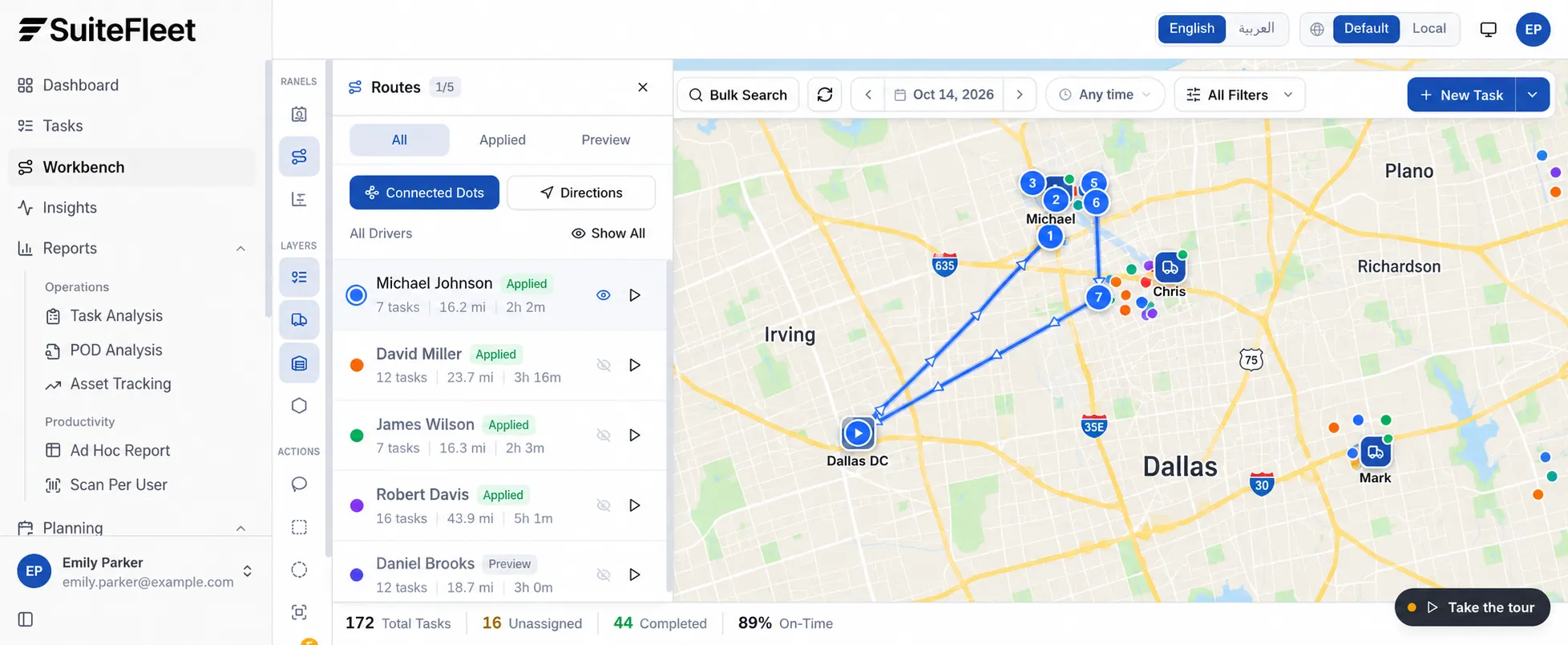
The panel offers Connected Dots and Directions. Connected Dots visualizes the sequence; it should not be read as a road-by-road navigation path. Review the appropriate route view before applying the plan.
5. Apply the plan and manage route changes
After review, proceed to the apply step and confirm the intended assignments and sequences. Keep the planning reference and task mappings with the accepted plan. Applying a route is distinct from confirming delivery.
For late orders or changed receiving windows, rerun the relevant task group. Decide explicitly whether existing assignments may change. Keep completed stops outside the new plan and review changes to work already in progress before dispatching updated instructions.
Route optimization FAQs
Can routes be optimized without changing drivers?
Yes. Optimize Existing Routes resequences tasks already assigned to a driver. Use Plan & Optimize when assignments also need to be planned.
Can planners optimize one area at a time?
Use Workbench filters and geographic selection, then optimize Selected Tasks. This limits the run to the chosen delivery group.
What happens to tasks without map locations?
They may remain unassigned. Correct the address or map location, then rerun the affected tasks.
Does optimization mark the Salesforce order delivered?
No. Route planning establishes assignments and sequences. Update delivery completion in Salesforce only after the corresponding execution result is received.
6. Return fulfillment details to Salesforce
Resolve execution results through the stored task-to-shipment mapping. Return delivery status, received quantities, and actual completion time to the configured Salesforce fields or delivery object.
If planned assignment or ETA fields are exposed by the connector, map them separately from actual completion fields. Do not mark an entire order delivered until every required shipment and quantity satisfies the org’s completion rules.
Deduplicate repeated results and retry failed Salesforce writes without recreating tasks. Trigger configured Salesforce Flows only after the required update succeeds.
Salesforce order after fulfillment
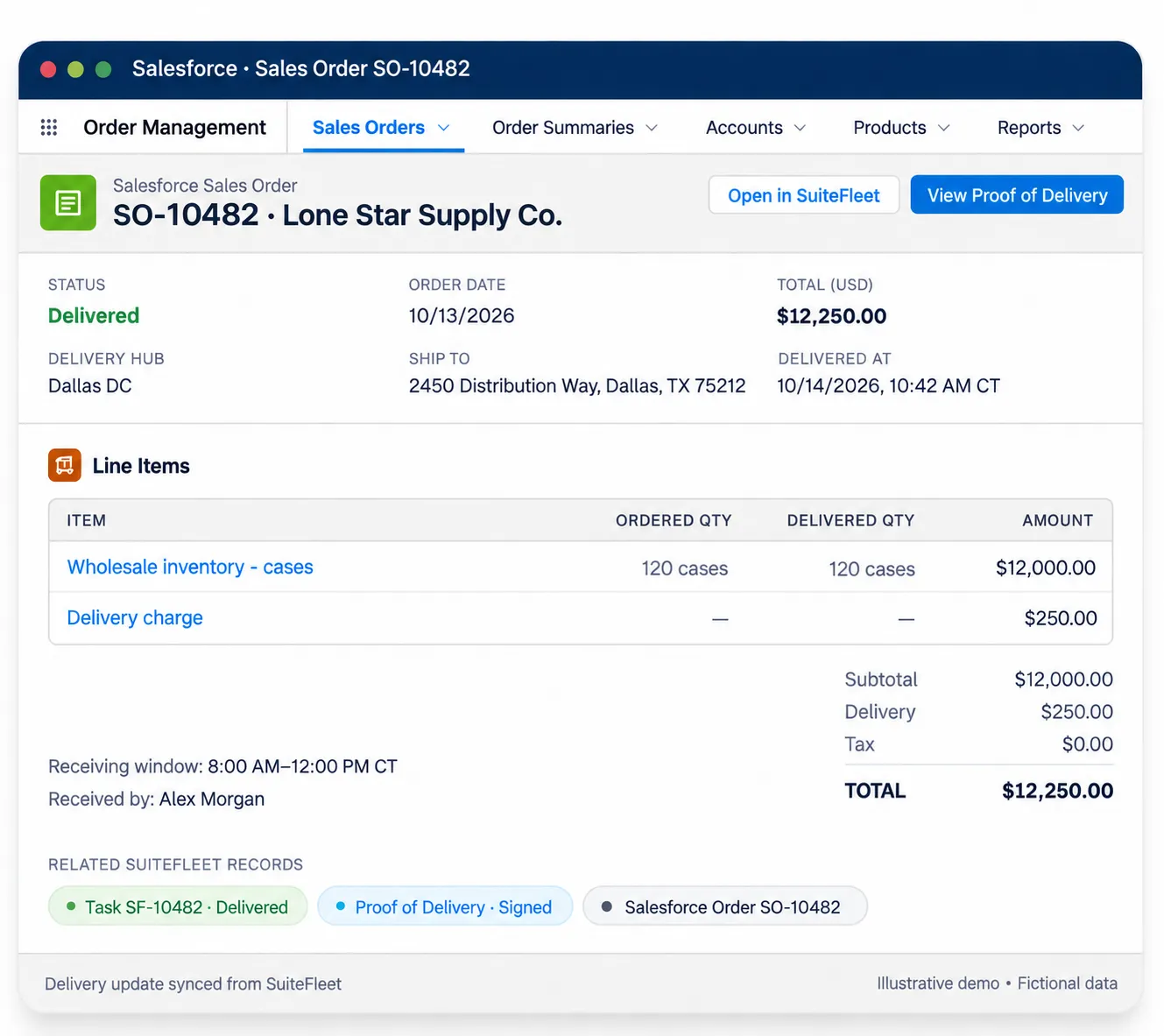
In this example, SO-10482 is updated after Alex Morgan receives all 120 cases on October 14, 2026, at 10:42 AM Central Daylight Time (CDT). The delivery record shows Delivered, the received quantity, recipient, and actual fulfillment time. Store the timestamp as 2026-10-14T15:42:00Z and display it in America/Chicago. Keep this actual completion time separate from the planned arrival time and synchronization time.


.png)

.jpeg)


.png)

.svg)







.svg)
.svg)
.svg)