.png)
.webp)


The Epic pharmacy–SuiteFleet workflow turns released work from approved pharmacy delivery requests into stops with a loading point, destination, and receiving window. Dispatchers review drivers, optimization objectives, and unassigned stops before applying a route. Actual completion is reconciled afterward using authorized request and parcel references.
Connector availability: SuiteFleet plans to seek a listing for its Epic connector in Epic Showroom, the vendor’s official partner or integration directory, subject to onboarding and approval.
1. Start with the Epic pharmacy delivery request
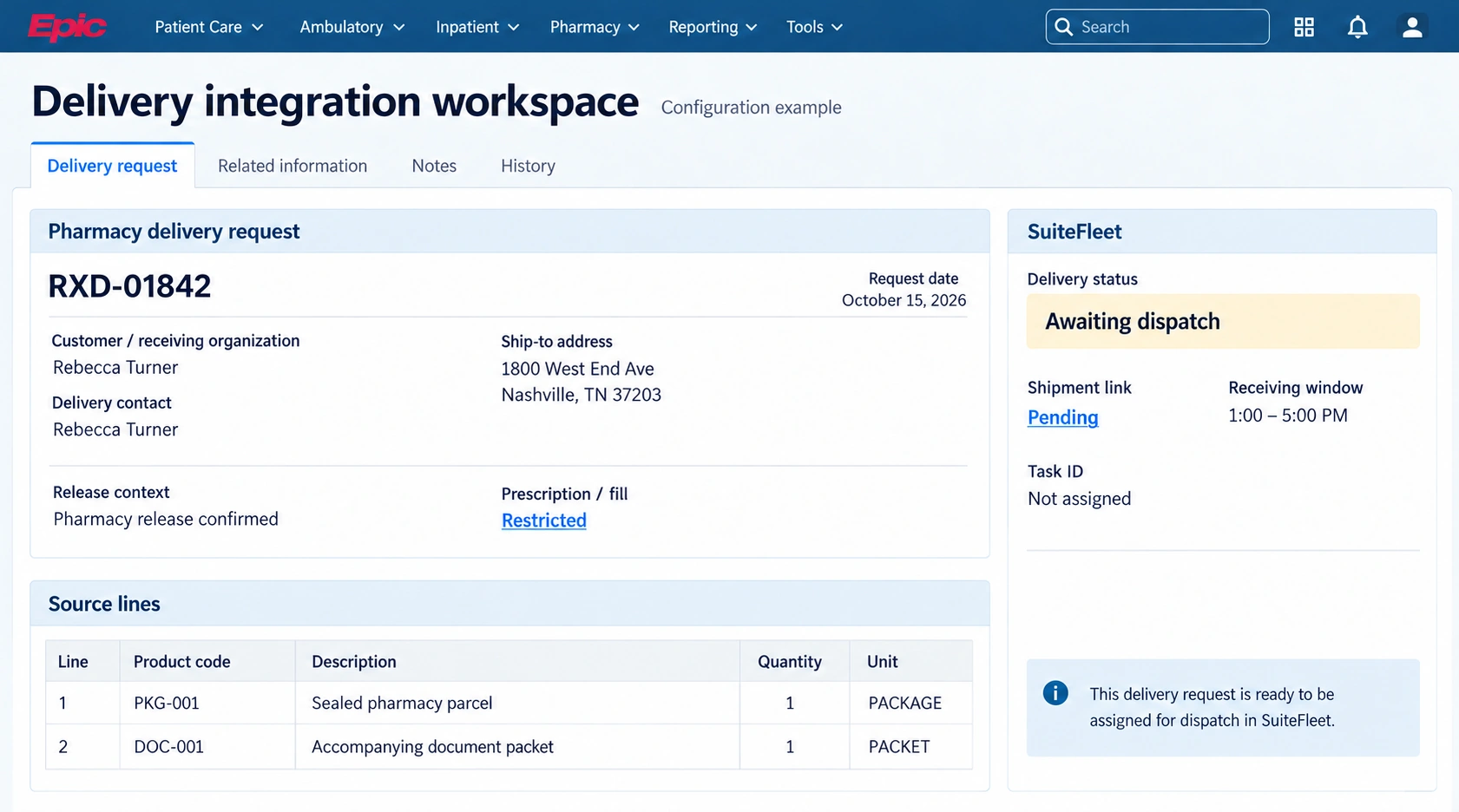
Open the pharmacy delivery request RXD-01842 for Rebecca Turner and inspect its delivery destination, line quantities, and configured SuiteFleet relationship. The example contains PKG-001 | Sealed pharmacy parcel | 1 PACKAGE and DOC-001 | Accompanying document packet | 1 PACKET.
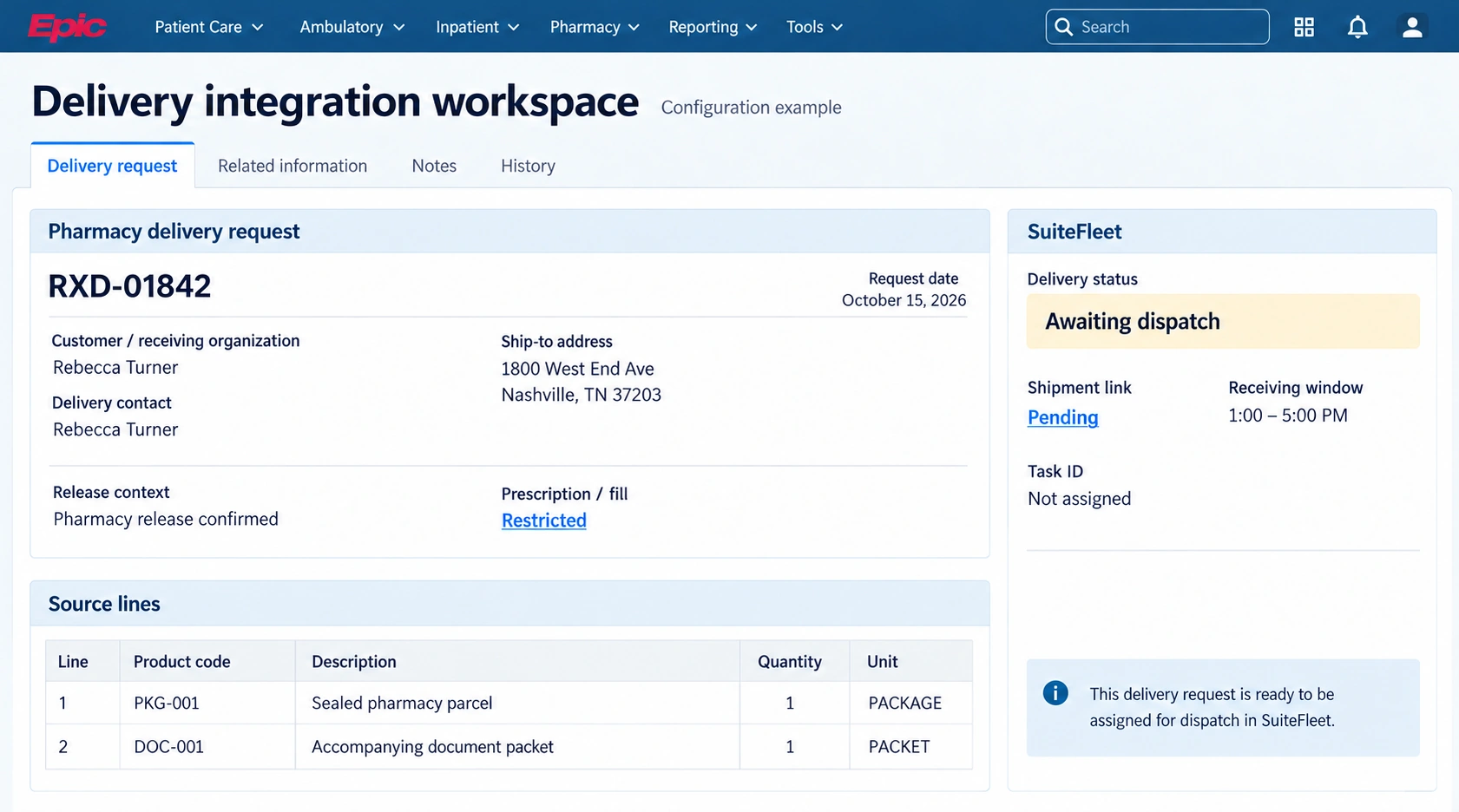
Start from a pharmacy-approved delivery request linked to the source prescription or dispense workflow. The pharmacy confirms release; SuiteFleet handles the transport allocation after that decision.
Epic prescription, dispense, and transport records serve different purposes. Keep the organization-approved delivery request as the dispatch boundary and preserve the source prescription and fill references without treating a transport update as a clinical action. Epic pharmacy interfaces.
2. Configure the planning mapping
Preserve this relationship before exporting delivery work:
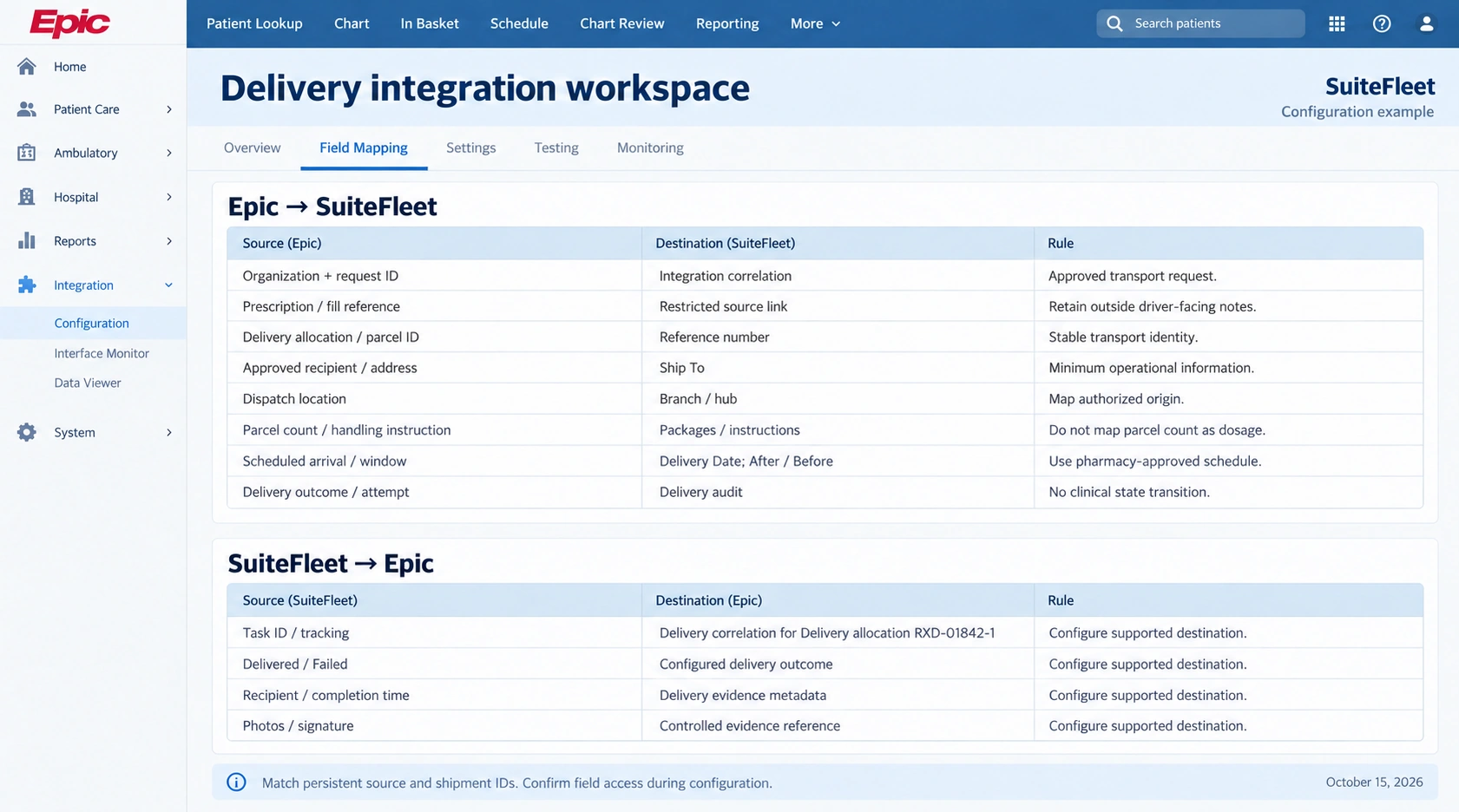
| Epic source | SuiteFleet destination | Rule |
|---|---|---|
| Organization + request ID | Integration correlation | Approved transport request. |
| Prescription / fill reference | Restricted source link | Retain outside driver-facing notes. |
| Delivery allocation / parcel ID | Reference number | Stable transport identity. |
| Approved recipient / address | Ship To | Minimum operational information. |
| Dispatch location | Branch / hub | Map authorized origin. |
| Parcel count / handling instruction | Packages / instructions | Do not map parcel count as dosage. |
| Scheduled arrival / window | Delivery Date; After / Before | Use pharmacy-approved schedule. |
| Delivery outcome / attempt | Delivery audit | No clinical state transition. |
| SuiteFleet result | Epic destination | Writeback rule |
|---|---|---|
| Task ID / tracking | Delivery correlation for Delivery allocation RXD-01842-1 | Confirm field access during configuration. |
| Delivered / Failed | Configured delivery outcome | Confirm field access during configuration. |
| Recipient / completion time | Delivery evidence metadata | Confirm field access during configuration. |
| Photos / signature | Controlled evidence reference | Confirm field access during configuration. |
Route from the dispensing or dispatch location to the approved destination, respecting appointment and handling requirements supplied by the pharmacy. The shared map is a separate Dallas planning example.
3. Select eligible stops and available drivers
Open Workbench for the intended date and filters. Inspect task, driver, and hub layers; resolve tasks without a location before optimization. Use geographic selection to choose the intended area, then confirm the selected task set contains only released work.
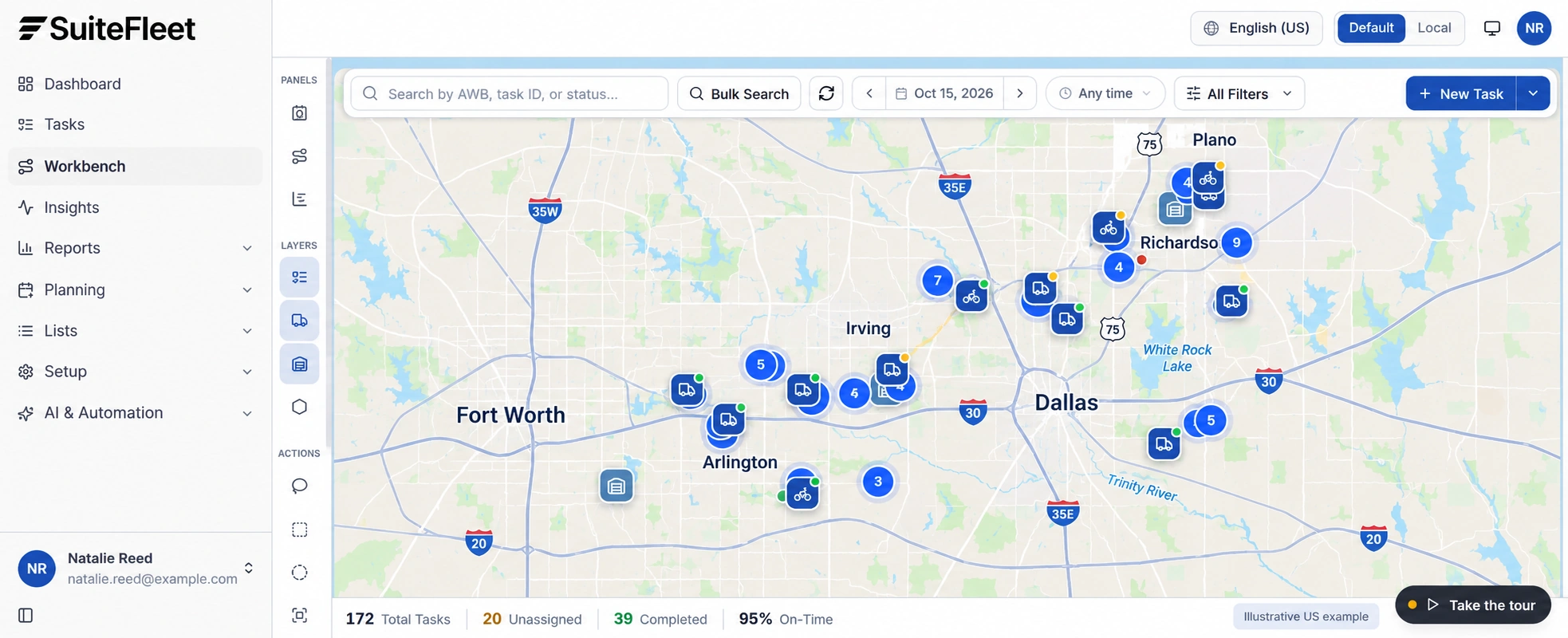
Choose Plan & Optimize when assigning eligible tasks across drivers, or Optimize Existing Routes when retaining assignments and improving stop sequence. Review enabled drivers, shift windows, departure hubs, and the displayed task-capacity limits. Do not assume those limits represent weight or volume.
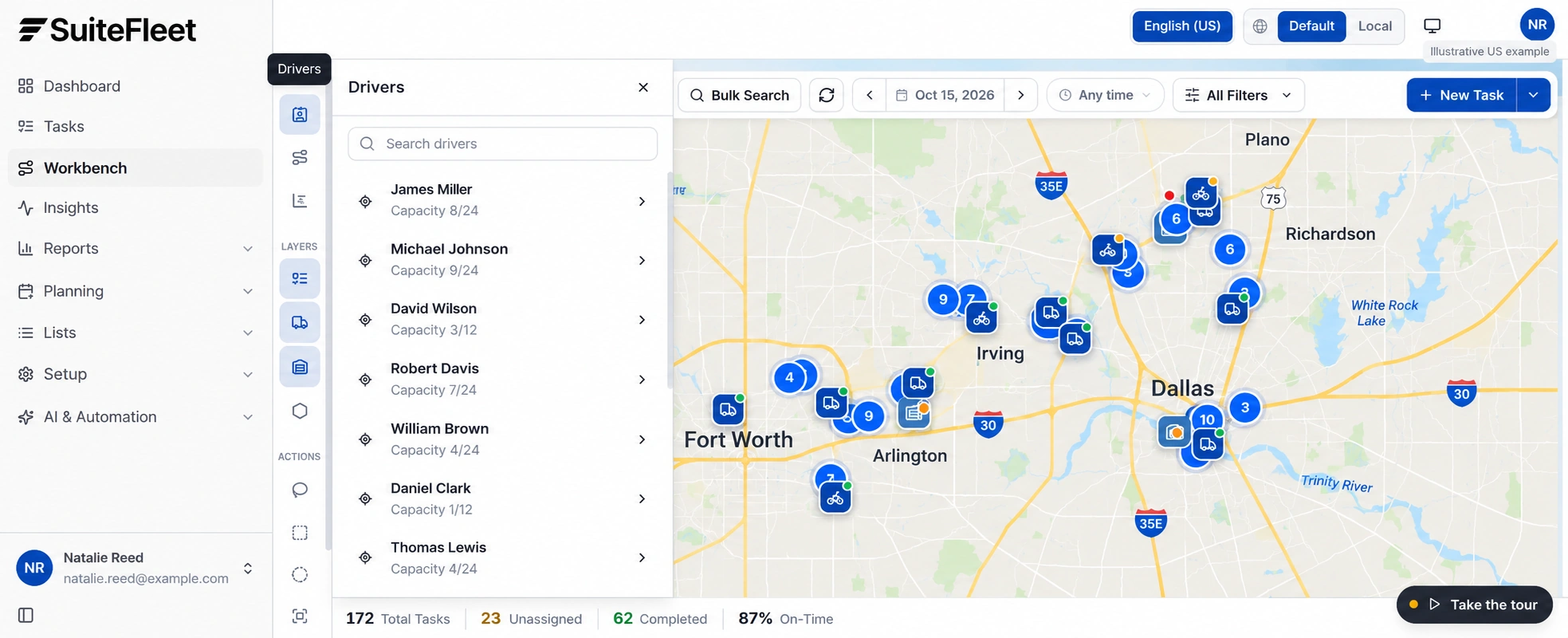
Epic prescription, dispense, and transport records serve different purposes. Keep the organization-approved delivery request as the dispatch boundary and preserve the source prescription and fill references without treating a transport update as a clinical action.
4. Review objectives, constraints, and results
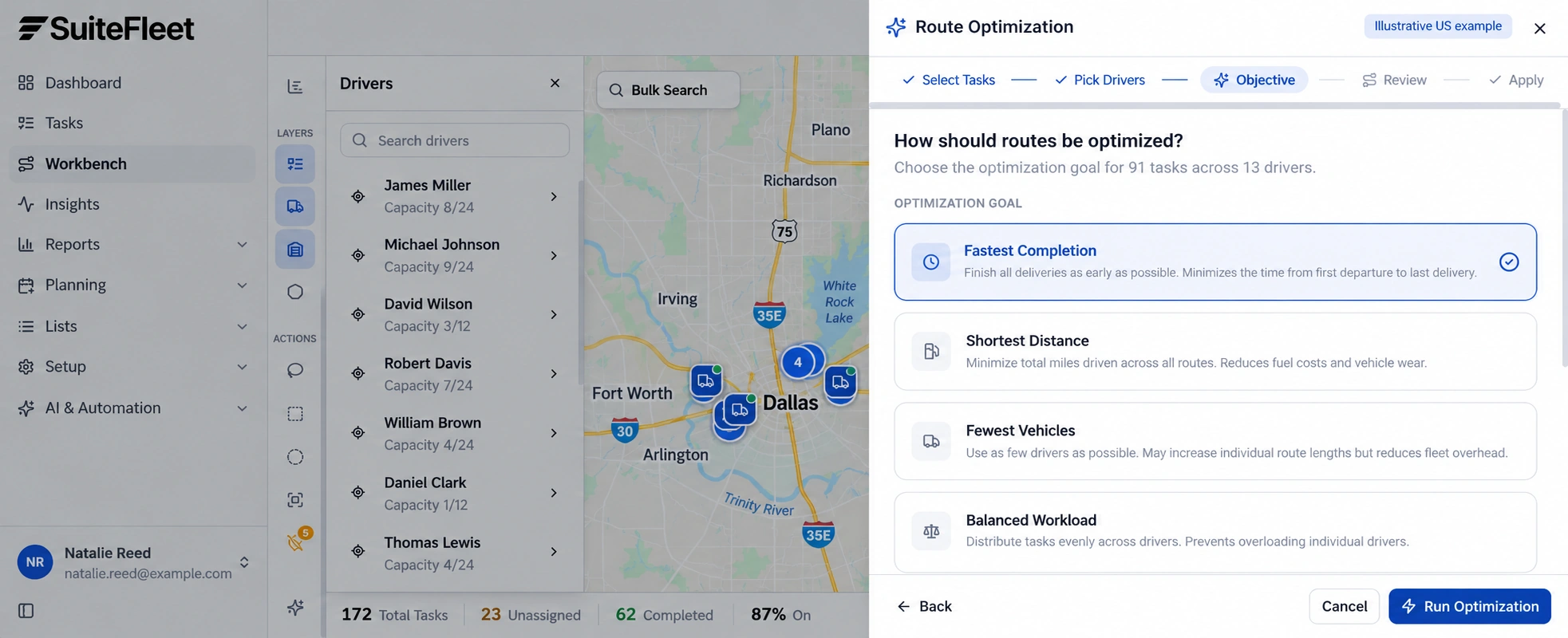
Choose the supported objective: Fastest Completion, Shortest Distance, Fewest Vehicles, or Balanced Workload. Review Respect Time Windows, Reassign Assigned Tasks, and Time Per Stop before running the preview. Select the objective that matches the dispatch plan and confirm which routing constraints are enabled.
Inspect the returned driver assignments, stop sequence, projected completion, and every unassigned task. Check stop times against driver shifts as well as recipient windows; confirm that the proposed schedule is feasible. Missing locations and conflicting requirements need explicit resolution.
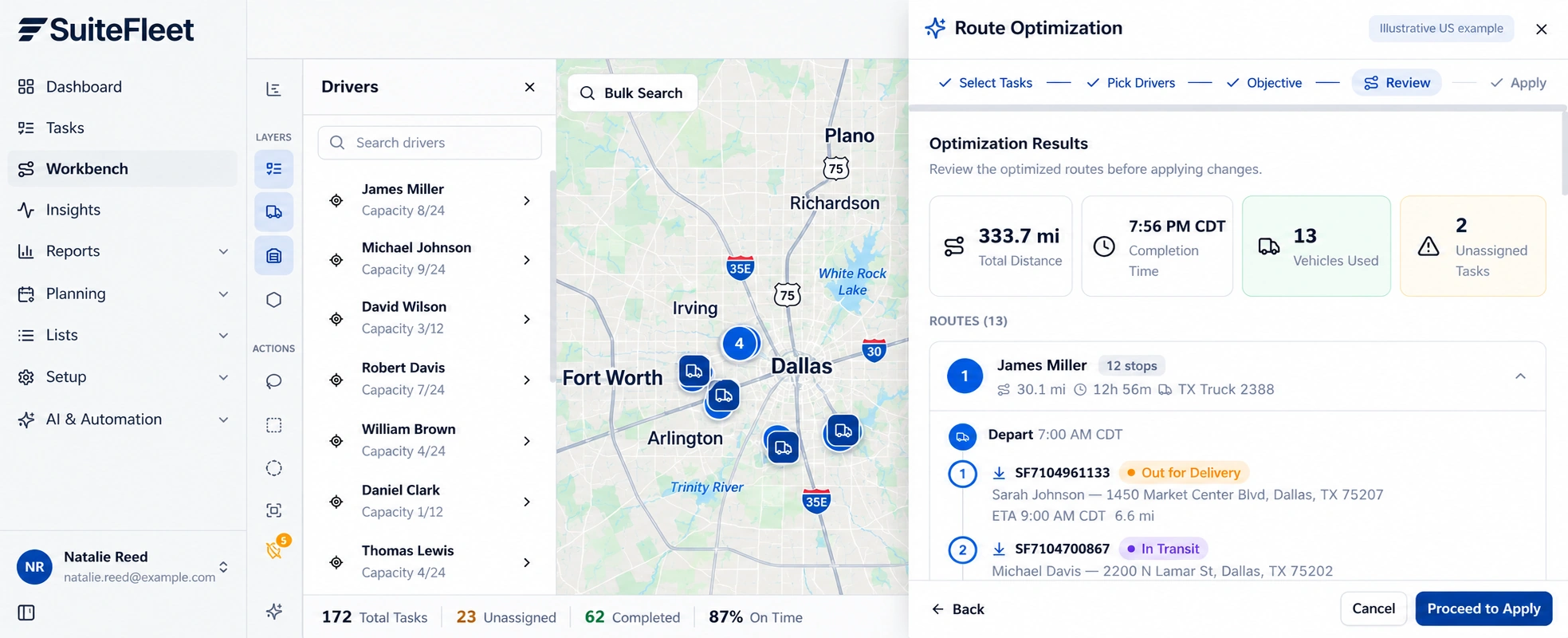
Review the Dallas–Fort Worth planning example, with distances in miles and local receiving times. Dispatchers should check stop sequence, road access, and unresolved work before applying a plan.
5. Execute the route and process actual outcomes
Keep assignment and planned arrival separate from recipient delivery. Monitor failed, rescheduled, and completed stops during execution. A route application must not post inventory, close an order, or trigger billing by itself.
A redelivery attempt must retain the same authorized parcel relationship and pharmacy-controlled instructions. A failed stop must not create a new prescription, refill, or dispense action.
After a stop completes, match its task ID to the source shipment, review required proof, and reconcile accepted quantities. Record actual event time and a separate sync outcome. If the source changes after planning, compare the change with the dispatched allocation before overwriting operational data.
6. Verify the result in Epic
Return recipient and delivery evidence to the approved delivery extension or document destination. Do not change medication-order, dispense, administration, or clinical completion states from a driver event. Epic pharmacy interfaces.
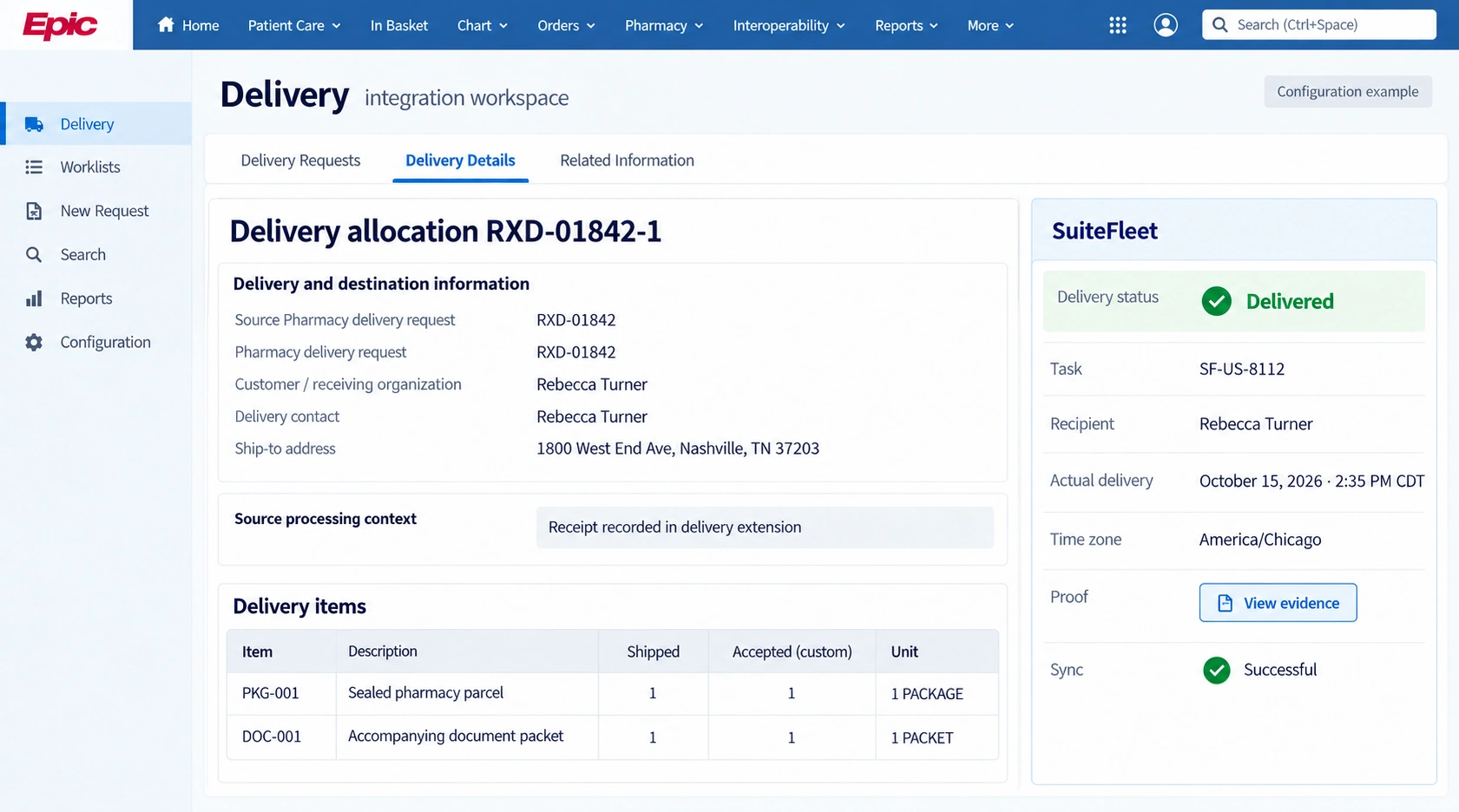
Delivery allocation RXD-01842-1; task SF-US-8112; recipient Rebecca Turner; actual handover October 15, 2026 · 2:35 PM CDT (America/Chicago). First line: 1 shipped and accepted. Second line: 1 shipped and accepted, in the units shown.
Read back the linked record and review every outstanding allocation before reporting the full delivery requirement complete. Test partial shipment, partial acceptance, failed delivery, duplicate completion, and delayed writeback. Keep inventory posting, receipt evidence, and payment reconciliation under their respective configured rules.
Frequently asked questions
Which Epic pharmacy details are needed for route planning?
Route from the dispensing or dispatch location to the approved destination, respecting appointment and handling requirements supplied by the pharmacy. The shared map is a separate Dallas planning example.
How are partial deliveries handled for Epic pharmacy?
A redelivery attempt must retain the same authorized parcel relationship and pharmacy-controlled instructions. A failed stop must not create a new prescription, refill, or dispense action.



.jpeg)


.png)

.svg)





.svg)


.svg)
.svg)
.svg)