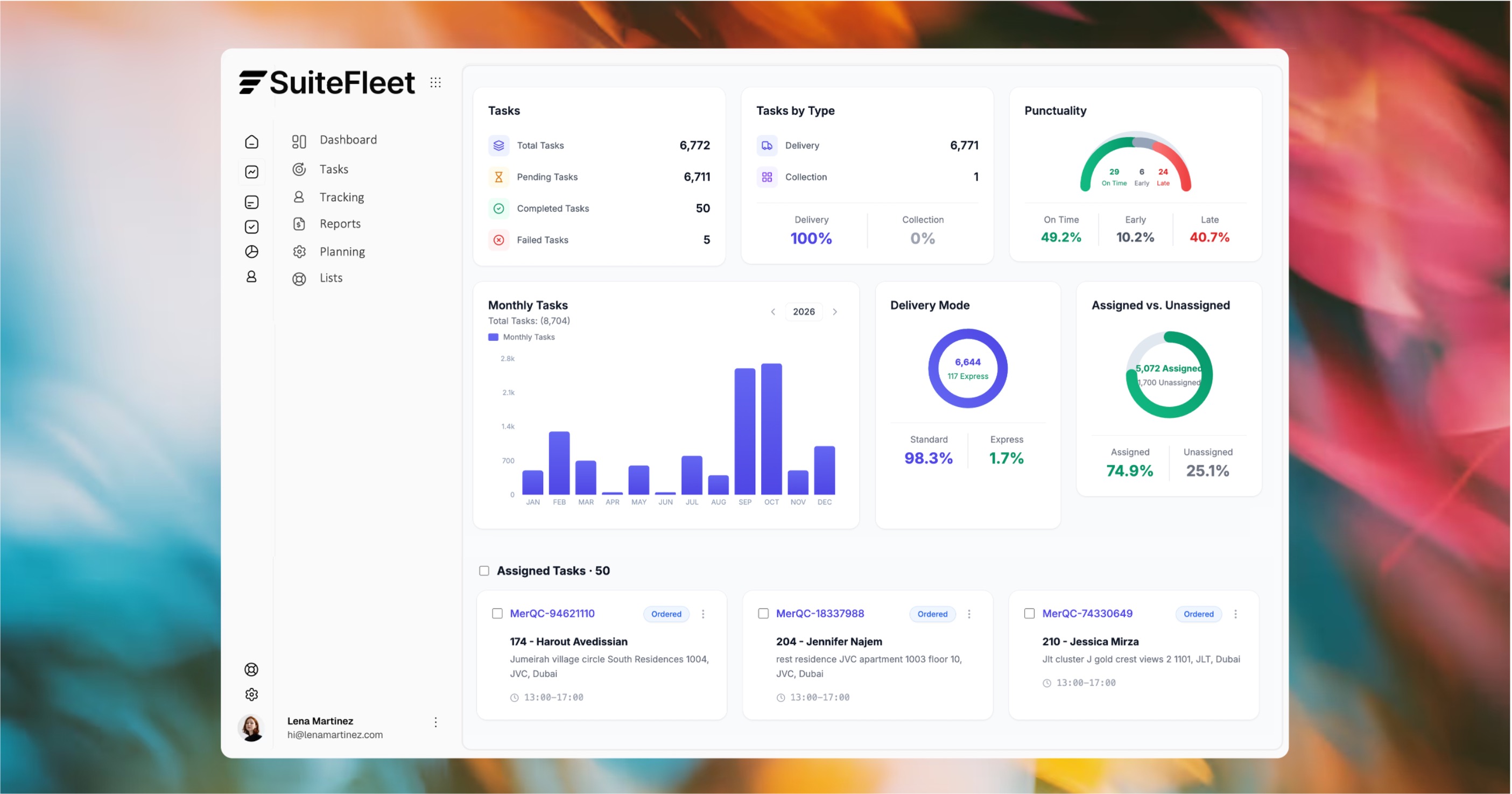
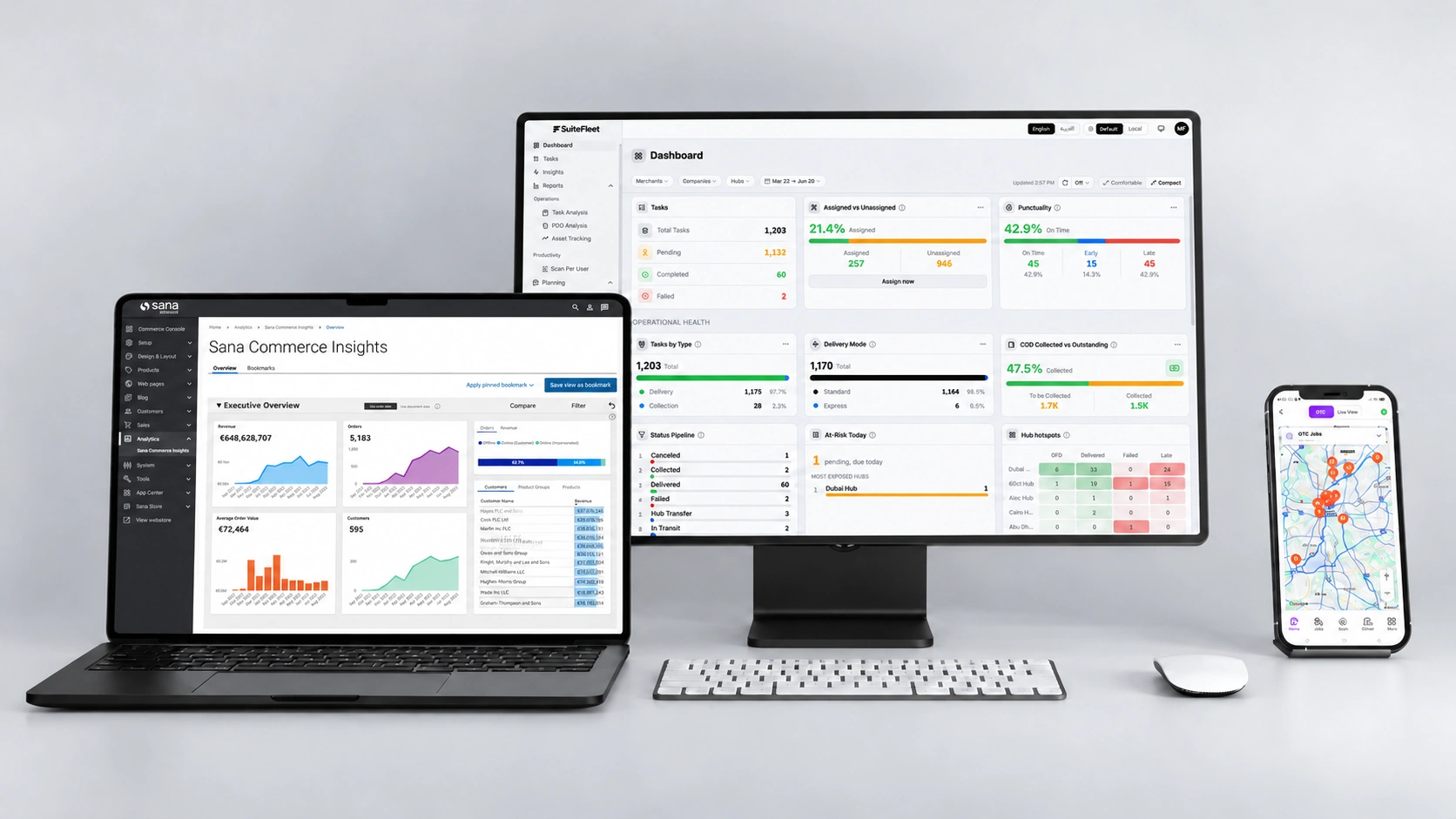



The Sana Commerce–SuiteFleet integration links webstore orders and ERP-owned shipments to delivery tasks. Dispatchers review destinations, assign drivers, and follow delivery attempts in SuiteFleet. Each result returns through the configured connection to the matching source record, preserving ERP shipment lines and webstore references and any outstanding quantities.
Connector availability: SuiteFleet plans to publish its Sana Commerce connector on Sana App Center, subject to the marketplace review and release process.
1. Start with the Sana Commerce webstore order
Open the webstore order WEB-01842 for Cedar Building Products and inspect its delivery destination, line quantities, and configured SuiteFleet relationship. The example contains BLD-100 | Door hardware kit | 4 EA and BLD-200 | Cabinet hinge | 6 EA.
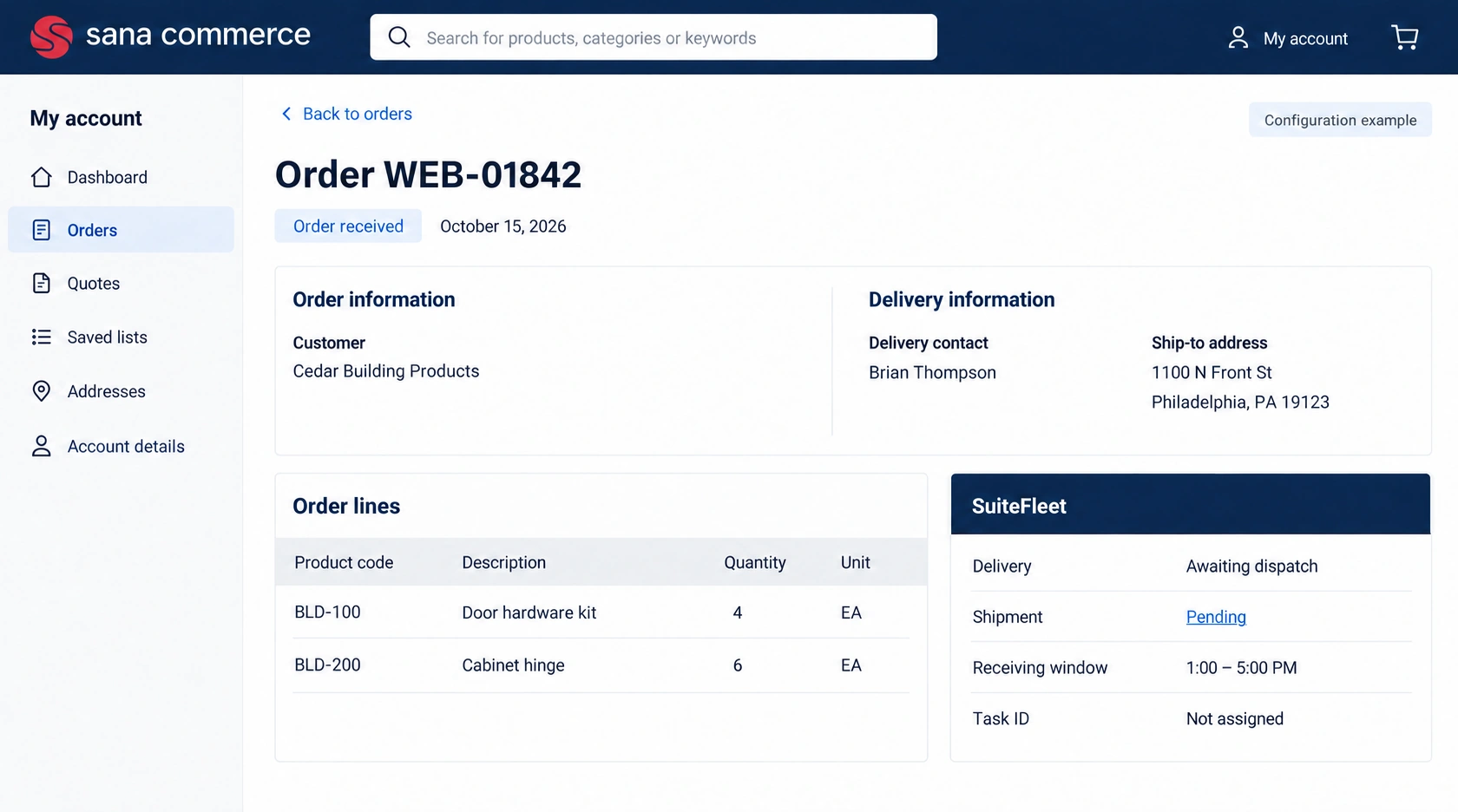
Open the webstore order and identify the corresponding ERP sales document. Confirm ERP release, shipment quantities, and shipping destination before exporting the delivery allocation.
Sana displays order and shipment information from the connected ERP. Shipment creation remains an ERP responsibility; avoid creating a second operational order merely to populate the webstore. Sana sales documents.
2. Configure the field mapping
Preserve this relationship before exporting delivery work:
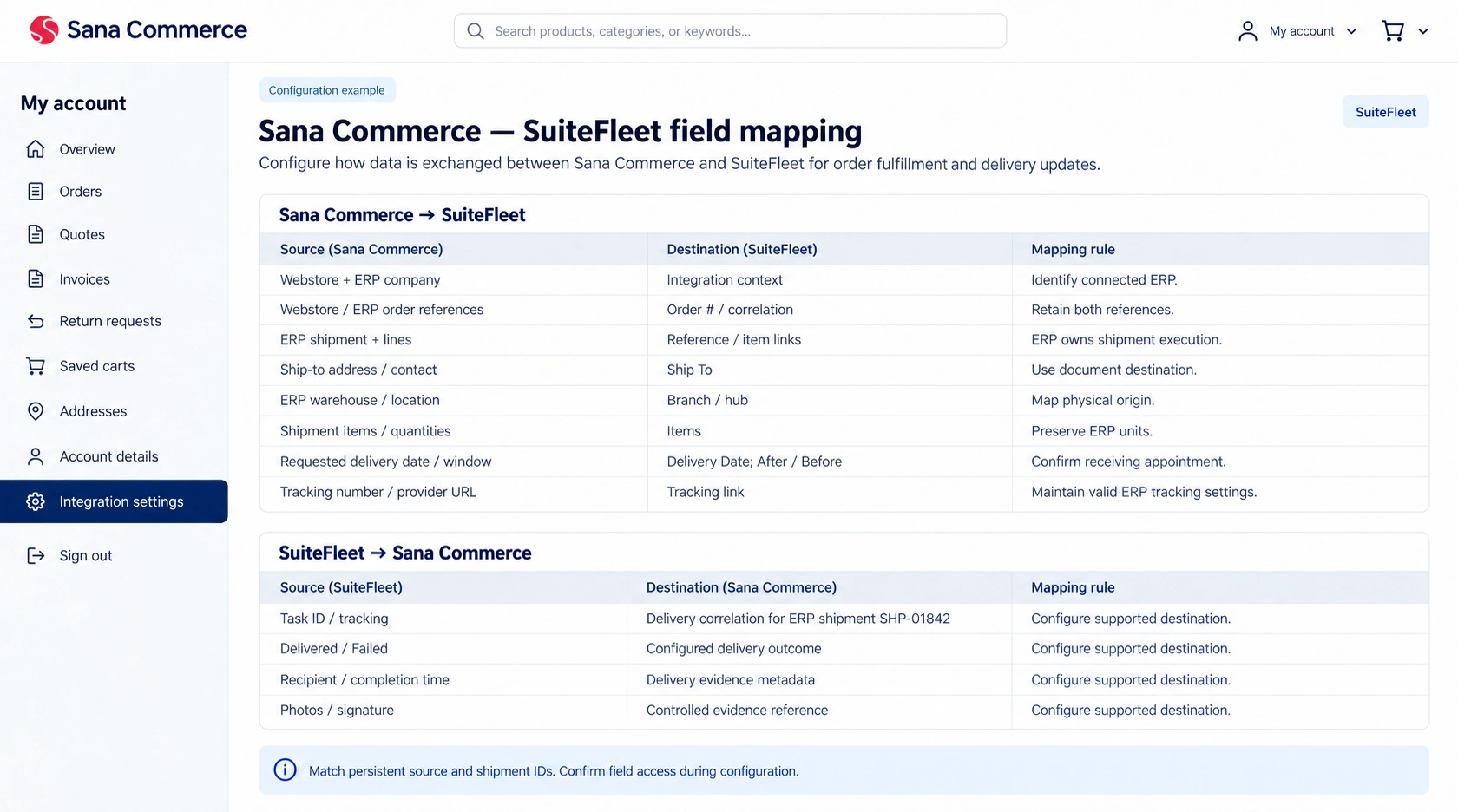
| Sana Commerce source | SuiteFleet destination | Rule |
|---|---|---|
| Webstore + ERP company | Integration context | Identify connected ERP. |
| Webstore / ERP order references | Order # / correlation | Retain both references. |
| ERP shipment + lines | Reference / item links | ERP owns shipment execution. |
| Ship-to address / contact | Ship To | Use document destination. |
| ERP warehouse / location | Branch / hub | Map physical origin. |
| Shipment items / quantities | Items | Preserve ERP units. |
| Requested delivery date / window | Delivery Date; After / Before | Confirm receiving appointment. |
| Tracking number / provider URL | Tracking link | Maintain valid ERP tracking settings. |
| SuiteFleet result | Sana Commerce destination | Writeback rule |
|---|---|---|
| Task ID / tracking | Delivery correlation for ERP shipment SHP-01842 | Confirm field access during configuration. |
| Delivered / Failed | Configured delivery outcome | Confirm field access during configuration. |
| Recipient / completion time | Delivery evidence metadata | Confirm field access during configuration. |
| Photos / signature | Controlled evidence reference | Confirm field access during configuration. |
Confirm the connected ERP, supported document types, shipping-method mapping, and tracking URL configuration. Sana’s displayed shipment fields depend on that ERP connection. Sana shipment details.
3. Create and verify the SuiteFleet task
Send only the released shipment allocation through the configured interface. Store the returned task ID before reporting successful export. If the request times out, check for an existing task under the persistent shipment key before retrying creation.
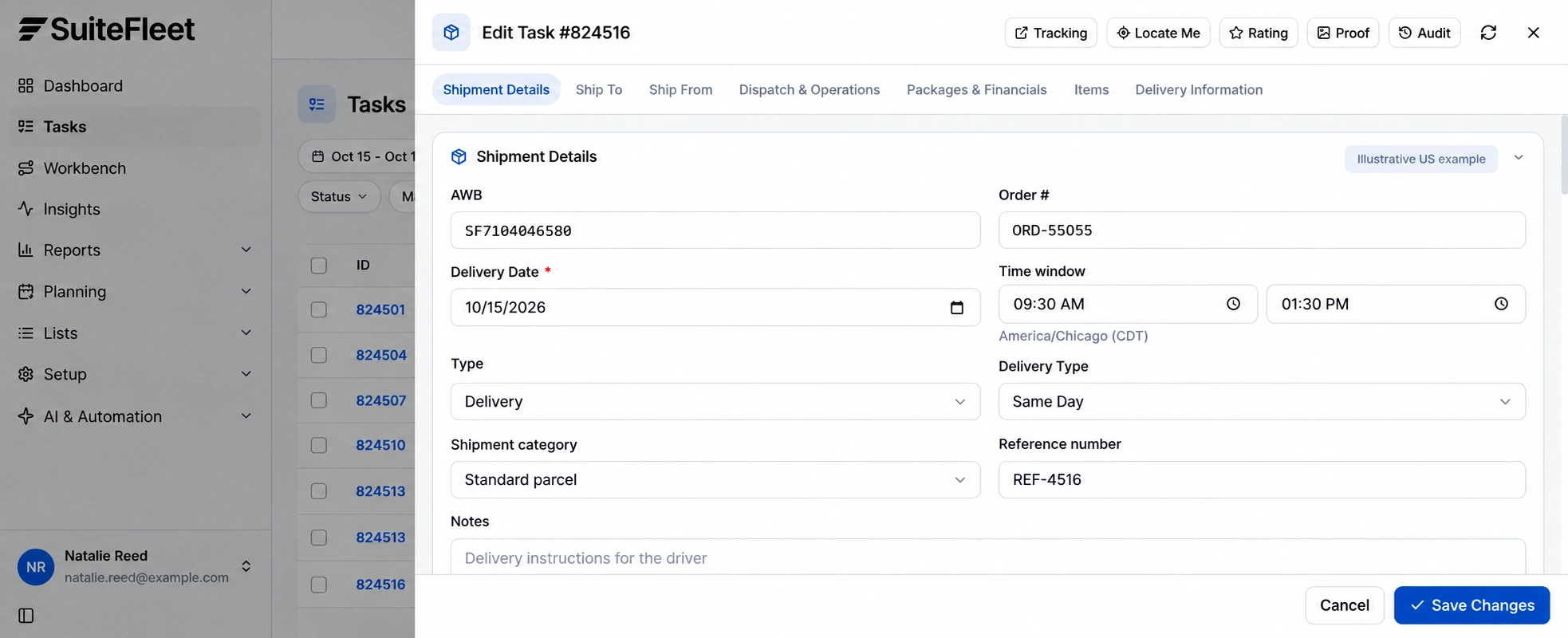
Compare Ship To, Items, delivery date, receiving window, and instructions with ERP shipment SHP-01842. Preserve item units independently from package count. A package quantity of one can contain several product units; neither value should silently replace the other.
Treat unmapped origins, missing contacts, and invalid addresses as actionable exceptions. Record the failing record key and field so the responsible user can correct the source and retry without re-entering the entire order.
4. Dispatch and manage exceptions
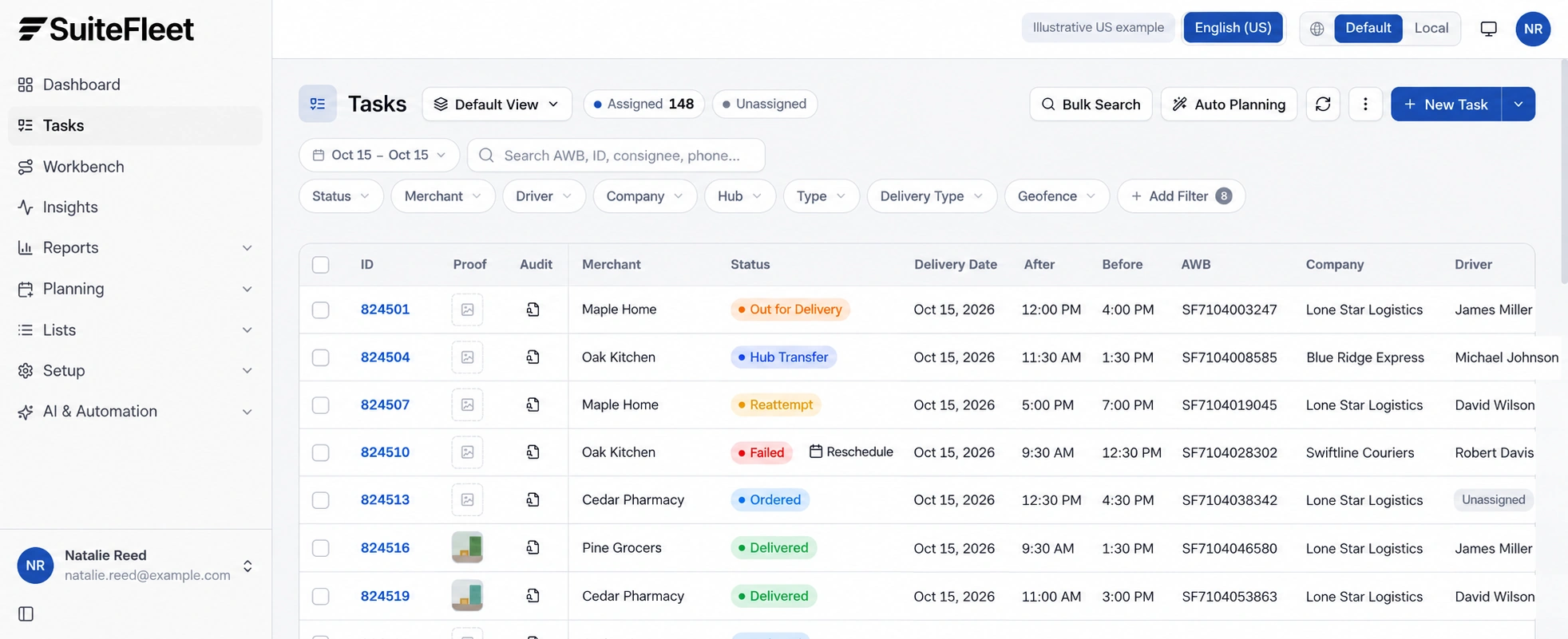
Use Tasks to filter operational work and open Dispatch & Operations to review Company, Driver, and Hub. Agree whether the connector or dispatcher owns each field; order updates should not silently overwrite an active driver assignment.
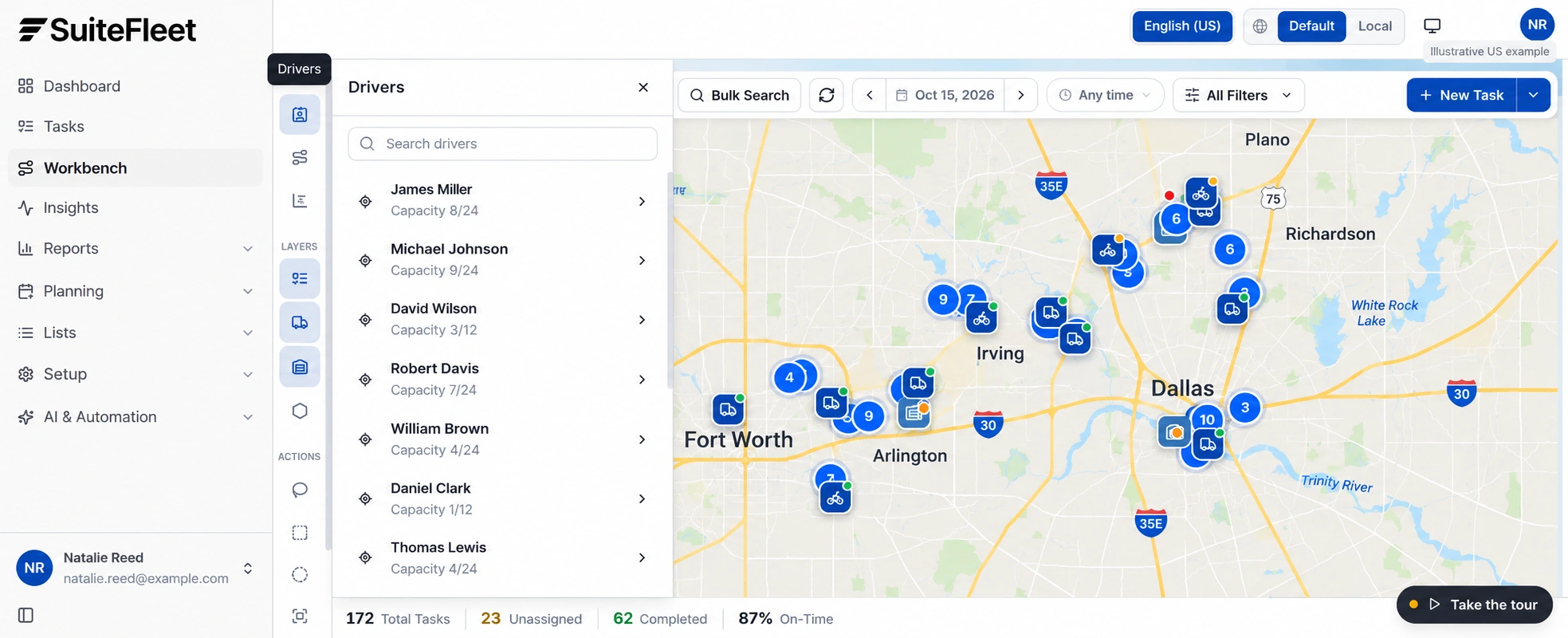
Workbench adds a geographic view of tasks and drivers. Inspect unresolved locations before dispatch and confirm that the driver can meet the receiving window. Keep route planning subordinate to actual release eligibility and warehouse readiness.
An order may have several ERP shipments. Expose each tracking reference and remaining quantity accurately instead of presenting the first delivered shipment as the full order.
For a failed or rescheduled stop, retain the attempt, reason, and original shipment relationship. Decide whether the next action is redelivery, return handling, address correction, or customer contact before creating more work.
5. Review delivery before writeback
On completion, match the result to the stored task and shipment identifiers. Review recipient and required proof, then reconcile accepted quantities at source-line level. Route missing or contradictory evidence for review instead of deriving acceptance from Delivered alone.
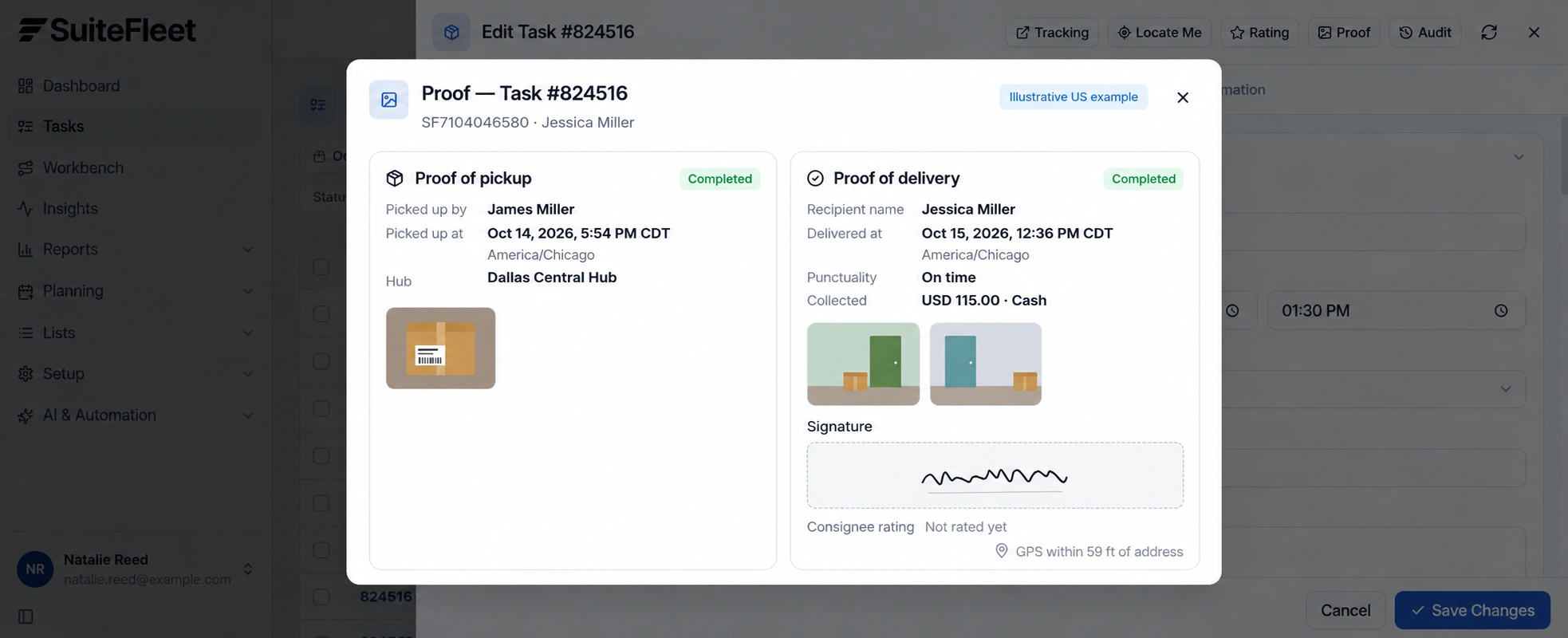
Deduplicate repeated completion messages and preserve event order. Store actual completion time separately from sync time; a later retry must not make an old delivery look newly completed. Keep delivery success and writeback success as distinct audit outcomes.
6. Verify the result in Sana Commerce
Return tracking and delivery evidence through the supported ERP integration, then verify the customer’s shipment view. Keep the ERP shipment number and tracking reference consistent across both views. Sana sales documents.
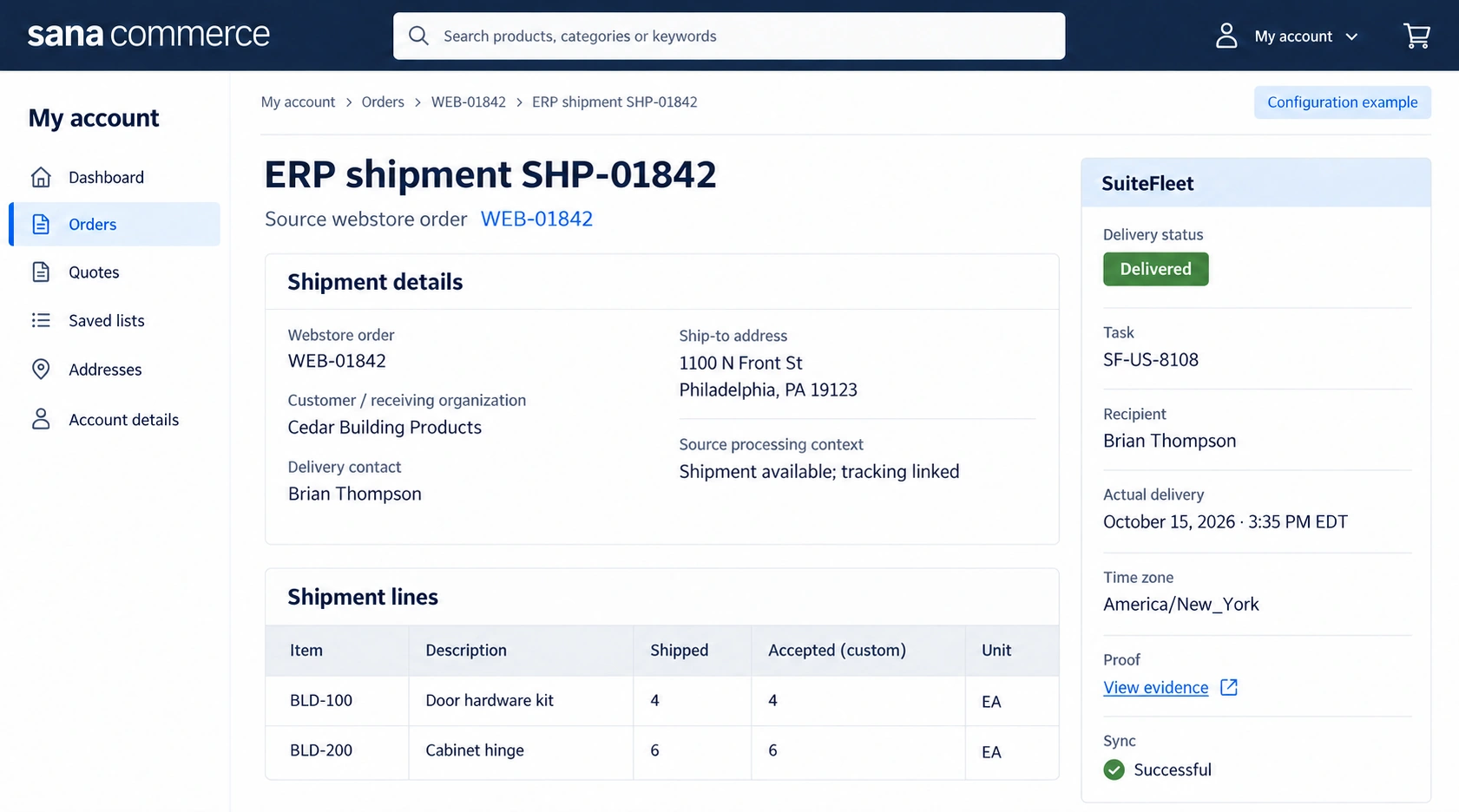
ERP shipment SHP-01842; task SF-US-8108; recipient Brian Thompson; actual handover October 15, 2026 · 3:35 PM EDT (America/New_York). First line: 4 shipped and accepted. Second line: 6 shipped and accepted, in the units shown.
Read back the linked record and review every outstanding allocation before reporting the full delivery requirement complete. Test partial shipment, partial acceptance, failed delivery, duplicate completion, and delayed writeback. Keep inventory posting, receipt evidence, and payment reconciliation under their respective configured rules.
Frequently asked questions
Which Sana Commerce records should link to SuiteFleet?
Sana displays order and shipment information from the connected ERP. Shipment creation remains an ERP responsibility; avoid creating a second operational order merely to populate the webstore.
How should delivery completion update Sana Commerce?
Return tracking and delivery evidence through the supported ERP integration, then verify the customer’s shipment view. Keep the ERP shipment number and tracking reference consistent across both views.