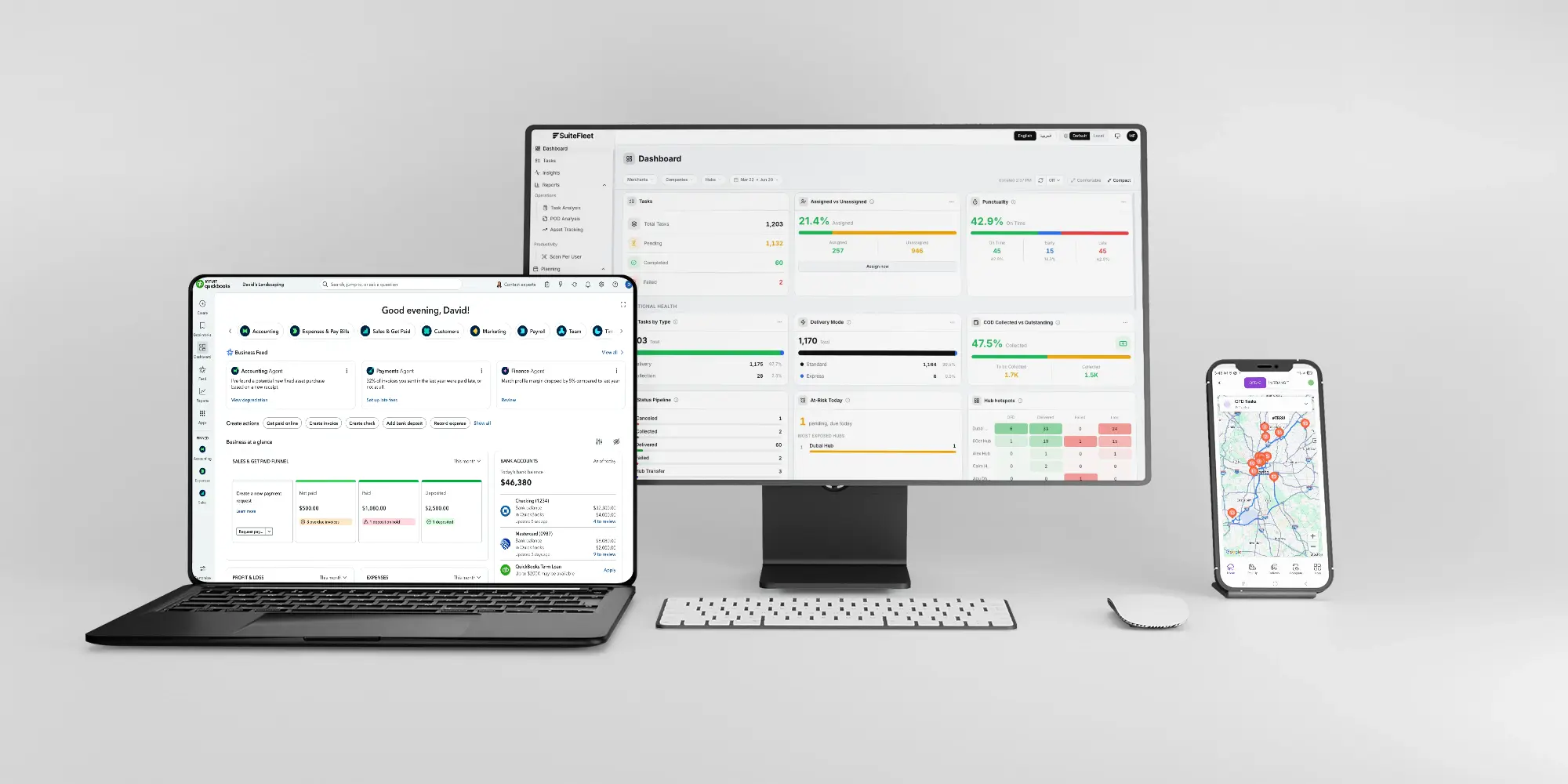
.webp)


For QuickBooks Online, proof of delivery means matching the recipient, handover time, photographs, and signature to supported sales orders and connector shipment allocations. The SuiteFleet connection retains released product lines so the team can reconcile accepted quantities and exceptions. Capturing proof and successfully updating the source record are separate checks.
Connector availability: SuiteFleet plans to publish its QuickBooks Online connector on QuickBooks App Store, subject to the marketplace review and release process.
1. Start with the QuickBooks Online order
Open the source order SO-2086 for Oak & Pine Home Goods and inspect its delivery destination, line quantities, and configured SuiteFleet relationship. The example contains two lines with quantities 4 and 6 in the units shown.
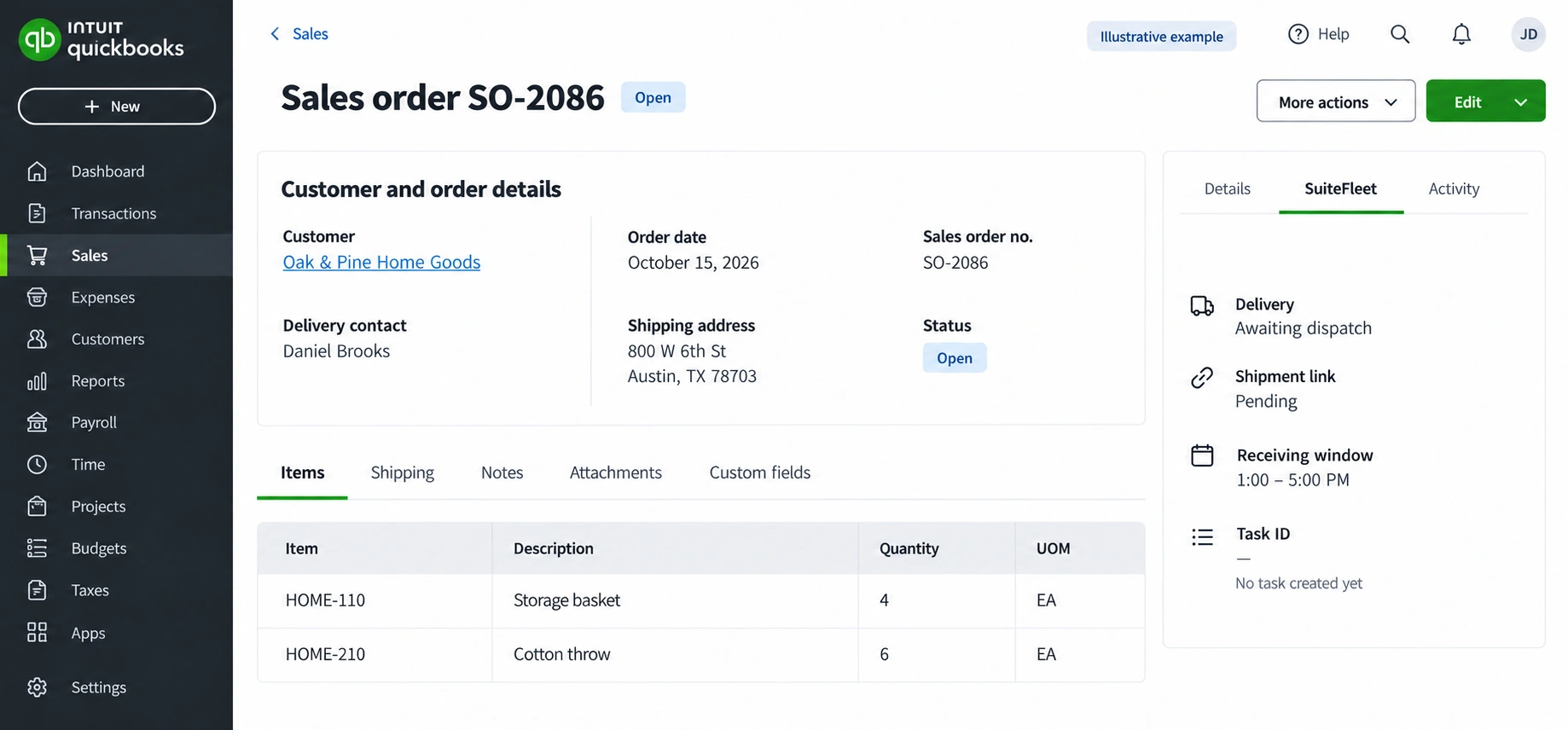
Confirm the US company has Sales Orders enabled in a supported plan and that its products are inventory items. Review the customer, shipping address, quantities, and readiness before releasing a shipment allocation. Use the QuickBooks Online sales-order workflow for the selected company and subscription.
Intuit’s current help documents sales orders in QuickBooks Online Plus and Advanced. This UI capability does not prove that every connector or public Accounting API exposes the same sales-order operations. Validate read, update, shipping, and attachment support before promising automated round-trip sync; use an explicit connector-side shipment allocation when needed. Intuit: create and manage sales orders.
2. Configure the evidence mapping
Preserve this relationship before exporting delivery work:
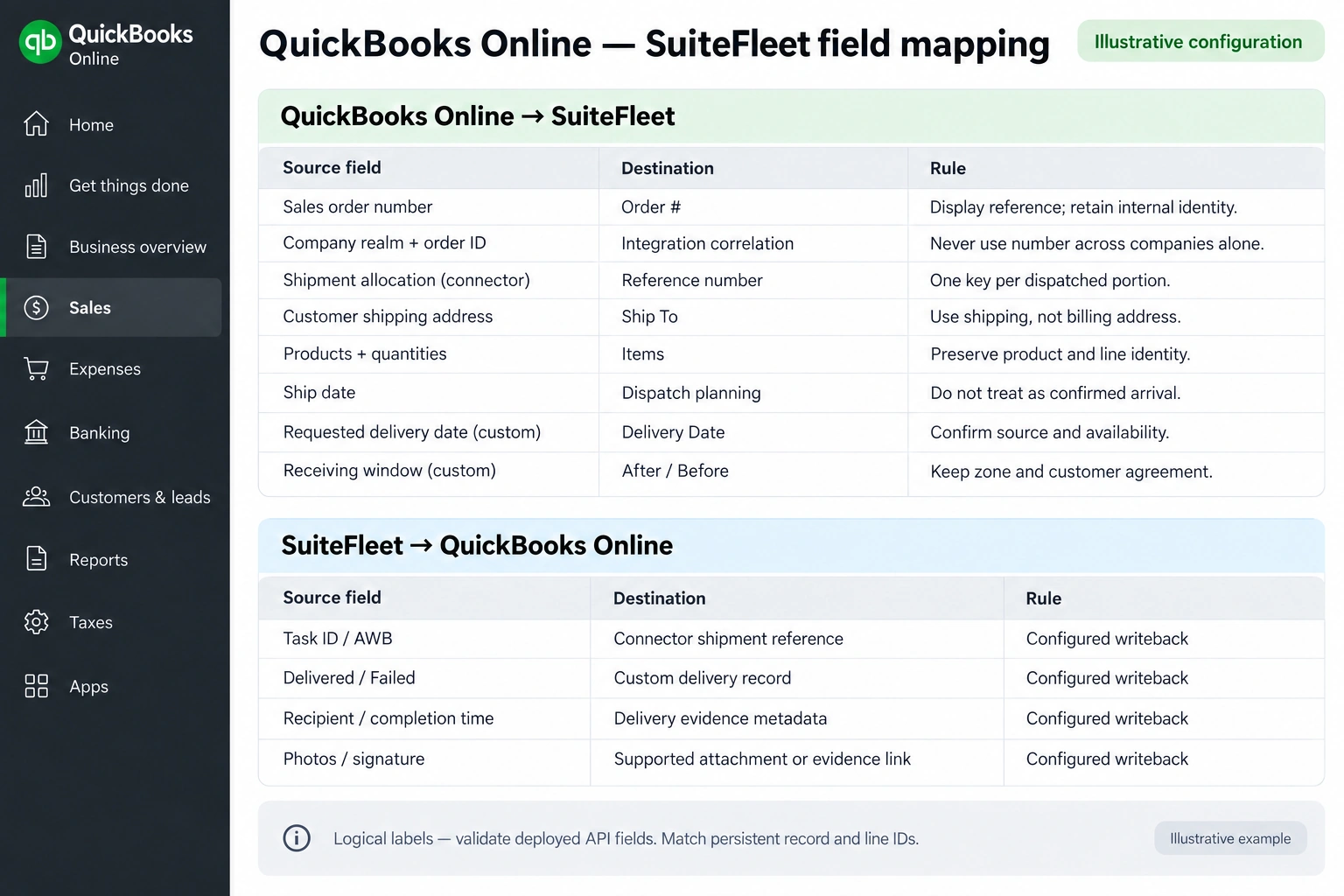
| QuickBooks Online source | SuiteFleet destination | Rule |
|---|---|---|
| Sales order number | Order # | Display reference; retain internal identity. |
| Company realm + order ID | Integration correlation | Never use number across companies alone. |
| Shipment allocation (connector) | Reference number | One key per dispatched portion. |
| Customer shipping address | Ship To | Use shipping, not billing address. |
| Products + quantities | Items | Preserve product and line identity. |
| Receiving window (custom) | After / Before | Keep zone and customer agreement. |
| SuiteFleet result | QuickBooks Online destination | Writeback rule |
|---|---|---|
| Task ID / AWB | Connector shipment reference | Confirm field access during configuration. |
| Delivered / Failed | Custom delivery record | Confirm field access during configuration. |
| Recipient / completion time | Delivery evidence metadata | Confirm field access during configuration. |
| Photos / signature | Supported attachment or evidence link | Confirm field access during configuration. |
A delivery receipt and an invoice payment are different records. Keep the evidence reference with the shipment allocation even if the order is linked to more than one invoice.
3. Define and check the evidence requirements
Agree the evidence policy before dispatch: which shipments need a recipient name, photographs, signature, and completion information, and who reviews missing evidence. Only require capture methods verified in the deployed driver workflow. Confirm that the connector can retrieve each required evidence field.
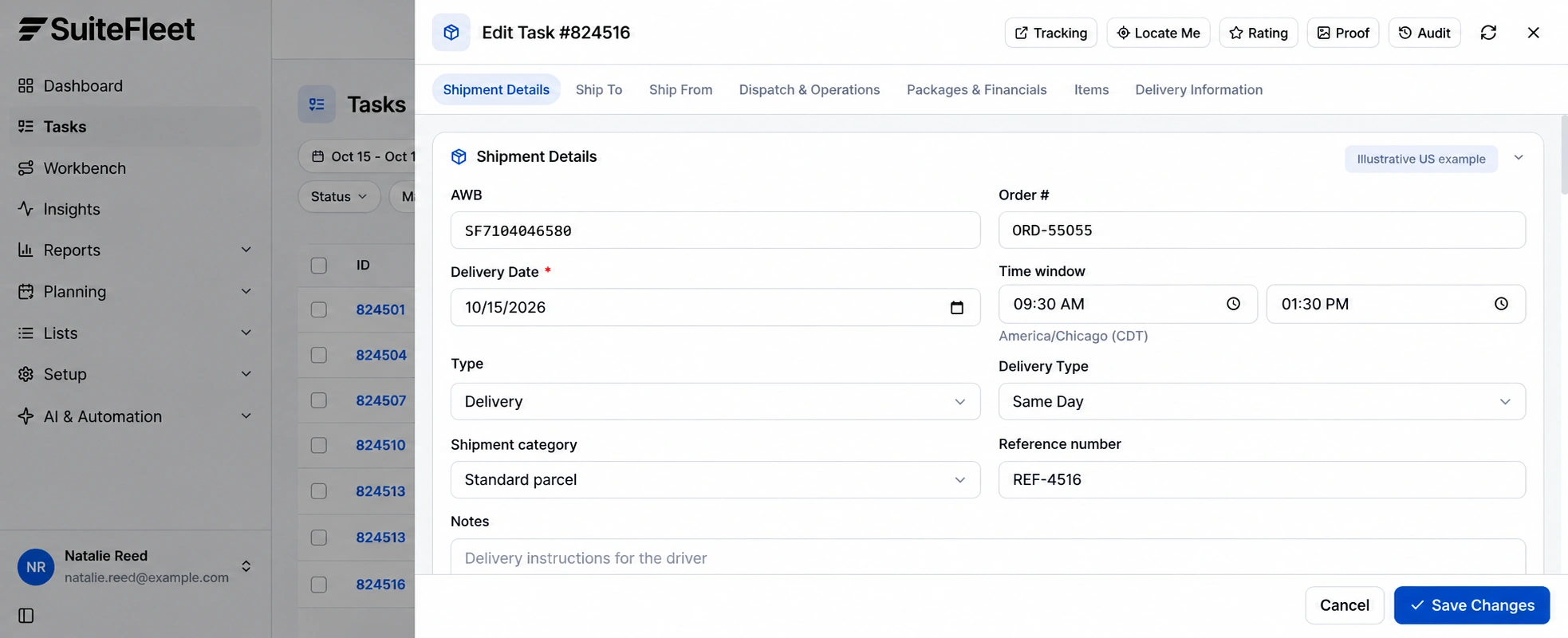
Before opening proof, match the task to Shipment allocation QBO-SHP-2086-1 through the correlation record. Names, addresses, and order display numbers alone are insufficient when the customer receives repeat or split shipments.
Distinguish the expected consignee from the person who actually accepted the goods. Validate file access and retention requirements with the deployment owner so a saved link remains useful to the intended support team.
4. Review proof of customer handover
Open Proof from the task or Reports → POD Analysis → Full proof. Review delivery photos, signature, recipient, and recorded completion together. Review Proof of pickup and Proof of delivery separately. Confirm customer receipt from the delivery record.
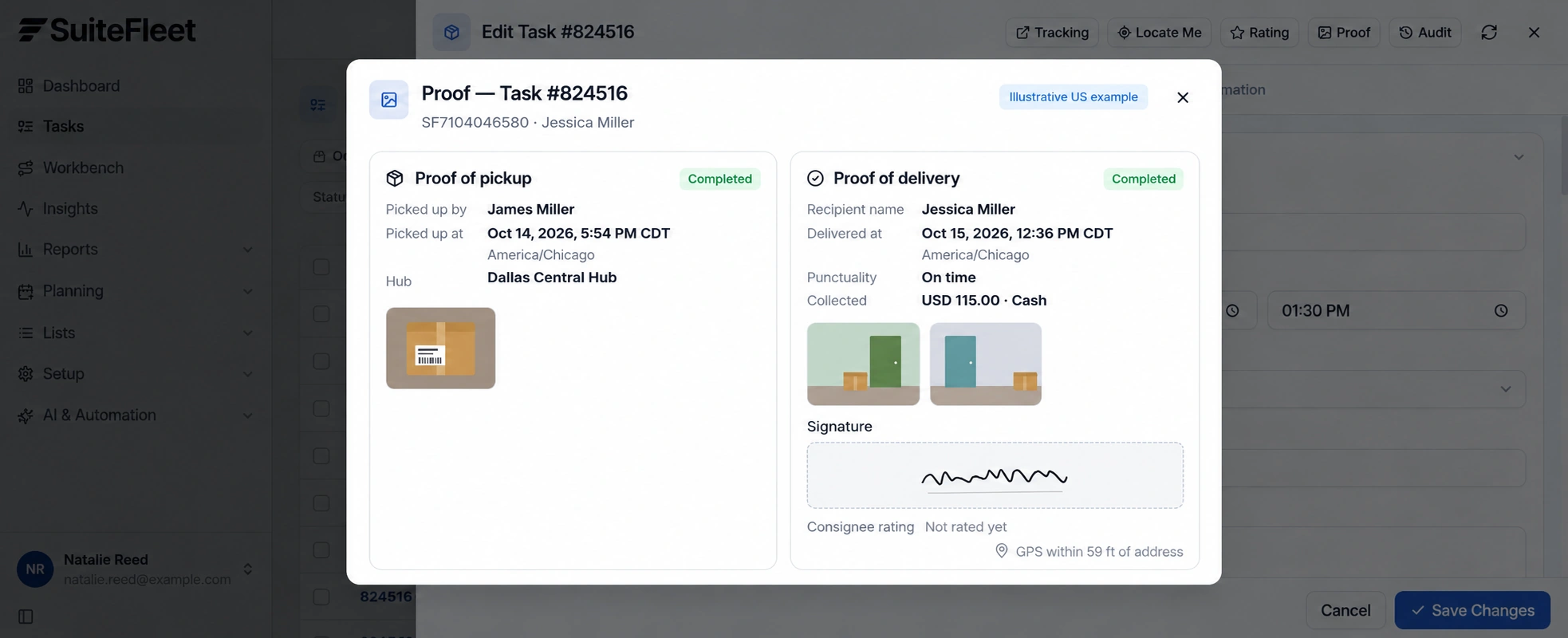
Do not infer received item quantities from a photograph, a signature, or the package count. Store the event time with its time zone. This example uses America/Chicago (CDT).
Keep a connector-side allocation for each partial shipment. Converting an order to an invoice and recording a payment are accounting steps; neither establishes that all products were handed to the recipient.
If there is a shortage, refusal, or disputed recipient, preserve the original evidence and record the exception. Retain the source shipment and line keys during review; do not create a new shipment simply because proof needs correction.
5. Store controlled evidence references
Confirm which QuickBooks Online interface exposes sales orders for the company. If direct access is unavailable, agree a supported export or alternative source record before deployment. Intuit Accounting API reference.
Write recipient, event time, outcome, and evidence references only to validated destinations. Check whether the interface stores a file, an attachment relationship, or an external URL. Apply access controls to the evidence location; a link in a transaction does not itself grant appropriate access.
Handle status and attachment updates independently. If the status sync succeeds but a photo reference fails, retain the partial integration error and retry that operation safely. Verify the target record after retry before reporting a clean sync.
6. Verify the result in QuickBooks Online
Where supported, reconcile the shipment against the sales order’s Mark as shipped workflow. Store customer-receipt evidence in a supported field, attachment, or connector record with a link back to the order. Do not mark the order Paid or create a payment because a driver completed a delivery. Intuit: create and manage sales orders.
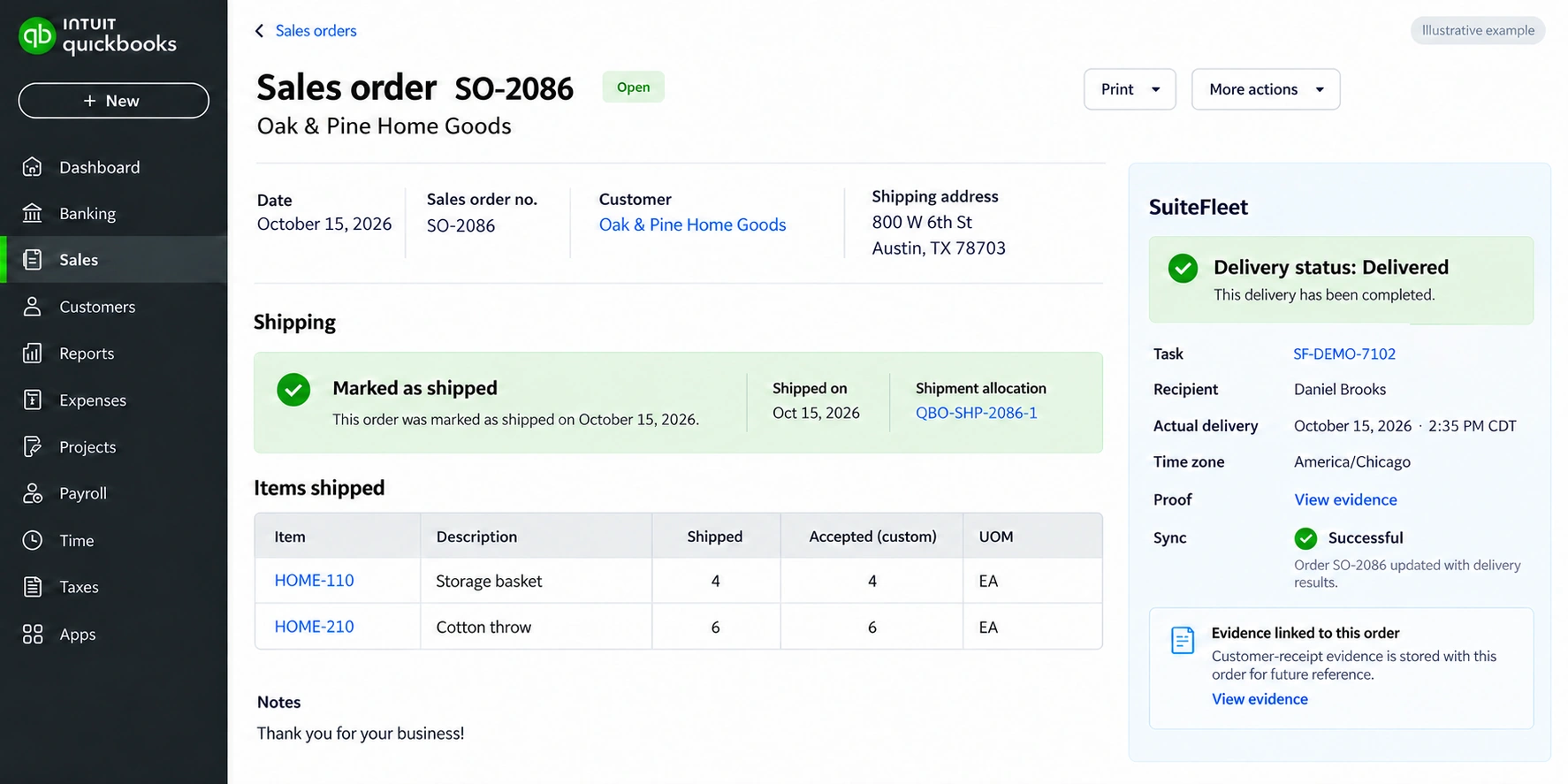
Shipment allocation QBO-SHP-2086-1; task SF-DEMO-7102; recipient Daniel Brooks; actual handover October 15, 2026 · 2:35 PM CDT (America/Chicago). First line: 4 shipped and 4 accepted. Second line: 6 shipped and 6 accepted.
Read back the linked record and review every outstanding allocation before marking the full order delivered. Test partial shipment, partial acceptance, failed delivery, duplicate completion, and delayed writeback. Keep inventory posting, receipt evidence, and payment reconciliation under their respective configured rules.
Frequently asked questions
How should proof of delivery be matched in QuickBooks Online?
A delivery receipt and an invoice payment are different records. Keep the evidence reference with the shipment allocation even if the order is linked to more than one invoice.
Does a delivered task complete the QuickBooks Online source workflow?
Where supported, reconcile the shipment against the sales order’s Mark as shipped workflow. Store customer-receipt evidence in a supported field, attachment, or connector record with a link back to the order. Do not mark the order Paid or create a payment because a driver completed a delivery.


.png)

.jpeg)



.svg)
.png)





.svg)

.svg)
.svg)
.svg)