.webp)


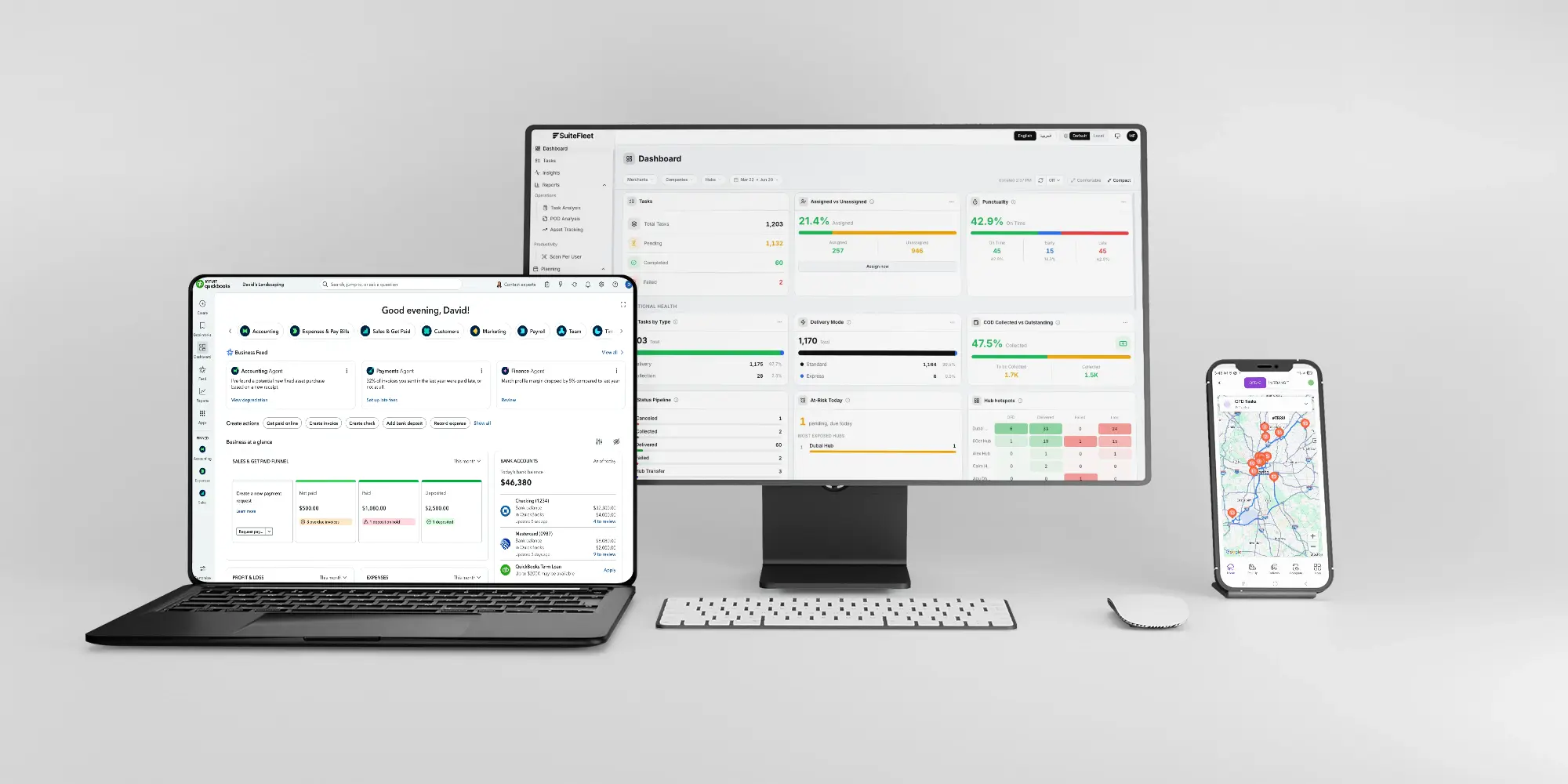
The QuickBooks Online–SuiteFleet workflow turns released work from supported sales orders and connector shipment allocations into stops with a loading point, destination, and receiving window. Dispatchers review drivers, optimization objectives, and unassigned stops before applying a route. Actual completion is reconciled afterward using released product lines.
Connector availability: SuiteFleet plans to publish its QuickBooks Online connector on QuickBooks App Store, subject to the marketplace review and release process.
1. Start with the QuickBooks Online order
Open the source order SO-2086 for Oak & Pine Home Goods and inspect its delivery destination, line quantities, and configured SuiteFleet relationship. The example contains two lines with quantities 4 and 6 in the units shown.
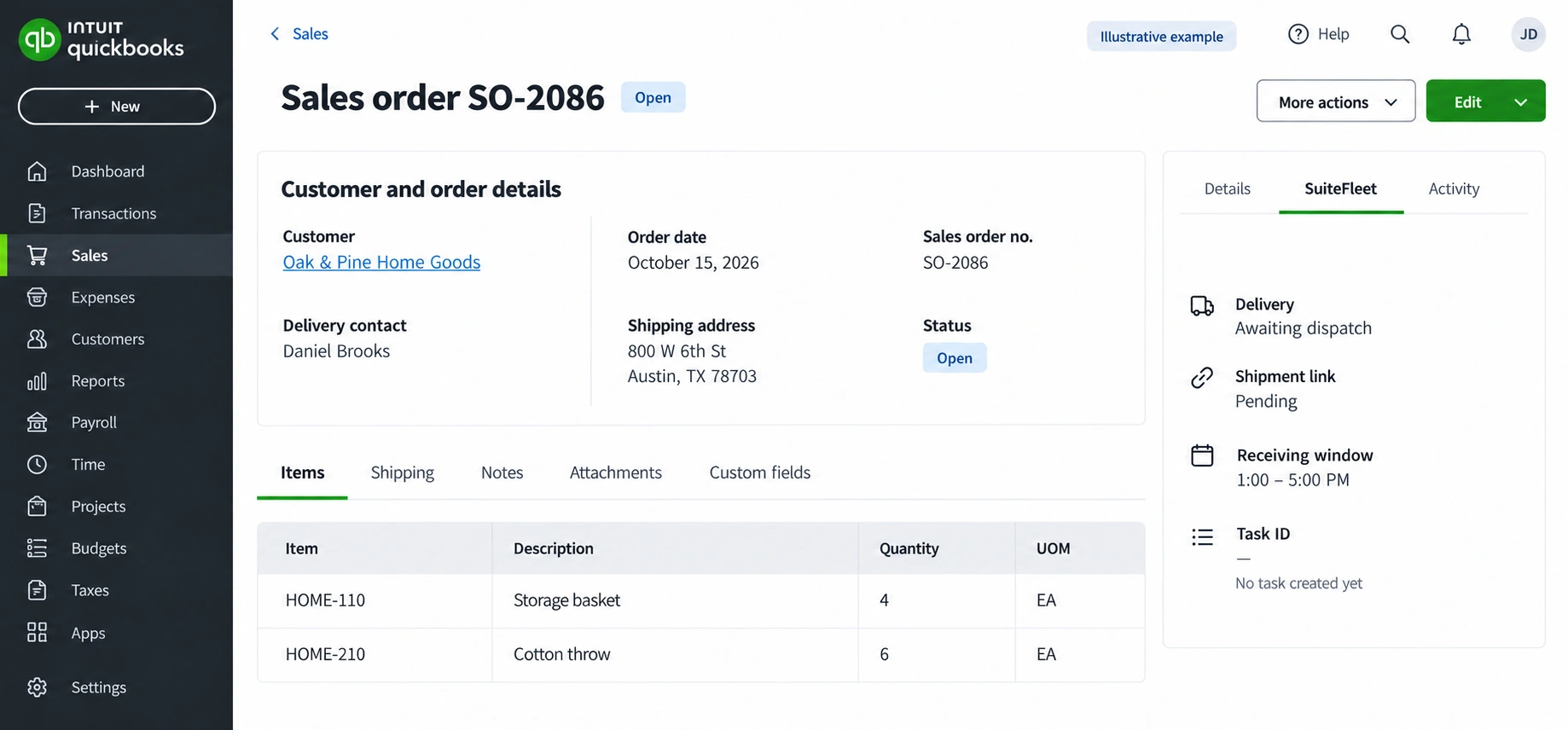
Confirm the US company has Sales Orders enabled in a supported plan and that its products are inventory items. Review the customer, shipping address, quantities, and readiness before releasing a shipment allocation. Use the QuickBooks Online sales-order workflow for the selected company and subscription.
Intuit’s current help documents sales orders in QuickBooks Online Plus and Advanced. This UI capability does not prove that every connector or public Accounting API exposes the same sales-order operations. Validate read, update, shipping, and attachment support before promising automated round-trip sync; use an explicit connector-side shipment allocation when needed. Intuit: create and manage sales orders.
2. Configure the planning mapping
Preserve this relationship before exporting delivery work:
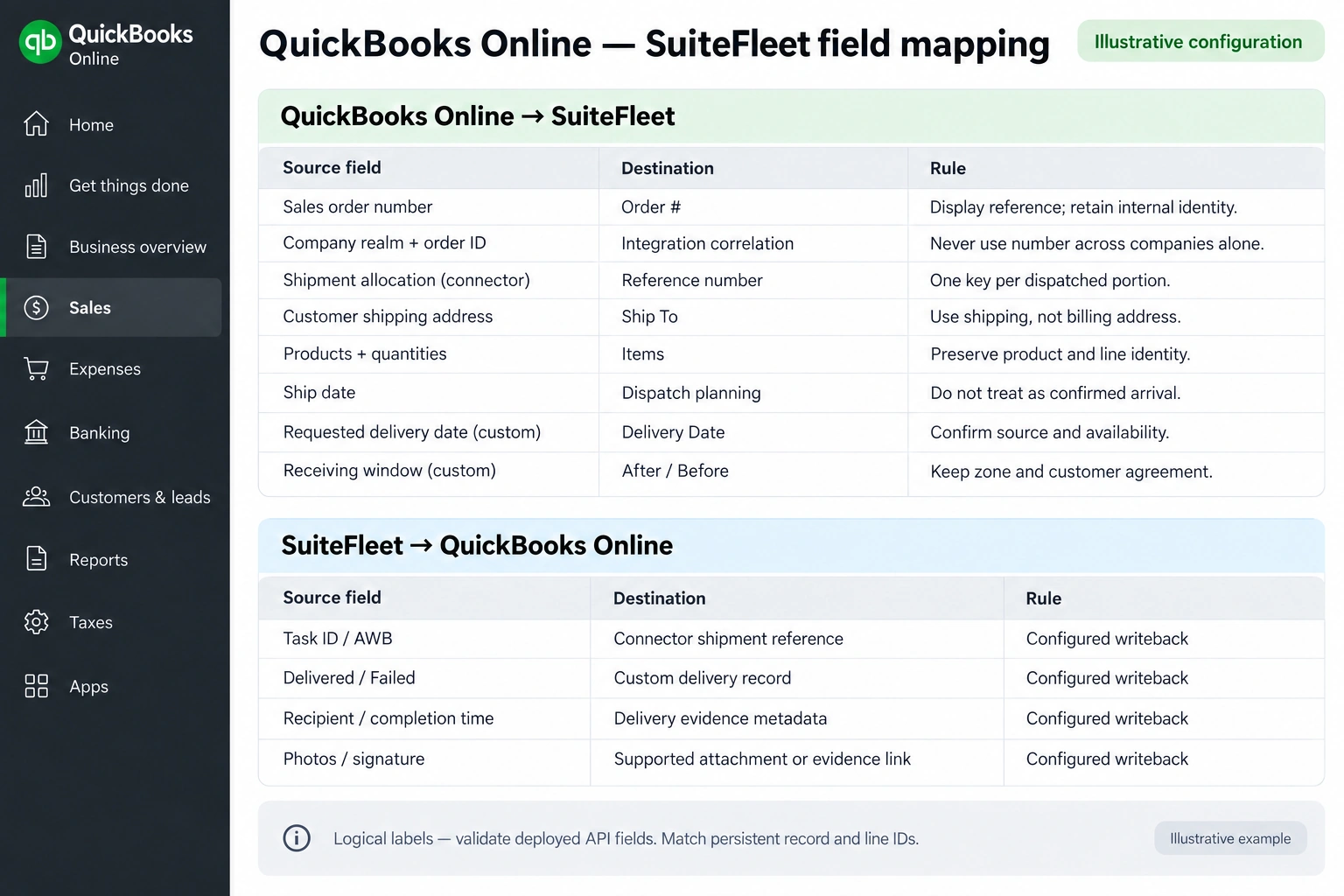
| QuickBooks Online source | SuiteFleet destination | Rule |
|---|---|---|
| Sales order number | Order # | Display reference; retain internal identity. |
| Company realm + order ID | Integration correlation | Never use number across companies alone. |
| Customer shipping address | Ship To | Use shipping, not billing address. |
| Products + quantities | Items | Preserve product and line identity. |
| Ship date | Dispatch planning | Do not treat as confirmed arrival. |
| Requested delivery date (custom) | Delivery Date | Confirm source and availability. |
| Receiving window (custom) | After / Before | Keep zone and customer agreement. |
| SuiteFleet result | QuickBooks Online destination | Writeback rule |
|---|---|---|
| Task ID / AWB | Connector shipment reference | Confirm field access during configuration. |
| Delivered / Failed | Custom delivery record | Confirm field access during configuration. |
| Recipient / completion time | Delivery evidence metadata | Confirm field access during configuration. |
| Photos / signature | Supported attachment or evidence link | Confirm field access during configuration. |
Use a confirmed receiving date and a custom delivery window. Do not route against the invoice due date or mistake a customer’s billing address for the stop address.
3. Select eligible stops and available drivers
Open Workbench for the intended date and filters. Inspect task, driver, and hub layers; resolve tasks without a location before optimization. Use geographic selection to choose the intended area, then confirm the selected task set contains only released work.
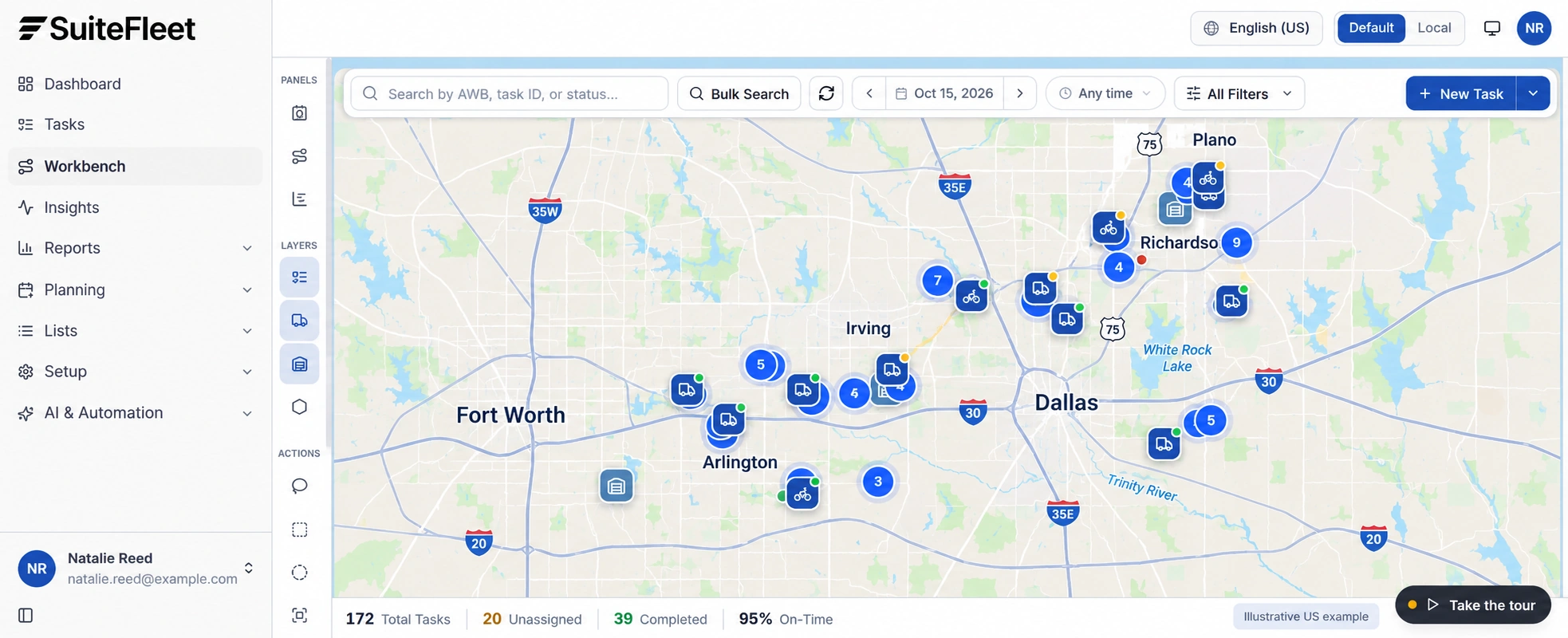
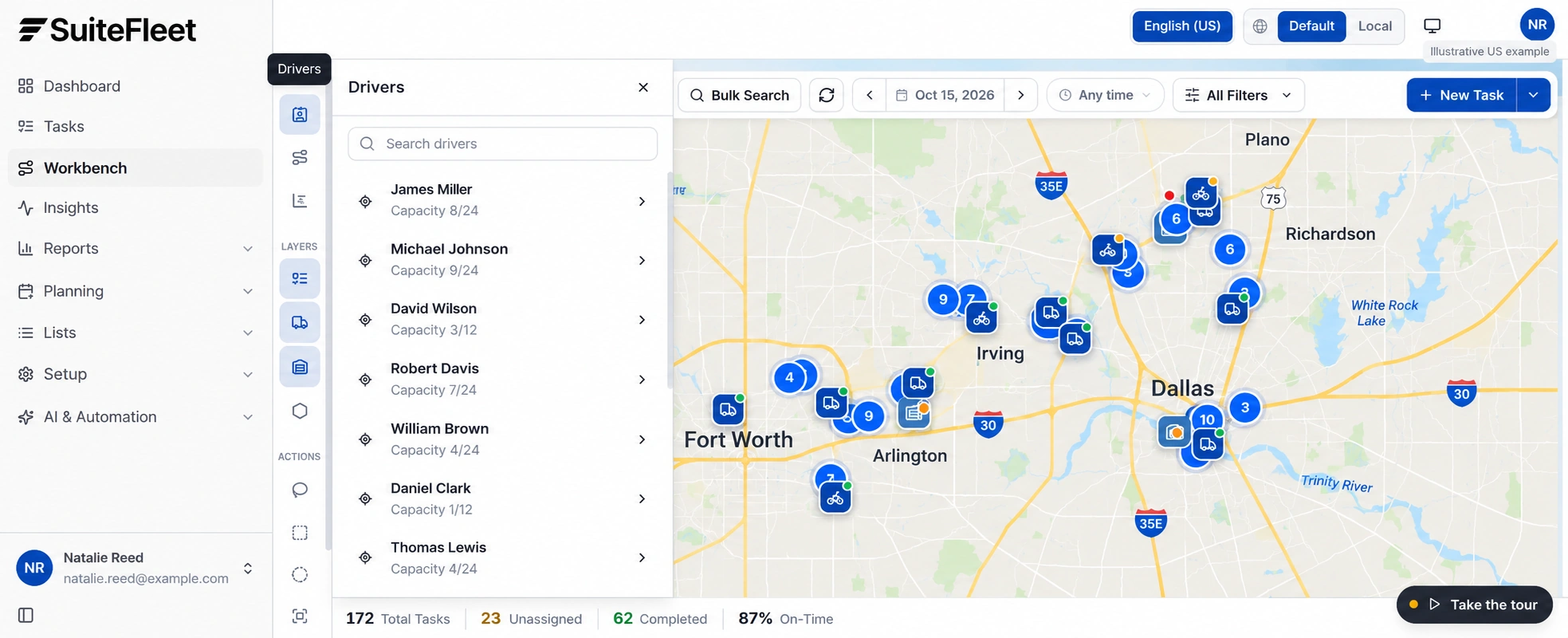
Choose Plan & Optimize when assigning eligible tasks across drivers, or Optimize Existing Routes when retaining assignments and improving stop sequence. Review enabled drivers, shift windows, departure hubs, and the displayed task-capacity limits. Do not assume those limits represent weight or volume.
Intuit’s current help documents sales orders in QuickBooks Online Plus and Advanced. This UI capability does not prove that every connector or public Accounting API exposes the same sales-order operations. Validate read, update, shipping, and attachment support before promising automated round-trip sync; use an explicit connector-side shipment allocation when needed.
4. Review objectives, constraints, and results
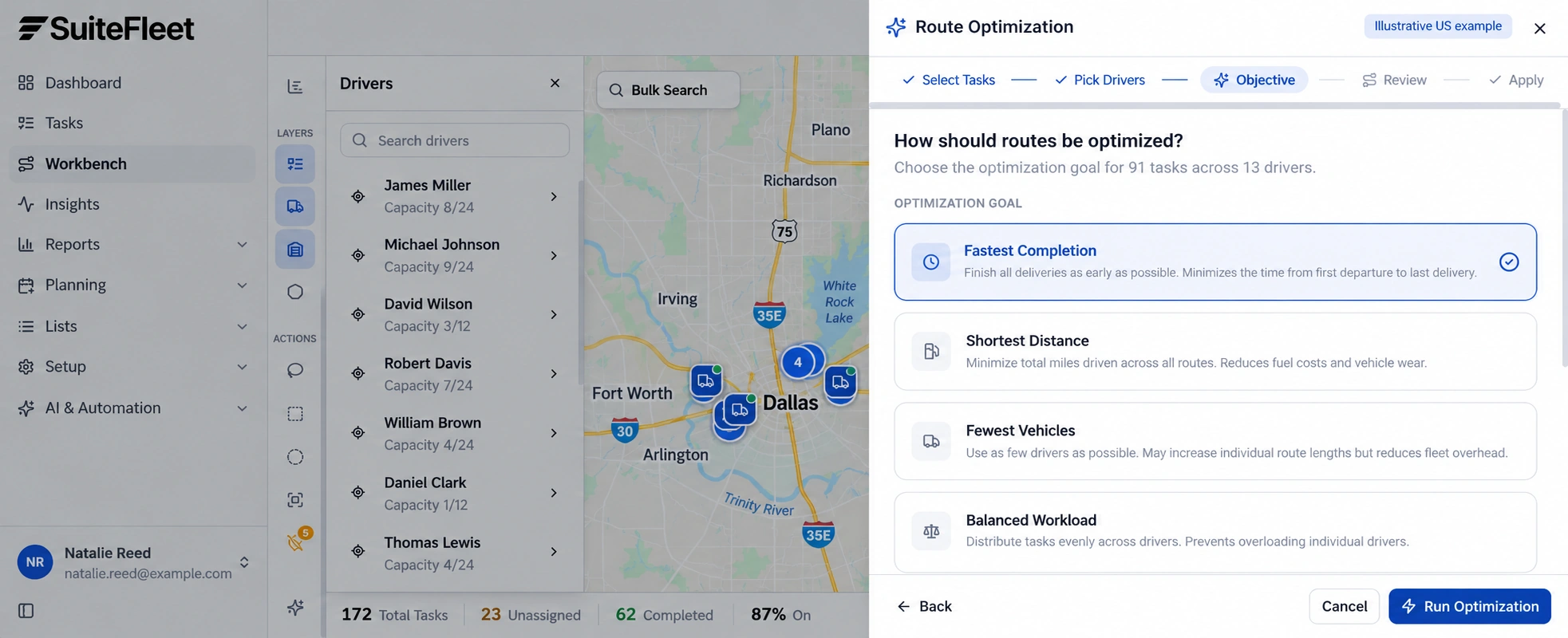
Choose the supported objective: Fastest Completion, Shortest Distance, Fewest Vehicles, or Balanced Workload. Review Respect Time Windows, Reassign Assigned Tasks, and Time Per Stop before running the preview. Select the objective that matches the dispatch plan and confirm which routing constraints are enabled.
Inspect the returned driver assignments, stop sequence, projected completion, and every unassigned task. Check stop times against driver shifts as well as customer windows; confirm that the proposed schedule is feasible. Missing locations and conflicting requirements need explicit resolution.
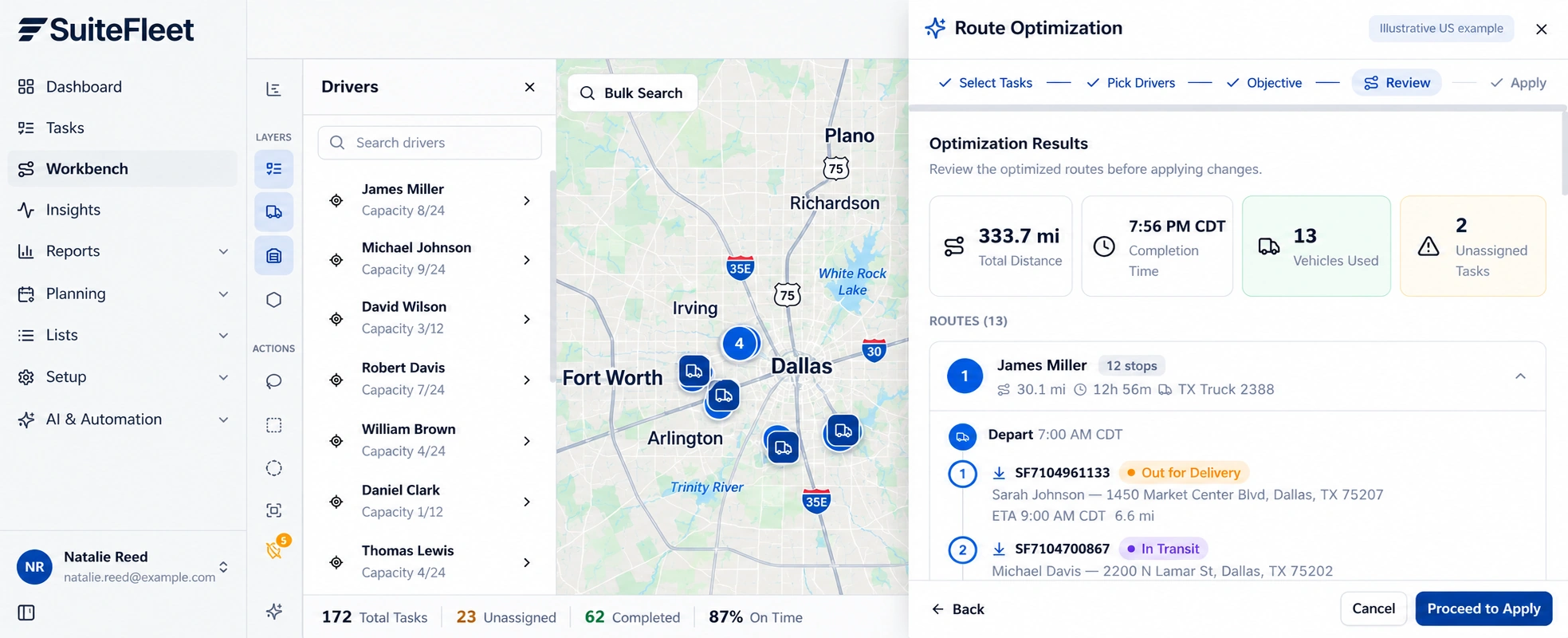
Review the Dallas–Fort Worth planning example, with distances in miles and local receiving times. Dispatchers should check stop sequence, road access, and unresolved work before applying a plan.
5. Execute the route and process actual outcomes
Keep assignment and planned arrival separate from customer delivery. Monitor failed, rescheduled, and completed stops during execution. A route application must not post inventory, close an order, or trigger billing by itself.
Keep a connector-side allocation for each partial shipment. Converting an order to an invoice and recording a payment are accounting steps; neither establishes that all products were handed to the recipient.
After a stop completes, match its task ID to the source shipment, review required proof, and reconcile accepted quantities. Record actual event time and a separate sync outcome. If the source changes after planning, compare the change with the dispatched allocation before overwriting operational data.
6. Verify the result in QuickBooks Online
Where supported, reconcile the shipment against the sales order’s Mark as shipped workflow. Store customer-receipt evidence in a supported field, attachment, or connector record with a link back to the order. Do not mark the order Paid or create a payment because a driver completed a delivery. Intuit: create and manage sales orders.
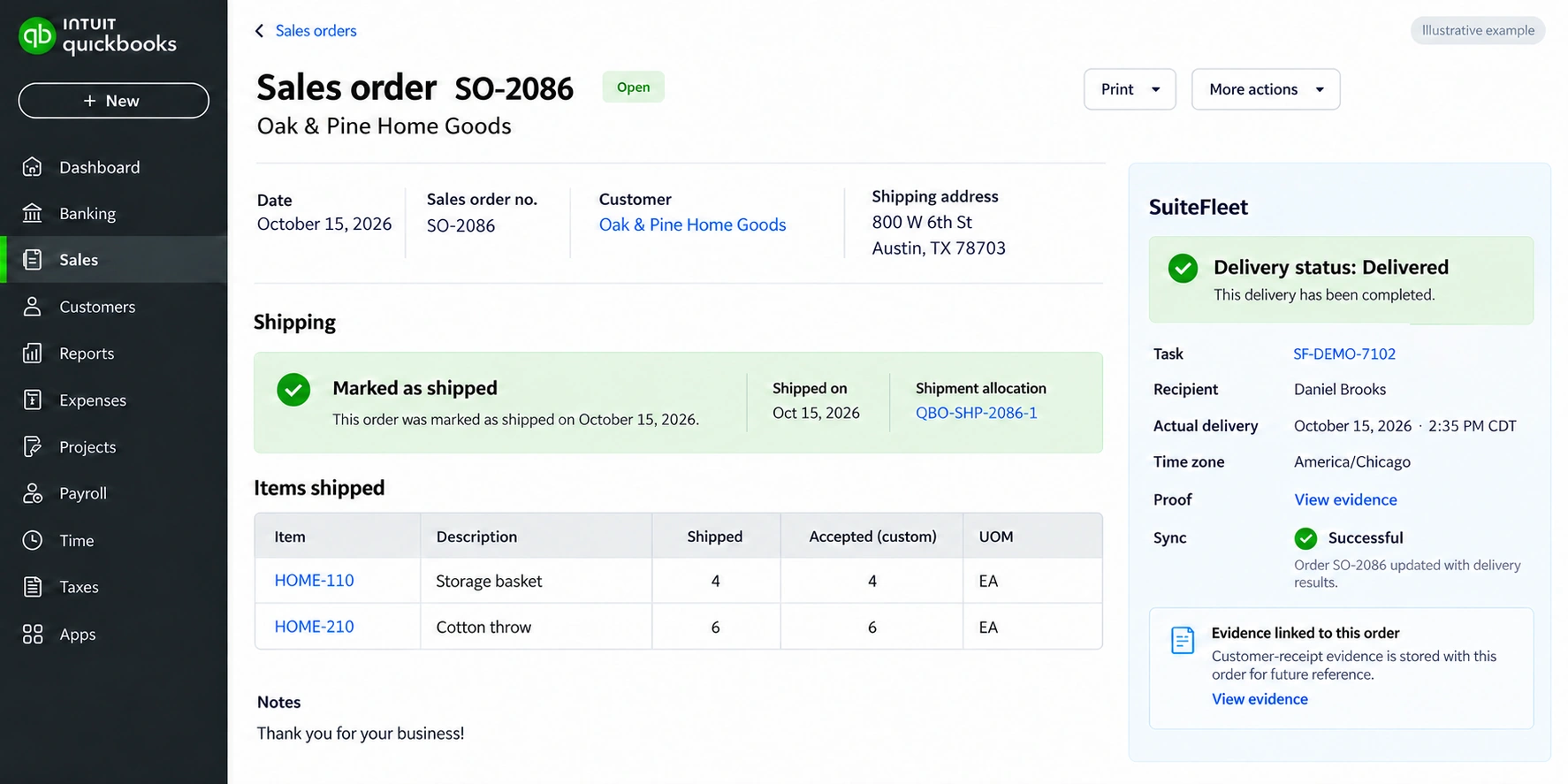
Shipment allocation QBO-SHP-2086-1; task SF-DEMO-7102; recipient Daniel Brooks; actual handover October 15, 2026 · 2:35 PM CDT (America/Chicago). First line: 4 shipped and 4 accepted. Second line: 6 shipped and 6 accepted.
Read back the linked record and review every outstanding allocation before marking the full order delivered. Test partial shipment, partial acceptance, failed delivery, duplicate completion, and delayed writeback. Keep inventory posting, receipt evidence, and payment reconciliation under their respective configured rules.
Frequently asked questions
Which QuickBooks Online details are needed for route planning?
Use a confirmed receiving date and a custom delivery window. Do not route against the invoice due date or mistake a customer’s billing address for the stop address.
How are partial deliveries handled for QuickBooks Online?
Keep a connector-side allocation for each partial shipment. Converting an order to an invoice and recording a payment are accounting steps; neither establishes that all products were handed to the recipient.


.png)

.jpeg)


.png)

.svg)





.svg)

.svg)
.svg)
.svg)