.svg)
.webp)


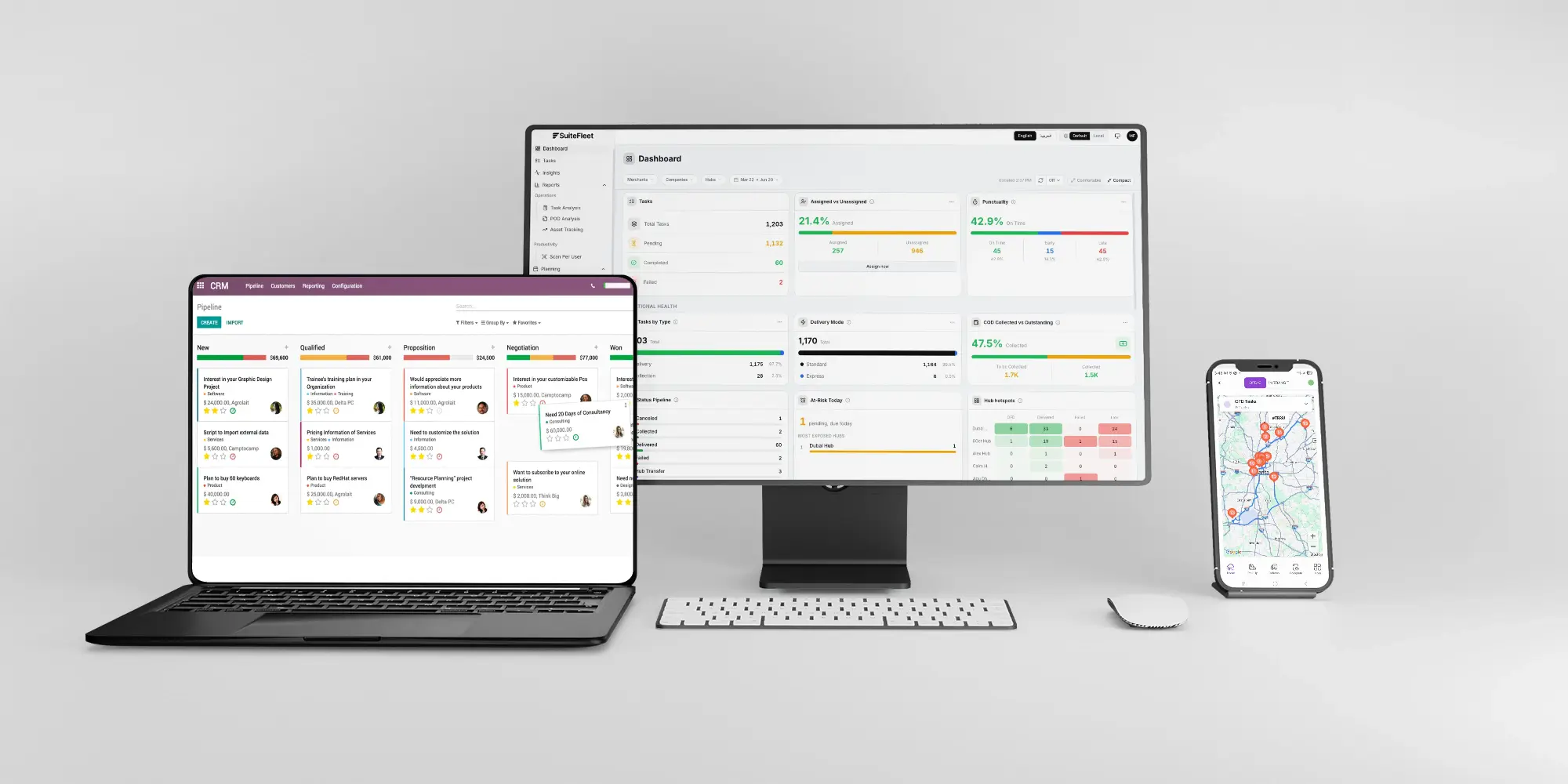
The SuiteFleet connector for Odoo will be available soon on the Odoo Apps marketplace.
Plan Odoo delivery routes in SuiteFleet using map selection, driver availability, receiving windows, and routing objectives. Review the plan before dispatch, then return actual delivery results to Odoo.
A workable route starts with the right delivery data. SuiteFleet lets dispatchers select Odoo-originated shipments on a map, choose drivers, and compare a route plan against receiving windows and operating limits. Warehouse readiness and accurate addresses matter as much as the routing objective.
Keep the same shipment reference when a dispatcher changes a driver or stop sequence. Replanning should change the route, while the original Odoo delivery remains the record used for the completion update.
1. Release the Odoo shipment for planning
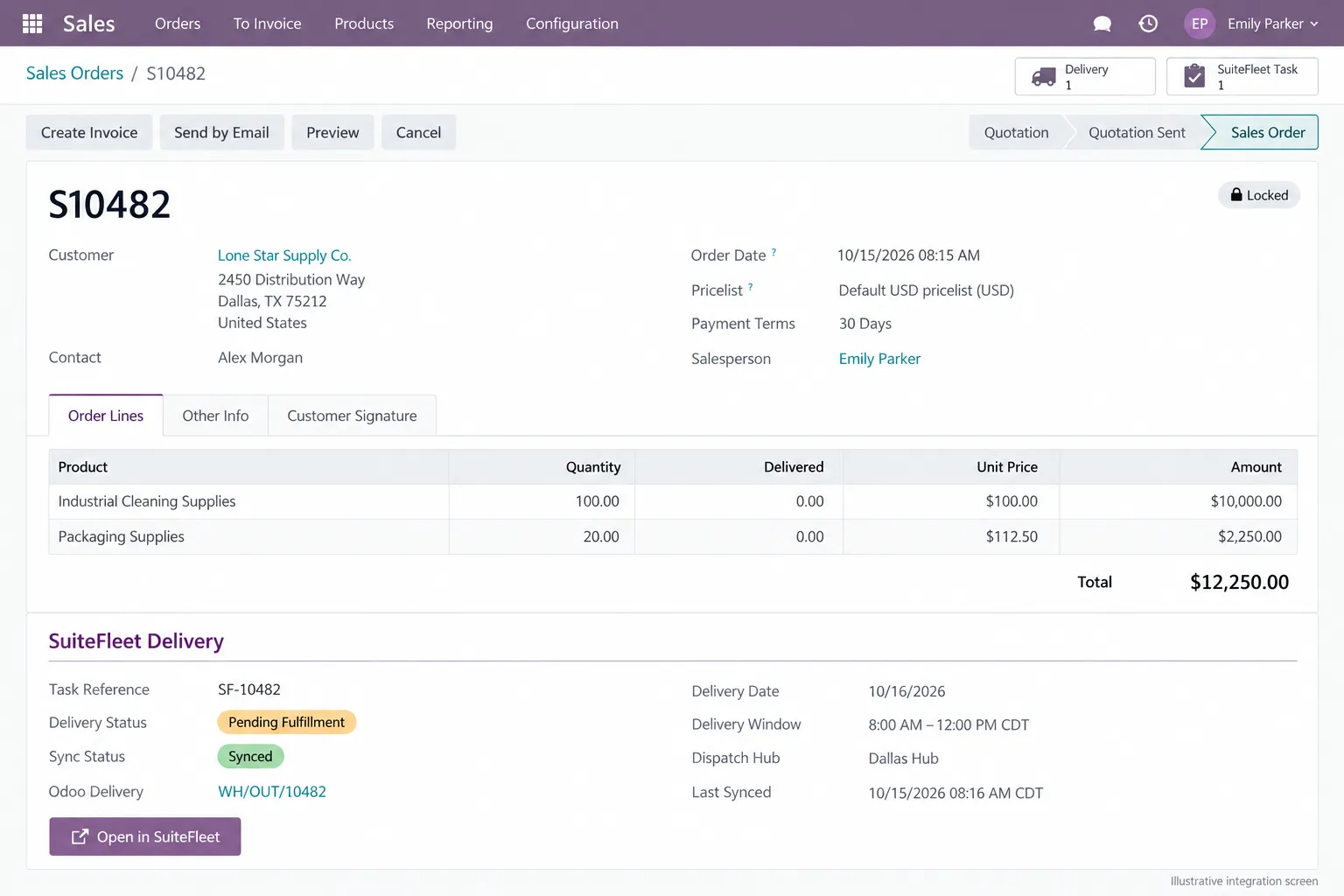
In this example, confirmed order S10482 is awaiting fulfillment for Lone Star Supply Co. in Dallas. Its two lines contain 100 and 20 units, with zero delivered initially. The linked delivery WH/OUT/10482 is associated with SuiteFleet reference SF-10482.
Before planning, check warehouse readiness, destination accuracy, receiving instructions, and the October 16 window of 8:00 AM to noon CDT. Pass the shipment’s line details separately from any package or stop count. An order can produce several shipments with different planning dates.
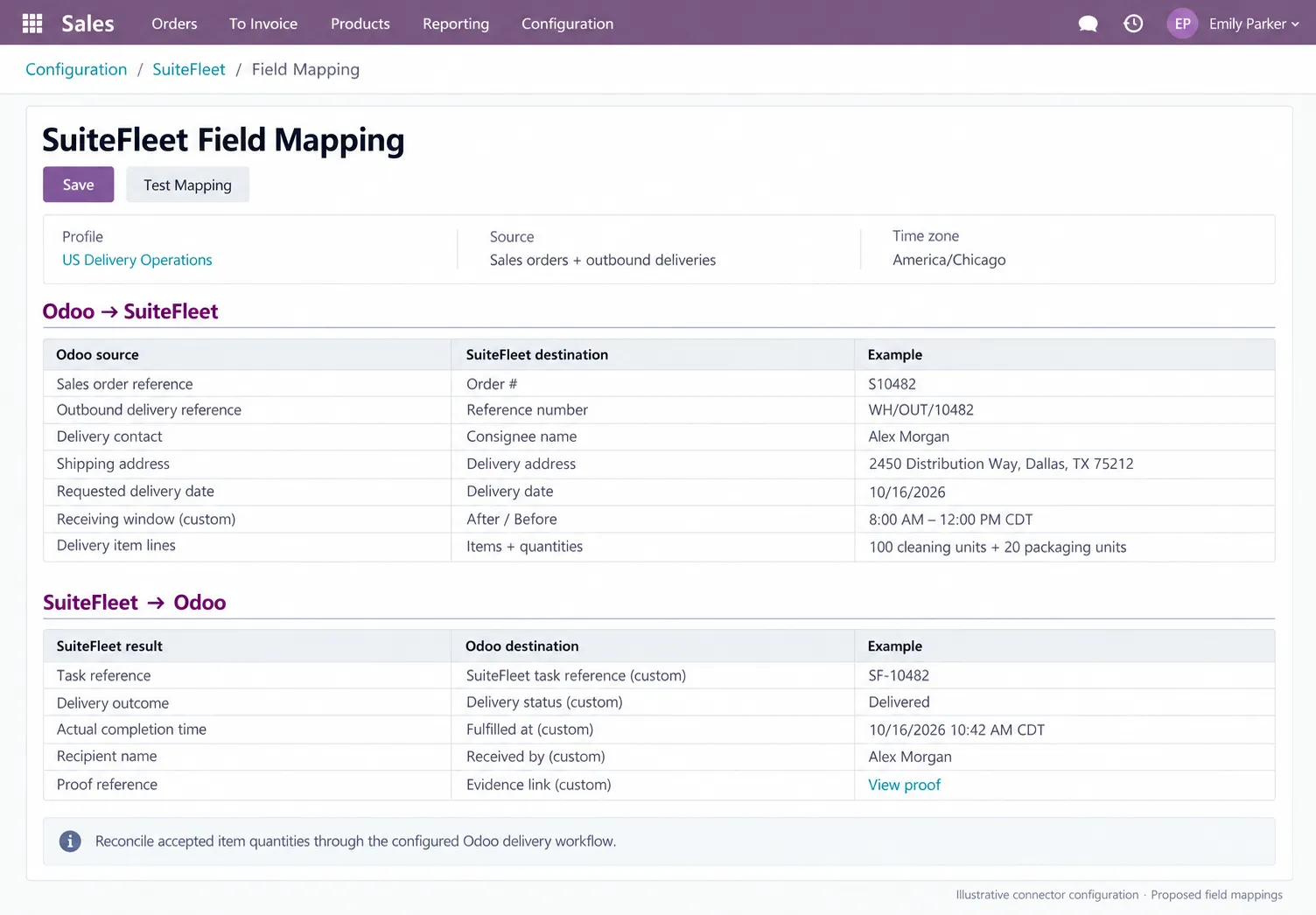
Map the planning inputs from Odoo
Map the address, date, receiving window, and item details before planning. Retain the order and shipment references when drivers or stop sequences change.
2. Review the delivery work on the map
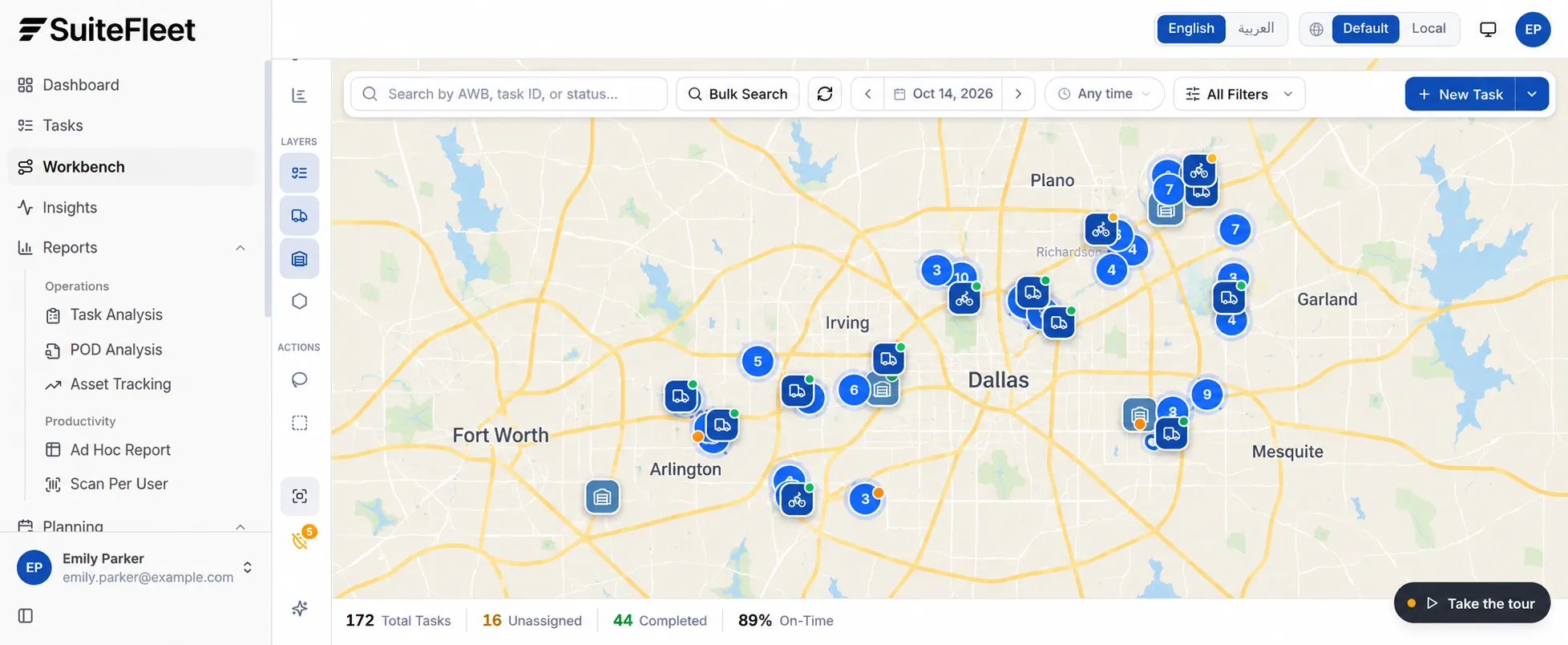
Open SuiteFleet Workbench and select the operational date. Use search and filters to narrow the work, then display task, driver, and hub layers. Check tasks without a usable location before including them in the planning batch.
Use lasso, rectangle, or circle selection to pick a service area or a group of nearby stops. Then check the selected tasks: the correct date, warehouse readiness, and receiving window still need to match the plan.
3. Configure drivers and planning constraints
Choose the drivers available for the batch and verify their shifts, start locations, stop limits, and return-to-depot requirements where configured. Include time at each stop so the plan allows for unloading and receiving, not just travel.
Decide whether the planner may change existing driver assignments. Store receiving windows with the destination time zone; for Dallas, use America/Chicago and display CDT for this October example.
4. Select the routing objective
| Objective | Use it when |
|---|---|
| Fastest Completion | Finish the selected deliveries as early as the planning constraints allow. |
| Shortest Distance | Reduce total distance across the selected routes. |
| Fewest Vehicles | Cover the work with fewer vehicles within the configured limits. |
| Balanced Workload | Distribute tasks more evenly across the available drivers. |
Choose the objective before running the plan. If the priority is finishing earlier, start with Fastest Completion. If vehicle availability is the constraint, evaluate Fewest Vehicles and check whether the longer individual routes still meet customer windows.
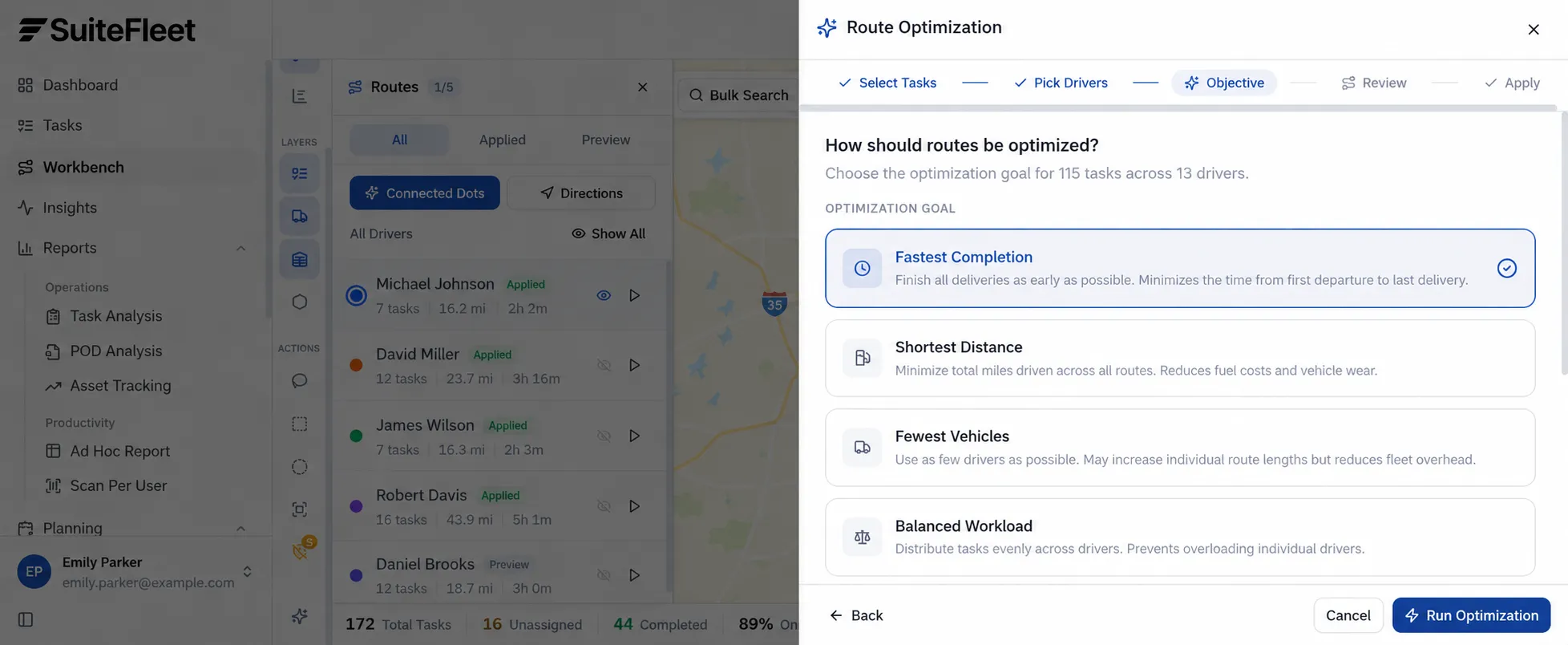
5. Review proposed routes and unassigned tasks
Inspect distance, projected completion time, vehicles used, and unassigned tasks before applying a result. Review the stop sequence and timing for each driver. Investigate unassigned work: location quality, availability, windows, or another configured constraint may require attention.
The review screen shows sample planning results. Its completion time is a forecast for the route plan, separate from the actual handover time later recorded for an individual order.
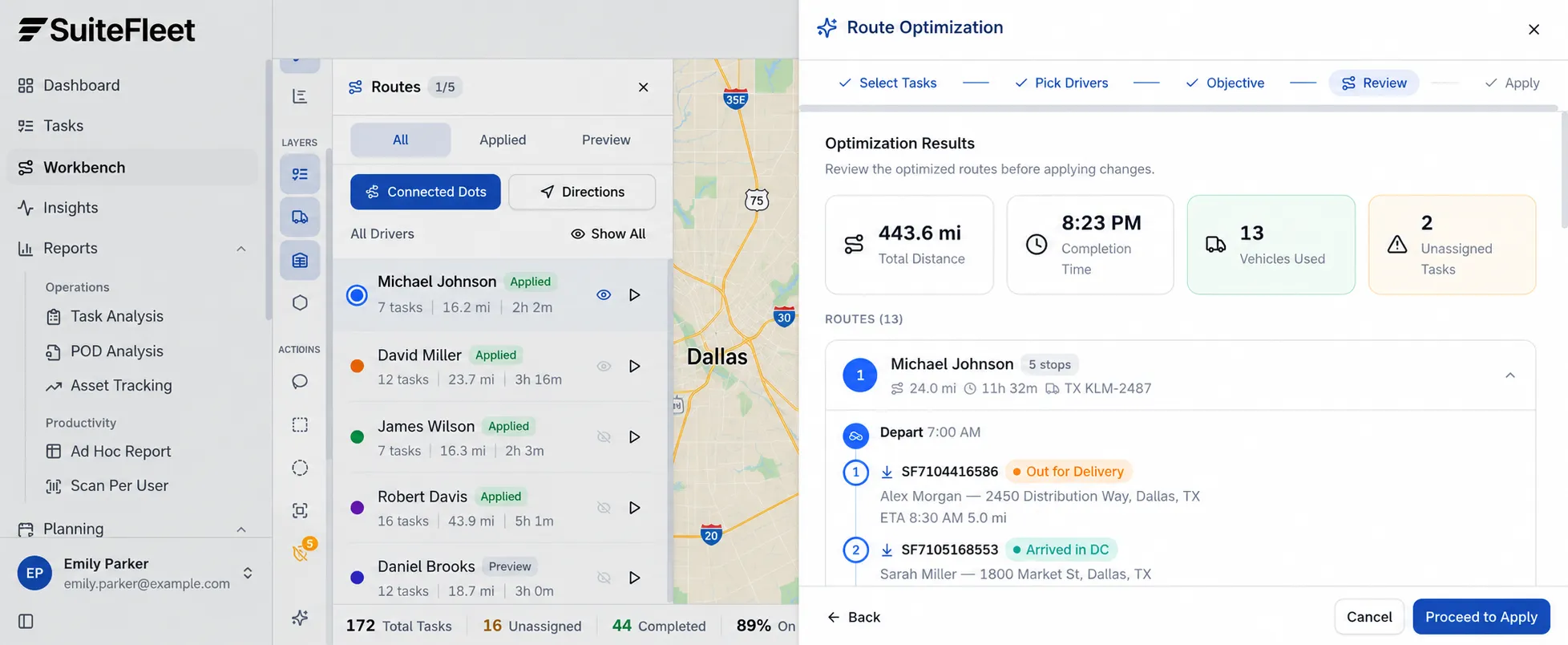
6. Apply the accepted plan
After reviewing the proposal, apply the routes selected for dispatch. SuiteFleet labels preview and applied routes separately. Assign someone to resolve any tasks left unassigned before closing the planning session.
Connected Dots makes the stop sequence easy to inspect. Switch to Directions for the road-route view; the straight lines in Connected Dots are not driving paths.
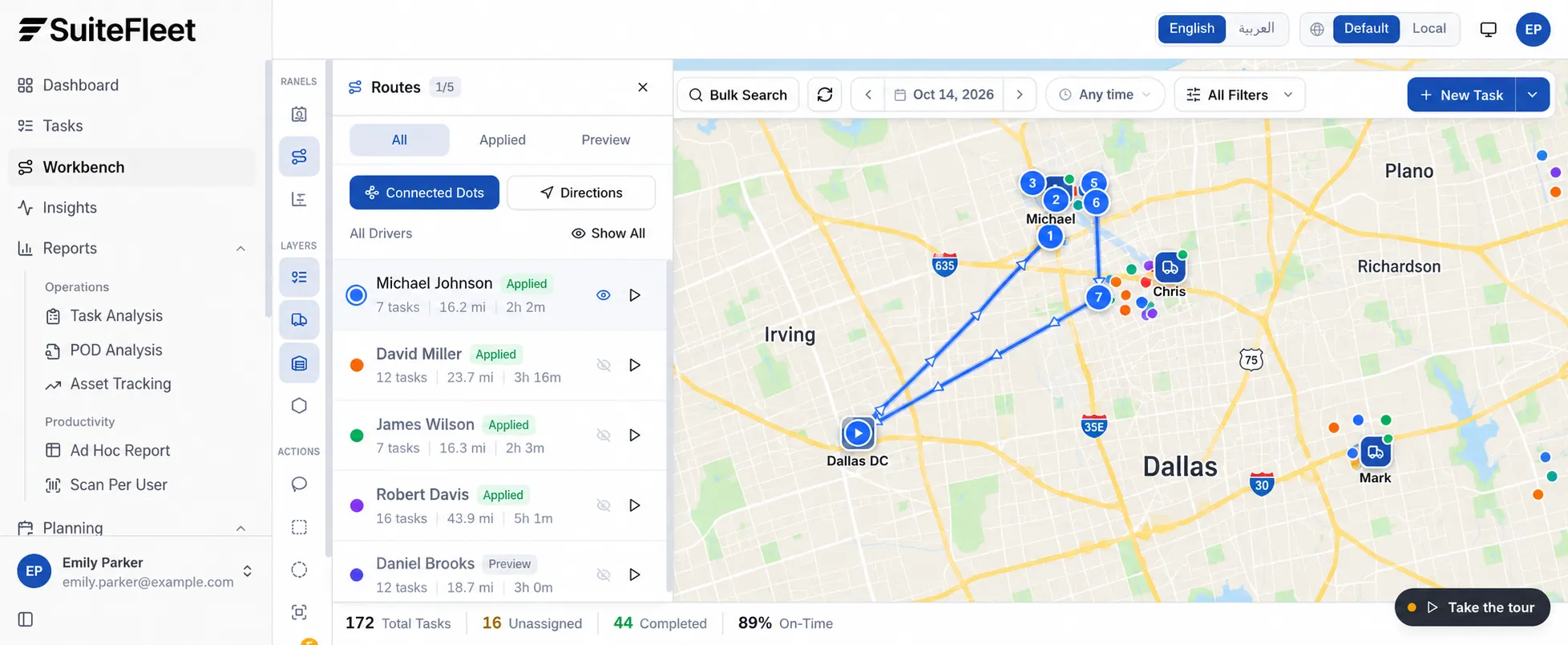
7. Update Odoo when the delivery is complete
Planning a route does not complete an Odoo delivery. When SuiteFleet records the actual outcome, match the task to the shipment and reconcile the accepted line quantities through the configured Odoo process.
In the completed example, Alex Morgan receives all 120 units on October 16, 2026, at 10:42 AM CDT. Odoo shows the two lines fully delivered; custom fields show Delivered and Fulfilled. The 10:43 AM CDT sync time records when the result reached Odoo, not when the customer received the shipment.
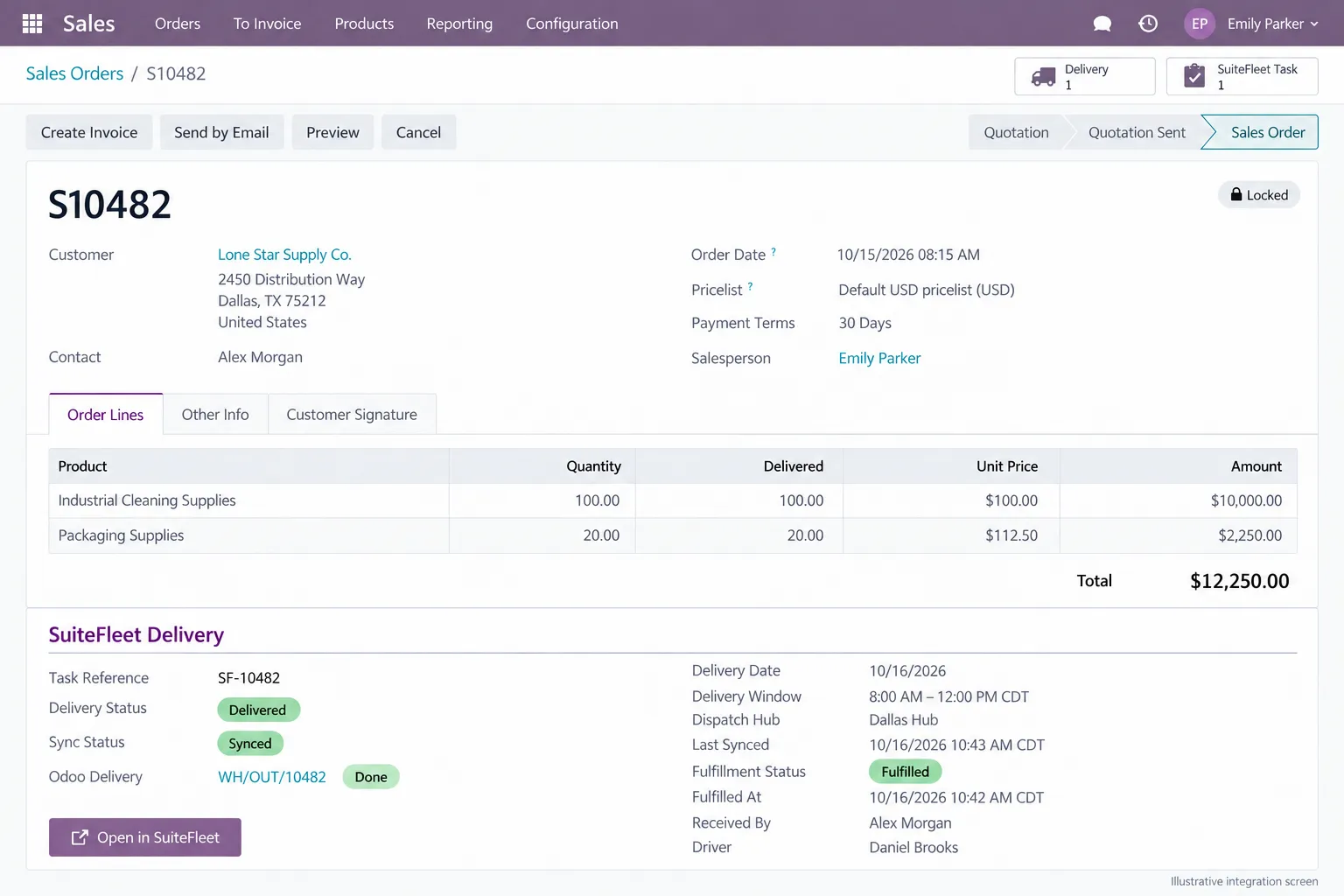
Before going live
Test a task without coordinates, an unavailable driver, a receiving window that cannot be met, a route reassignment, and a repeated completion message. Confirm that replanning cannot duplicate shipments and that partially delivered orders retain their outstanding quantities.
Frequently asked questions
How will Odoo deliveries reach SuiteFleet route planning?
The planned connector will link eligible Odoo outbound shipments to SuiteFleet tasks. The implementation must map addresses, dates, receiving windows, and references before those tasks enter planning.
Does applying a route mark an Odoo order as delivered?
No. Applying a route sets the dispatch plan. The actual delivery outcome and accepted quantities determine the subsequent Odoo update.
Why can a task remain unassigned after optimization?
A task may not fit the available drivers or configured constraints. Check its location, receiving window, and planning settings, then resolve the issue and plan it again.
Related Odoo guides: Odoo Delivery Management with SuiteFleet · Proof of Delivery for Odoo with SuiteFleet
Workflow references: Odoo delivery workflow · SuiteFleet interactive demo.


.png)

.jpeg)


.png)

.svg)





.svg)


.svg)
.svg)