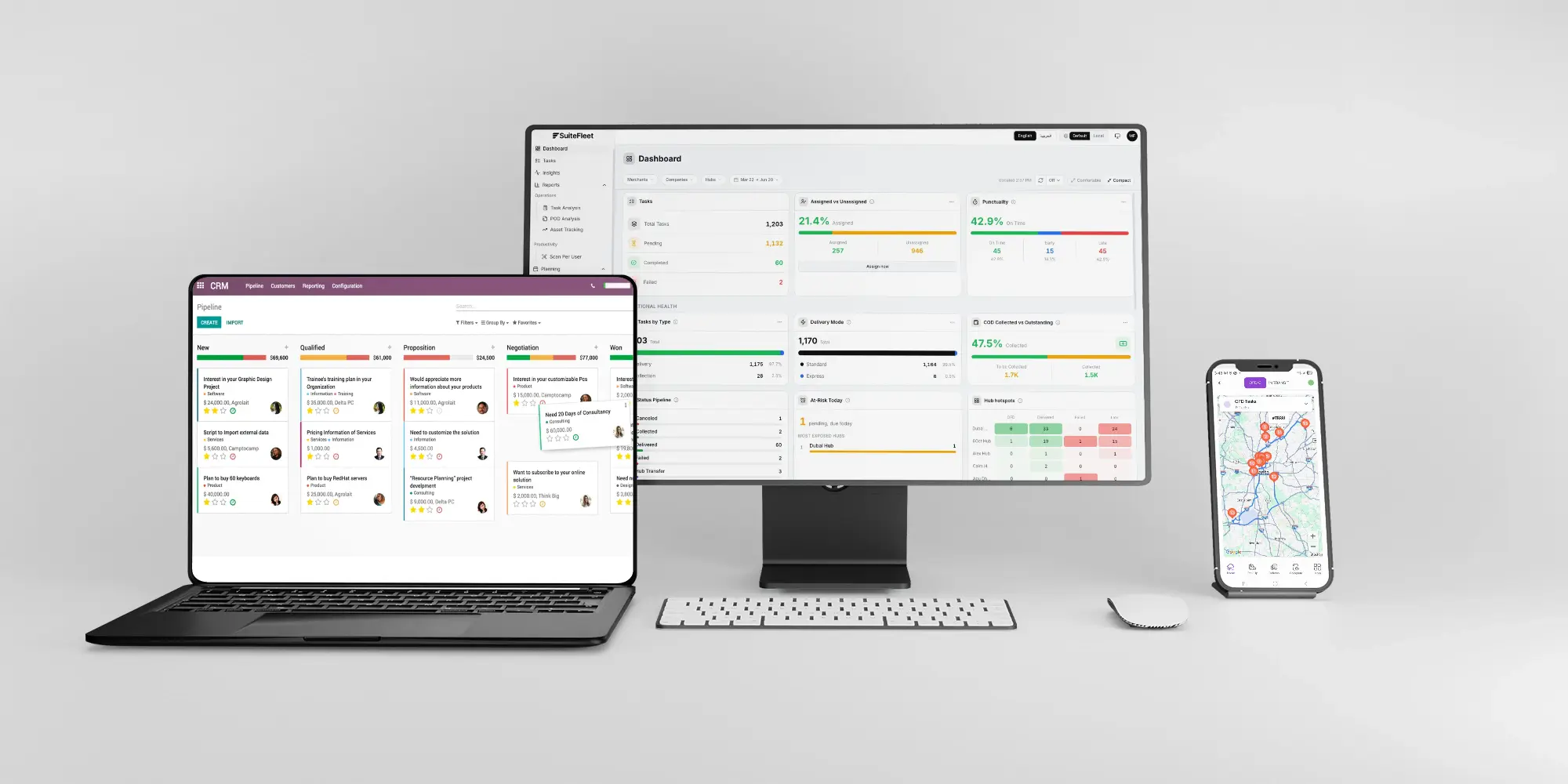



The SuiteFleet connector for Odoo will be available soon on the Odoo Apps marketplace.
Connect Odoo sales orders and outbound deliveries to SuiteFleet dispatch, delivery tracking, and exception handling. Return the delivery outcome to the shipment it belongs to.
Odoo manages the sale and the stock movement. SuiteFleet manages the delivery work: who takes the shipment, when it is due, and what happens at the customer’s door. The integration connects those records so sales, warehouse, and dispatch teams can work from the same delivery outcome.
Use the outbound delivery as the handoff point. If one sales order ships from two warehouses or on two different dates, each shipment needs its own SuiteFleet task. That is what lets Odoo distinguish a completed delivery from an order that still has goods outstanding.
1. Start with a confirmed Odoo sales order
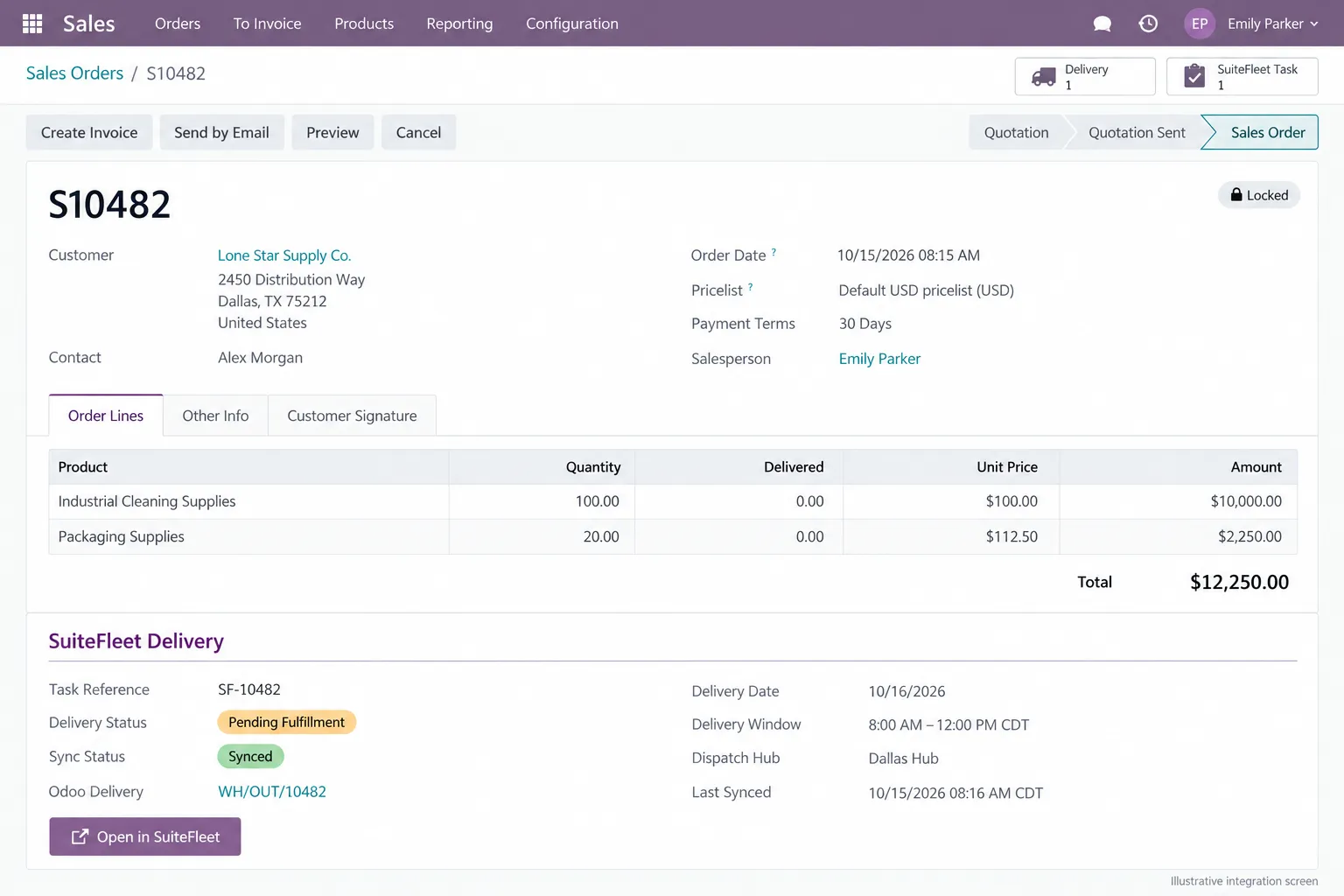
The example starts with S10482 for Lone Star Supply Co. in Dallas: 100 units of industrial cleaning supplies and 20 units of packaging supplies, totaling $12,250. Both lines initially show zero delivered quantity. The requested receiving window is October 16, 2026, from 8:00 AM to noon CDT.
Before releasing the delivery, check that the warehouse is ready, the address is usable, and no hold remains on the shipment. “Pending Fulfillment” in this example is a custom integration label; the Odoo sales-order stage remains Sales Order.
2. Create the linked SuiteFleet delivery task
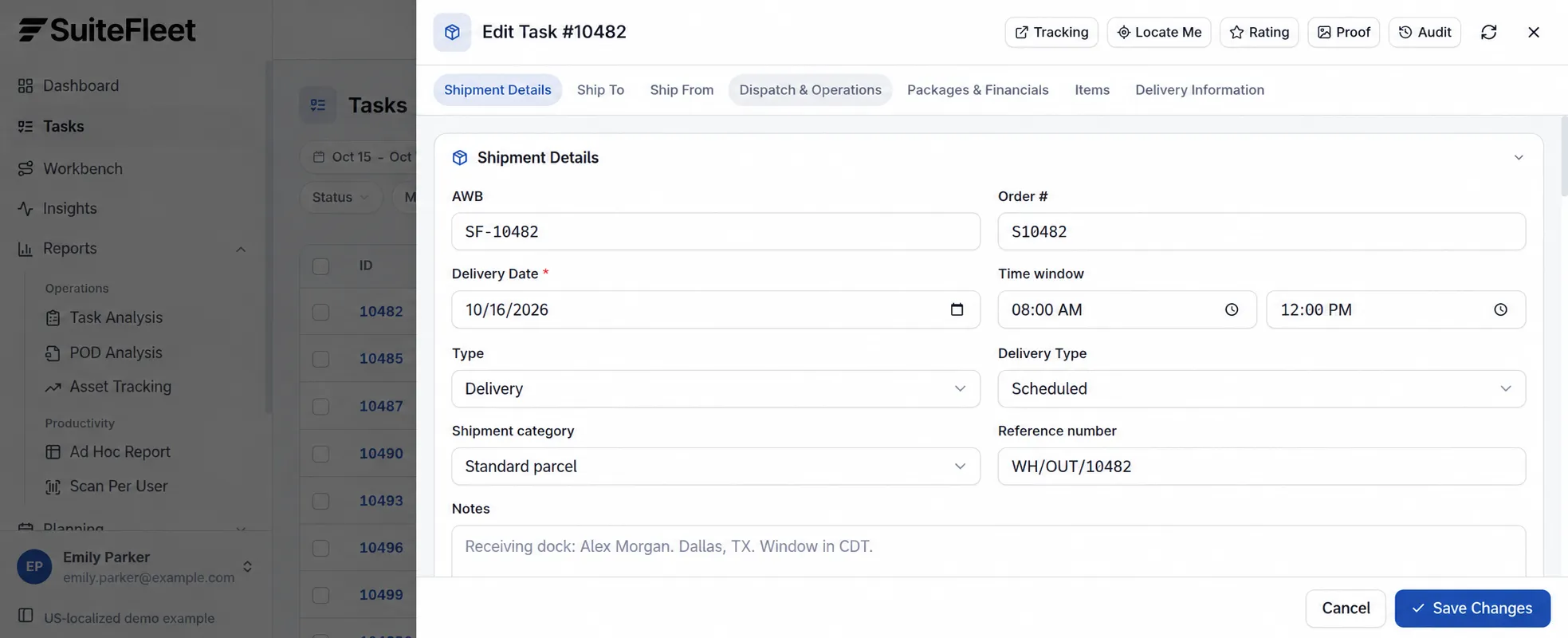
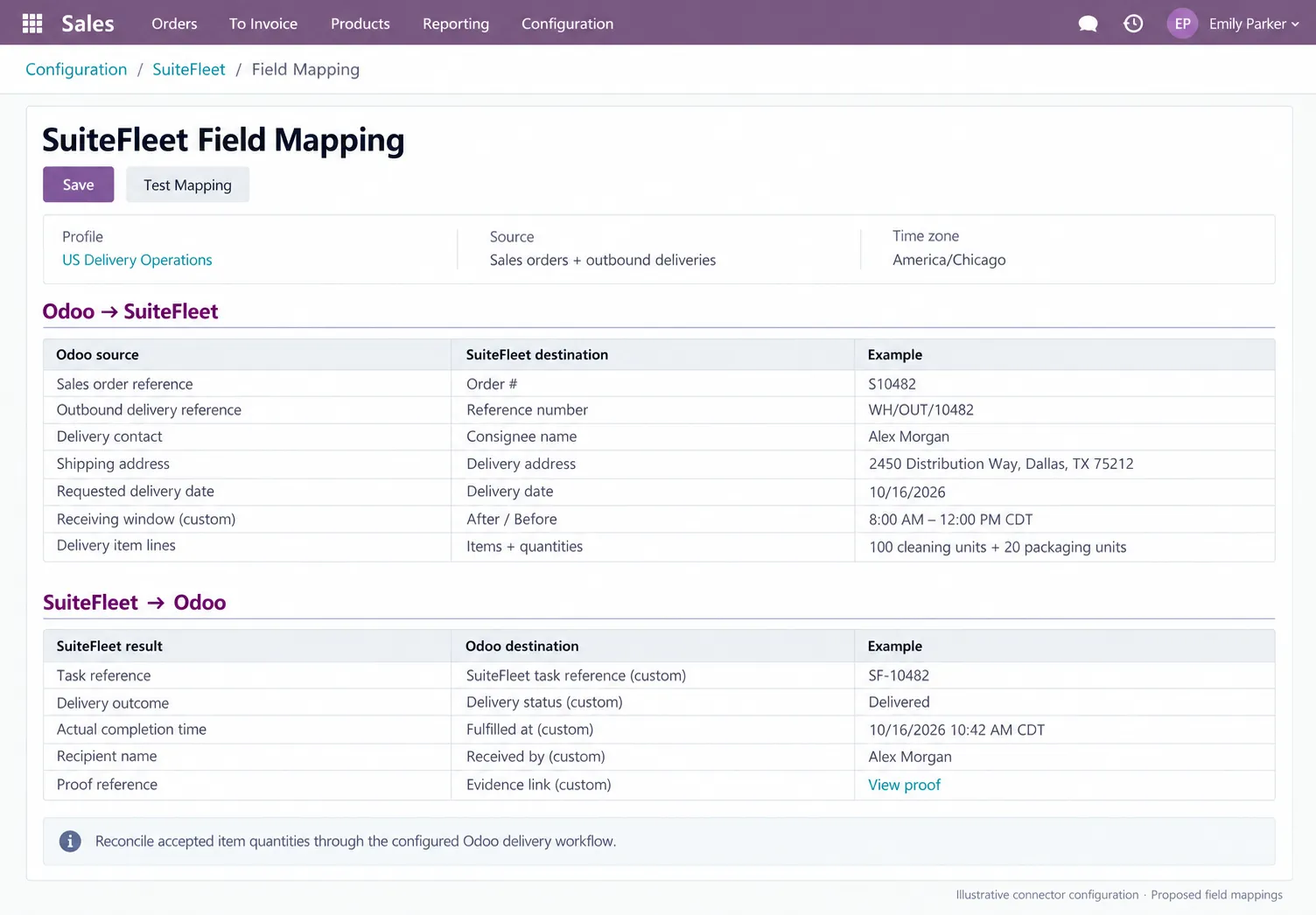
Link SuiteFleet reference SF-10482 to delivery WH/OUT/10482 and order S10482. Store the underlying record IDs as well as these readable references. A customer can have several open orders at the same address, so matching by name or address will eventually update the wrong shipment.
Map the receiving address, contact, delivery date, time window, and handling instructions. Keep product quantities and units of measure at line level: a task’s package count must not be treated as the number of product units delivered.
| Odoo information | SuiteFleet use | Implementation rule |
|---|---|---|
| Sales order and outbound delivery | Order # and shipment reference | Retain both IDs; create a distinct task relationship for each shipment. |
| Delivery address and contact | Consignee and destination | Use the shipment address, including dock or receiving instructions. |
| Receiving window | Delivery date, After and Before | Convert using the destination time zone; preserve the original local window. |
| Products and quantities | Delivery items | Keep line identifiers and units so shortages can be reconciled. |
Configure the integration field mapping
Map both the order and delivery references. The receiving window goes to SuiteFleet; the outcome and actual handover time return to the agreed Odoo fields.
3. Assign and dispatch the work
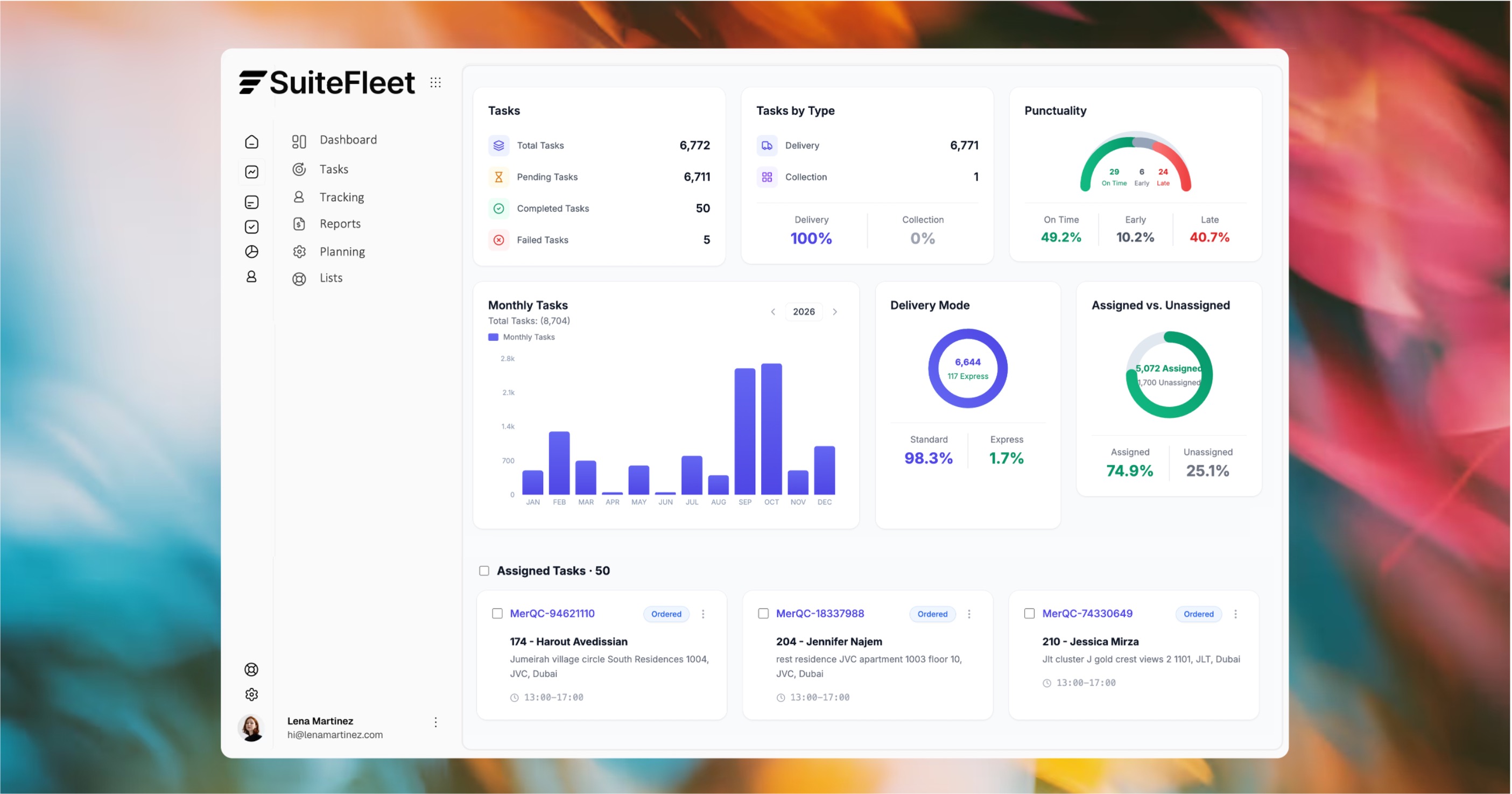
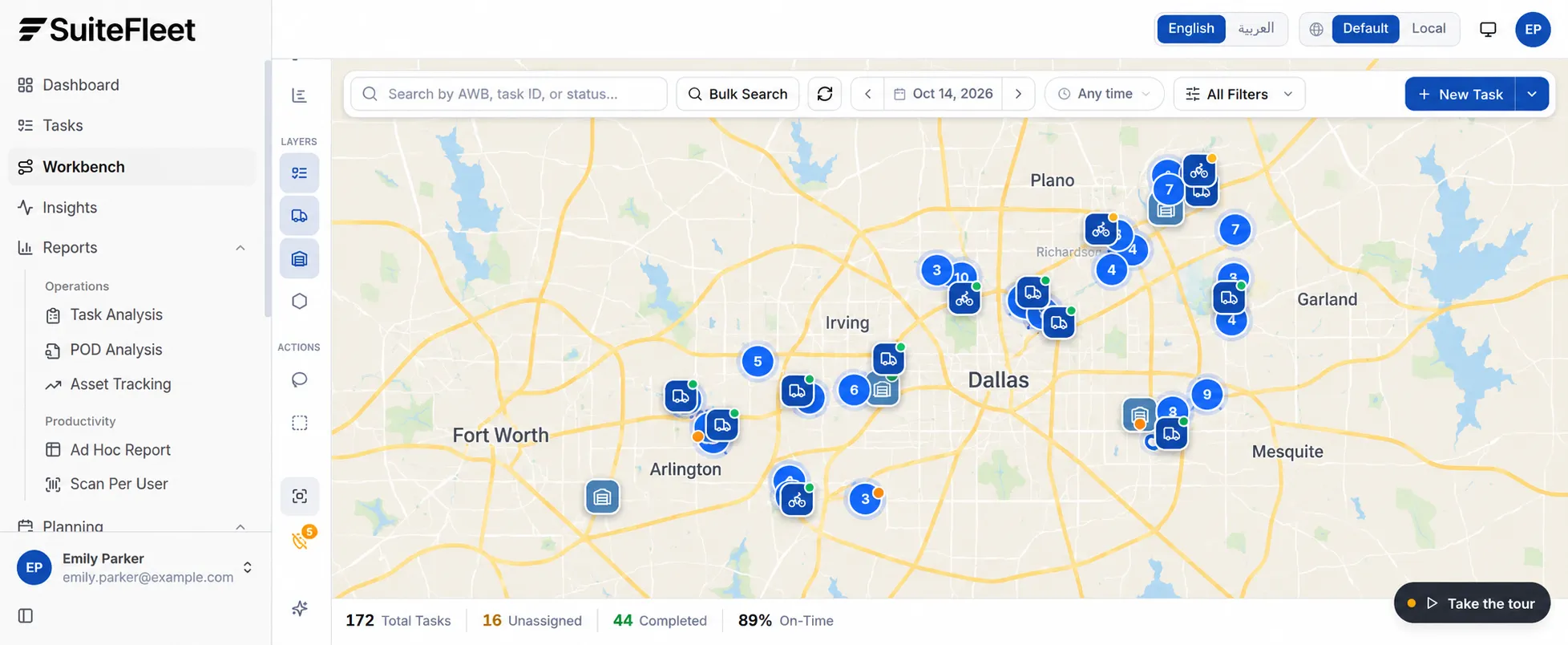
Use SuiteFleet’s Tasks view to separate unassigned work from active deliveries. Check the dispatch company, driver, and hub before release. In Workbench, display tasks, drivers, and hubs together to understand the day’s delivery coverage.
Group nearby deliveries when it helps the dispatcher organize the day. Leave shipments with address problems or warehouse holds outside the batch, and recheck receiving windows after a manual change.
4. Manage progress and delivery exceptions
SuiteFleet’s demo separates statuses such as Out for Delivery, In Transit, Delivered, Failed, and Rescheduled. Map these to an operational status in Odoo rather than using each event to change inventory state.
For a failed attempt, record the reason and the next action. For a reschedule, update the date and receiving window. If the customer accepts 80 of 100 units, return 80 as the accepted quantity and handle the remaining 20 through the agreed backorder or exception process.
5. Update Odoo after delivery
The return update must respect when your business validates its Odoo delivery. Some teams validate when the truck leaves; others tie validation to a later operational step. If stock was already issued at dispatch, customer receipt updates the delivery record without moving the inventory a second time.
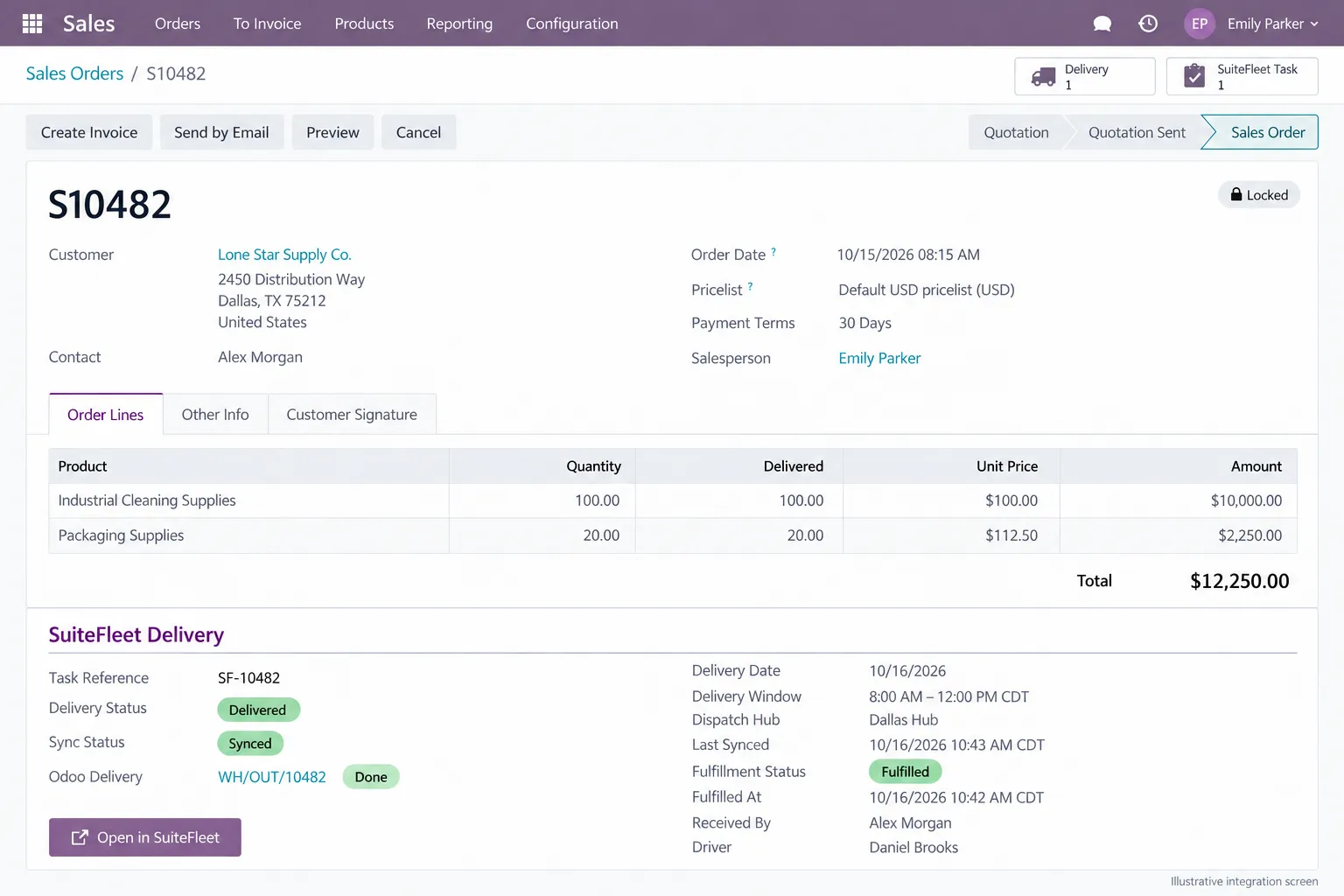
In the completed example, Alex Morgan receives all 120 units on October 16, 2026, at 10:42 AM CDT. Odoo shows 100 and 20 delivered on the respective lines. The custom SuiteFleet section records Delivered, Fulfilled, and a synchronization time of 10:43 AM CDT. The first timestamp is the customer handover; the second is the integration update.
Before going live
Confirm the Odoo version, hosting plan, integration access, and warehouse flow. Decide who handles failed syncs and unmatched records. Test a complete shipment, a partial delivery, a failed attempt, and the same completion message arriving twice. Invoicing remains governed by the agreed Odoo invoicing policy.
Frequently asked questions
How does SuiteFleet work with Odoo delivery orders?
The planned connector links an eligible Odoo outbound delivery to a SuiteFleet task. Dispatchers manage the delivery in SuiteFleet, and the integration returns the agreed results to the original shipment.
How should partial deliveries be handled in Odoo?
Return the quantities actually accepted. Keep the remaining goods open or process a backorder according to the warehouse workflow; completing one task does not complete every shipment on the order.
Does delivery confirmation automatically create an invoice?
No. Invoice creation follows the Odoo invoicing policy and any separately configured automation. A delivery update should not bypass those rules.
Related Odoo guides: Proof of Delivery for Odoo with SuiteFleet · Route Optimization for Odoo with SuiteFleet
Workflow references: Odoo delivery workflow · SuiteFleet interactive demo.