
.webp)
.webp)


The NetSuite–SuiteFleet workflow turns released work from Item Fulfillment records into stops with a loading point, destination, and receiving window. Dispatchers review drivers, optimization objectives, and unassigned stops before applying a route. Actual completion is reconciled afterward using fulfillment lines.
Connector availability: SuiteFleet plans to publish its Oracle NetSuite connector on SuiteApp Marketplace, subject to the marketplace review and release process.
1. Select the NetSuite shipment to plan
Begin with the NetSuite sales order and its eligible shipment lines. Confirm that approval, warehouse readiness, destination, and receiving requirements are satisfied. The visible SuiteFleet tab supports access to configured integration details; validate the installed fields rather than assuming a universal form.
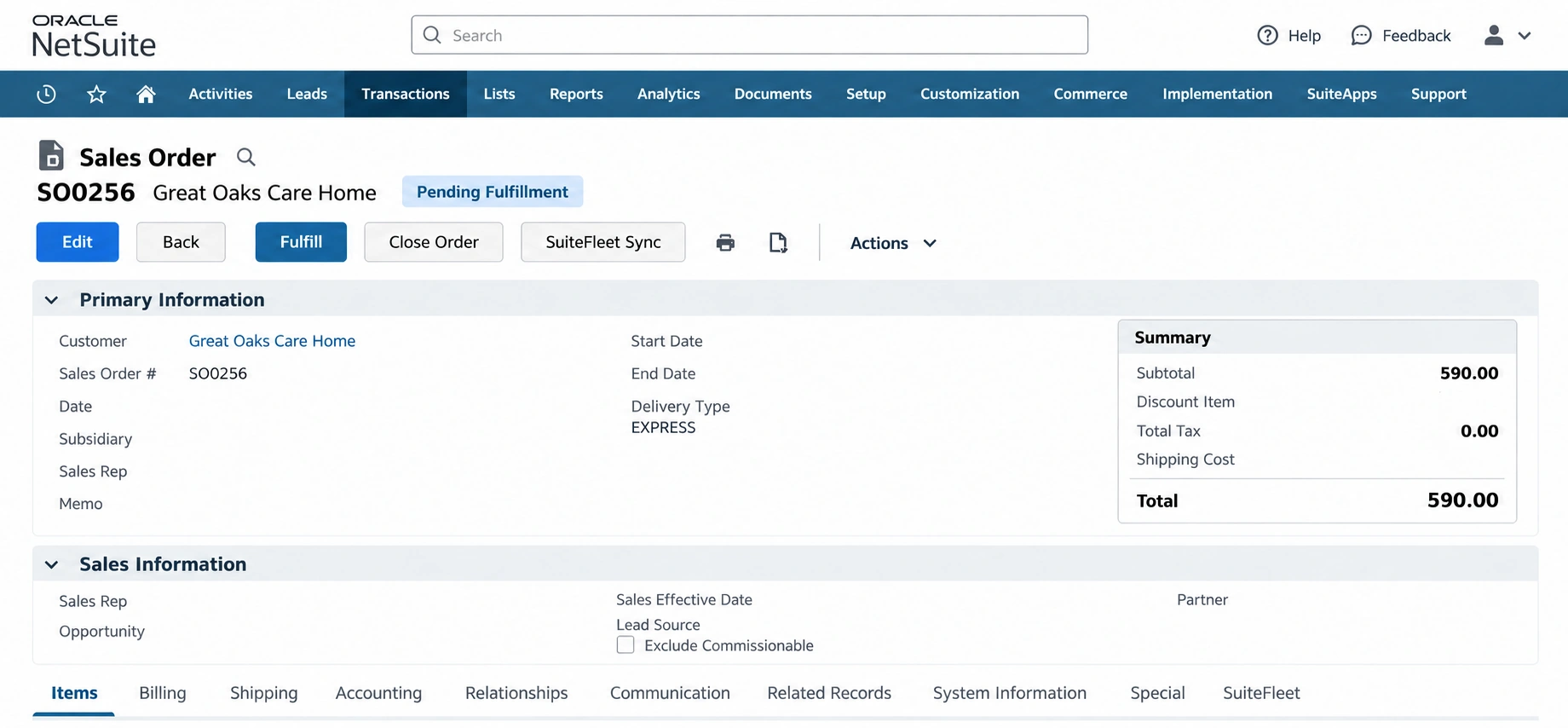
Plan only the quantities allocated to the shipment. If an order spans several warehouses or dates, preserve separate shipment keys. Pending Fulfillment is an order lifecycle state, not evidence that the vehicle, stock, and receiving window are ready.
2. Map the planning inputs
Send the shipment’s destination, requested delivery date, time window, items, and operational instructions to SuiteFleet. Keep the source order and Item Fulfillment IDs in the correlation record so planning changes remain attached to the correct shipment.
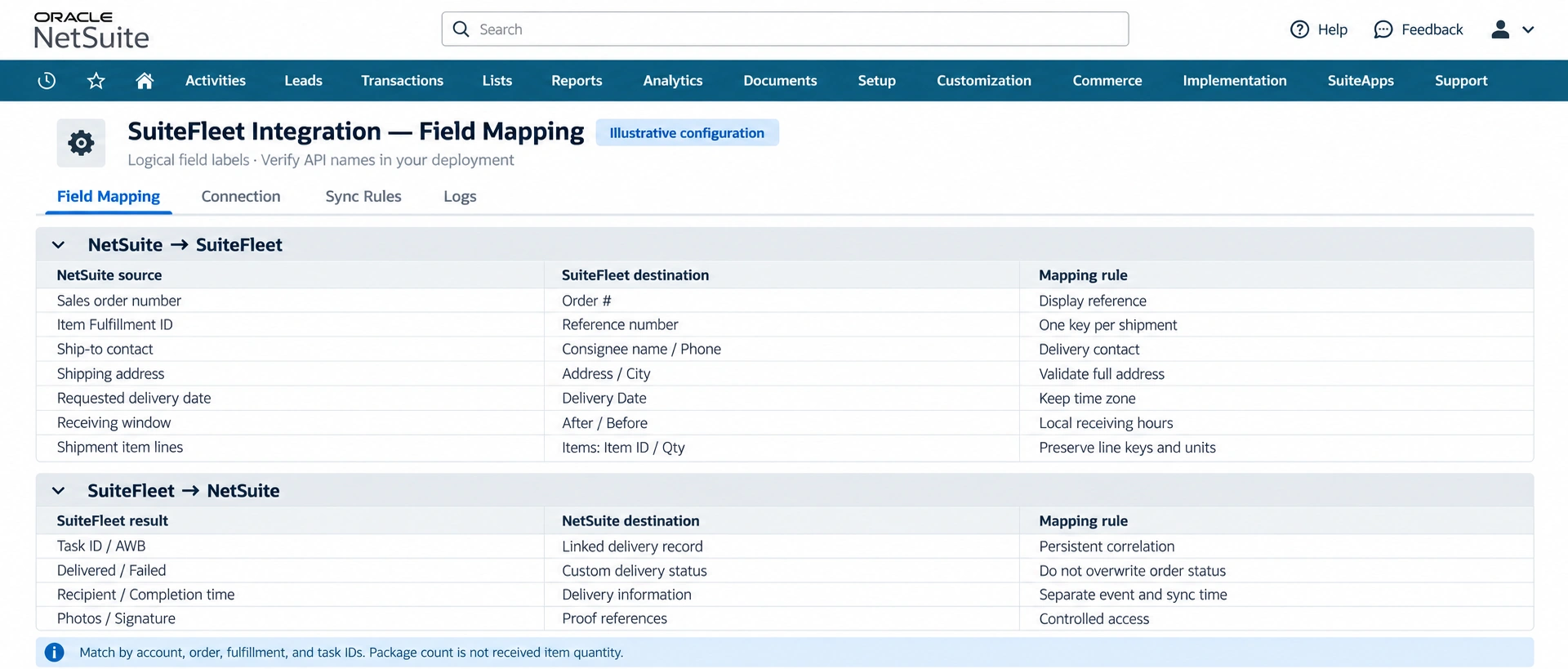
| Source → destination | Implementation rule |
|---|---|
| Ship-to address → task location | Validate street, city, state, postal code, country, and geocoded pin. |
| Receiving window → After / Before | Keep the intended local time zone and distinguish from planned departure. |
| Warehouse routing → merchant / branch / hub | Use explicit internal-ID lookup rules. |
| Shipment items → task Items | Preserve quantities and units; package count is a separate concept. |
| Task ID → linked fulfillment | Use persistent correlation for later delivery writeback. |
Supply only constraints supported by the deployed configuration. Do not infer traffic awareness, vehicle capacity enforcement, or weight-based optimization merely from a generic optimization control.
3. Validate each task before planning
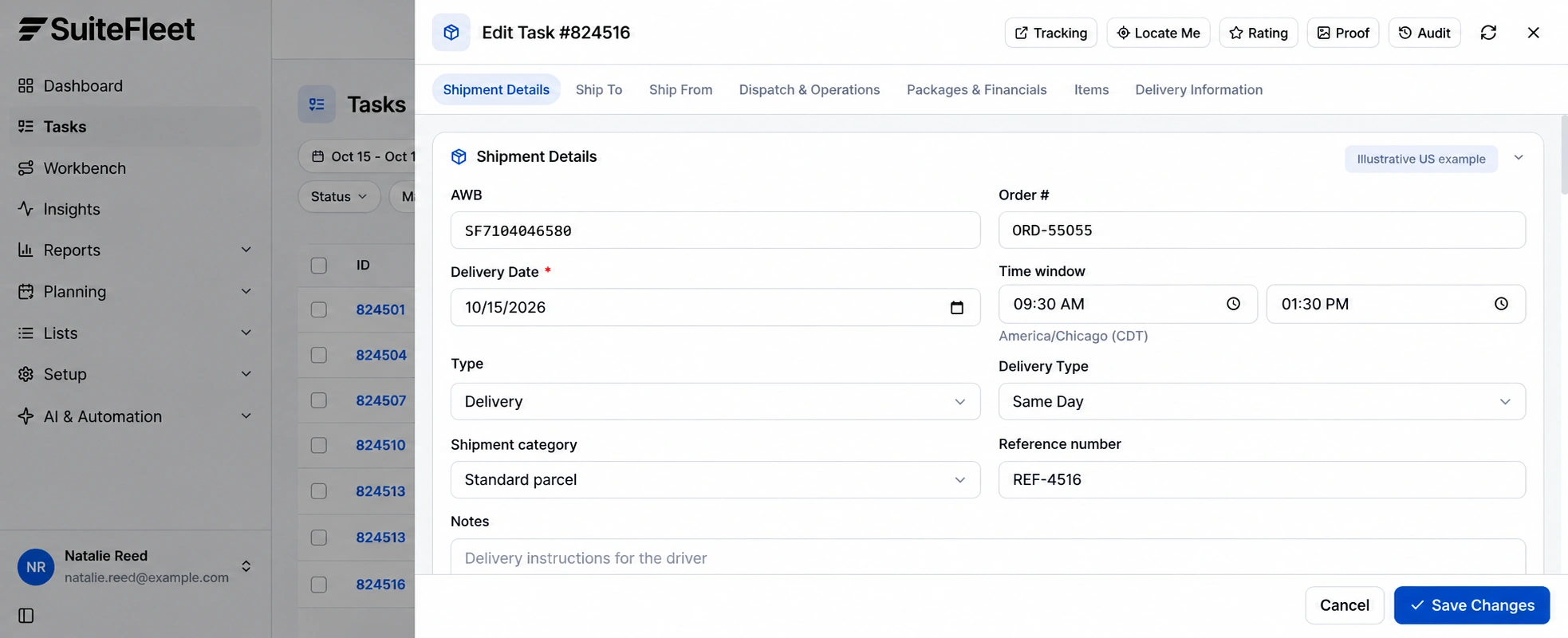
Open Shipment Details and verify the requested delivery date and After/Before window. Inspect Ship To for a valid destination and Items for shipment contents. Resolve missing addresses or unrecognized hub mappings before sending work to dispatch.
Make retries idempotent so a delayed integration response cannot double the stop count. If an order changes after planning, compare the changed fields with the released shipment and flag material destination or quantity changes for dispatch review.
4. Review the map and proposed assignments
Open Workbench and review the task, driver, and hub layers. The demo includes geographic selection controls, Zoom to fit, a missing-location indicator, and Optimize Routes. Filter the relevant date and operational scope before selecting work.
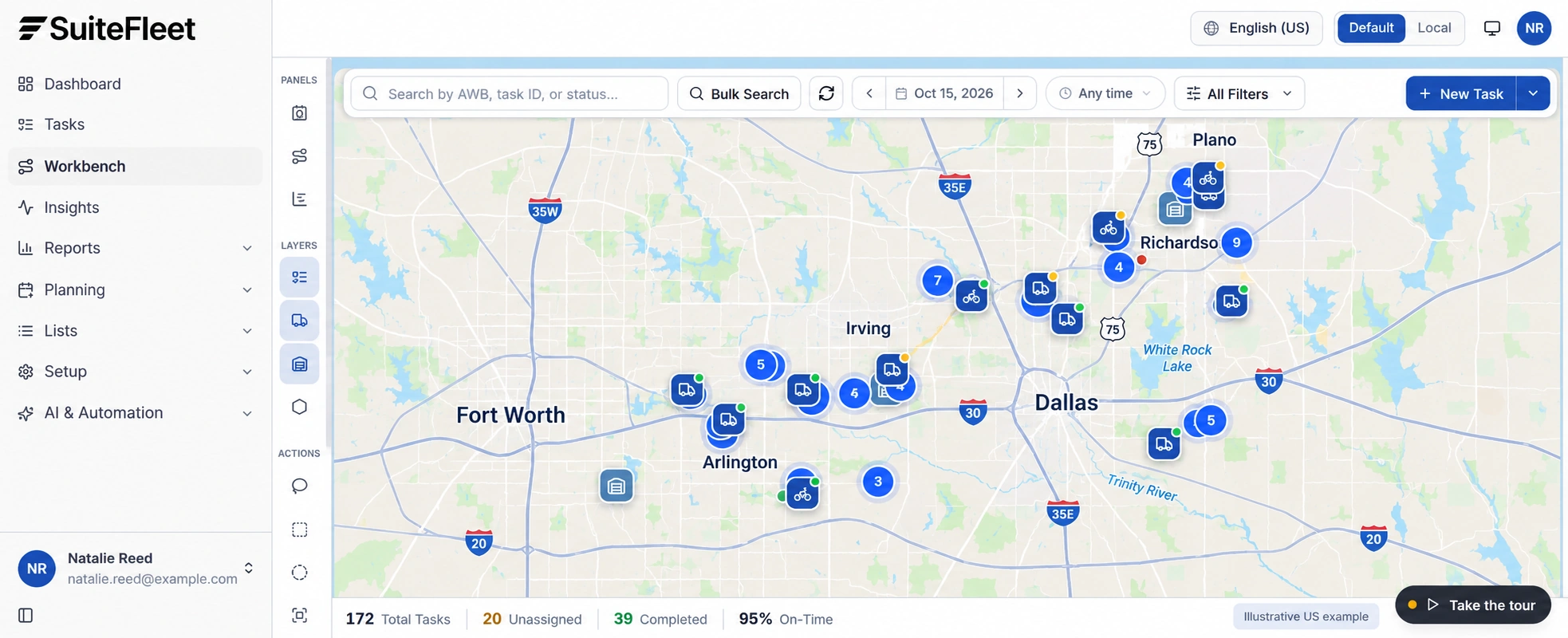
Resolve tasks without location data before optimization. Review driver availability, receiving windows, and any supported constraints in the deployed planning flow. Run optimization only for the intended task set, then inspect assignments, stop order, and any tasks left unassigned before applying the plan.
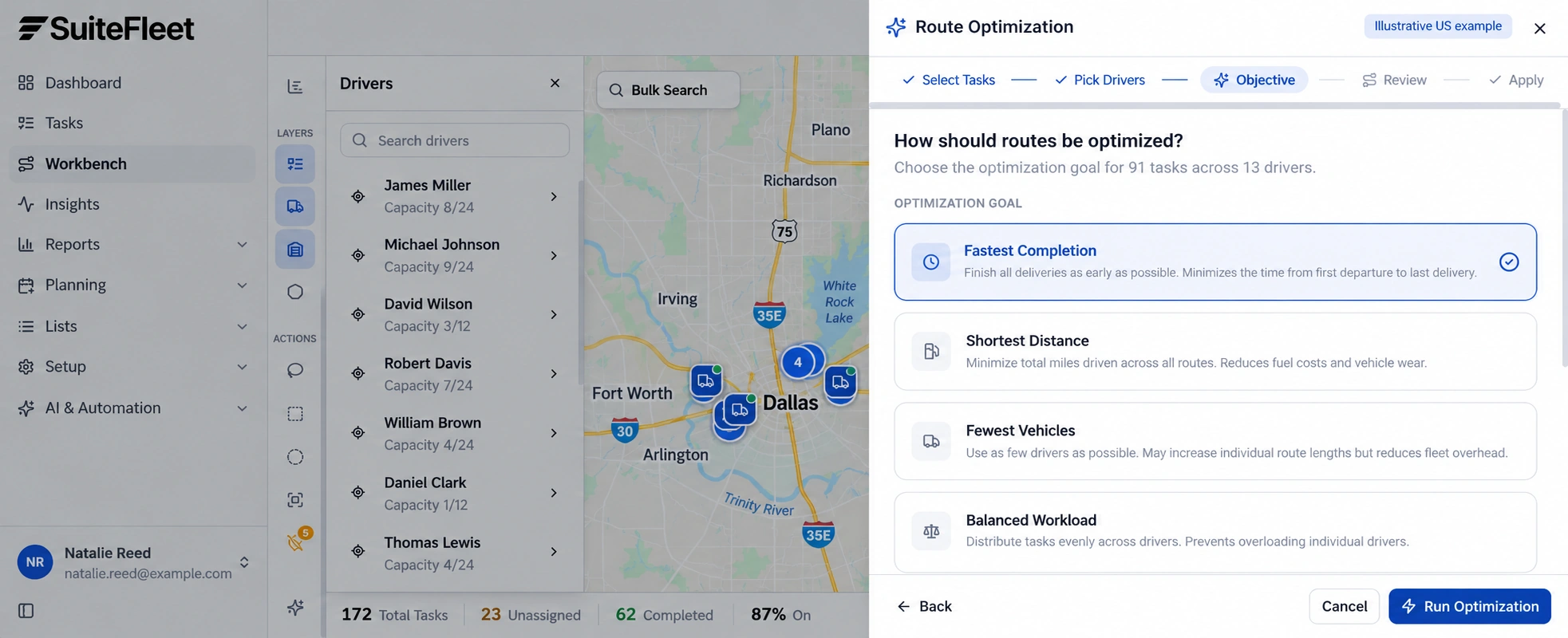
Choose the route optimization objective
After selecting the tasks and drivers, choose Fastest Completion, Shortest Distance, Fewest Vehicles, or Balanced Workload to match the dispatch plan. Review the selected work and driver availability before running optimization.
Review optimization results before applying routes
Review the total planned distance, estimated completion time, vehicles used, and unassigned tasks. Expand each driver’s route to inspect stop order and arrival estimates. Resolve unassigned work and receiving-window exceptions before selecting Proceed to Apply.
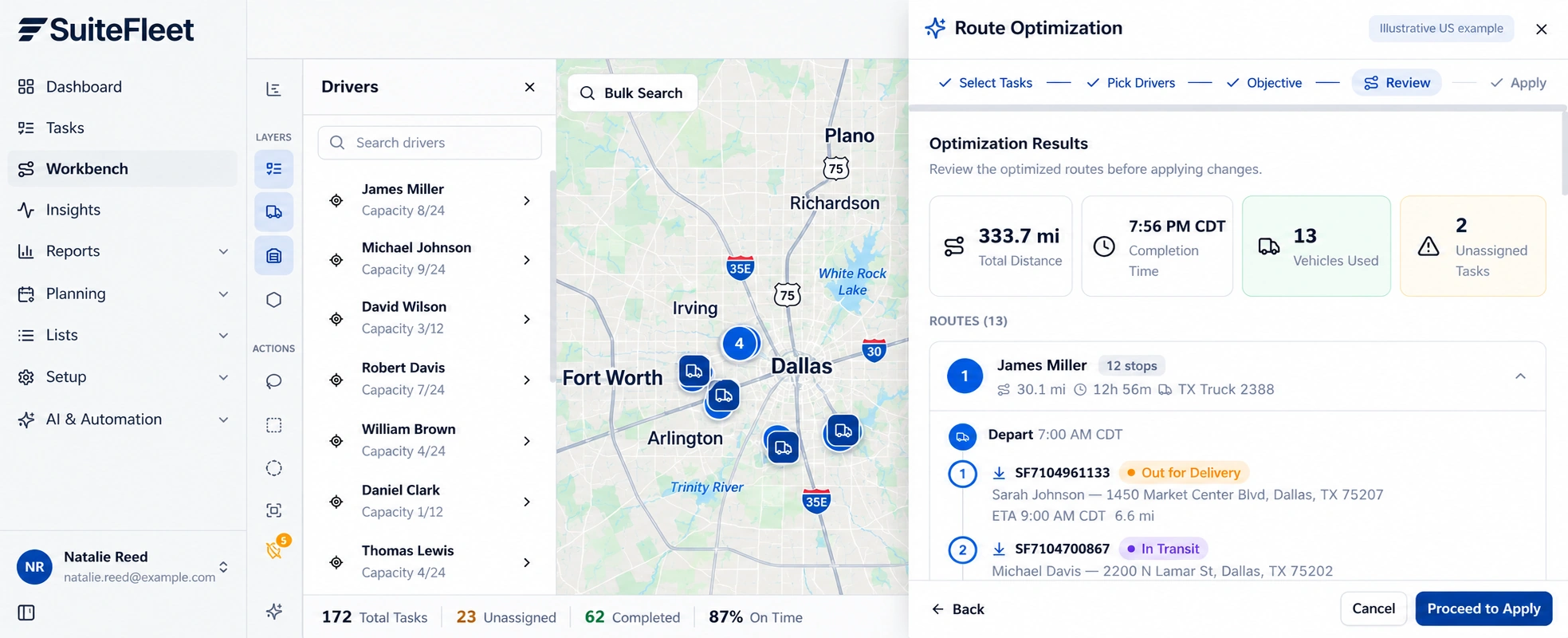
Keep dispatcher approval and route application distinct from task creation. Record the chosen assignments and allow operations to handle infeasible stops explicitly rather than silently dropping them. Planning success still leaves the shipment awaiting actual execution.
5. Track execution and reconcile completion
After dispatch, monitor operational progress and exceptions. A driver assignment, a route sequence, or an Out for Delivery status must not trigger final customer-receipt writeback. Preserve failed attempts and replan eligible work without duplicating the underlying shipment.
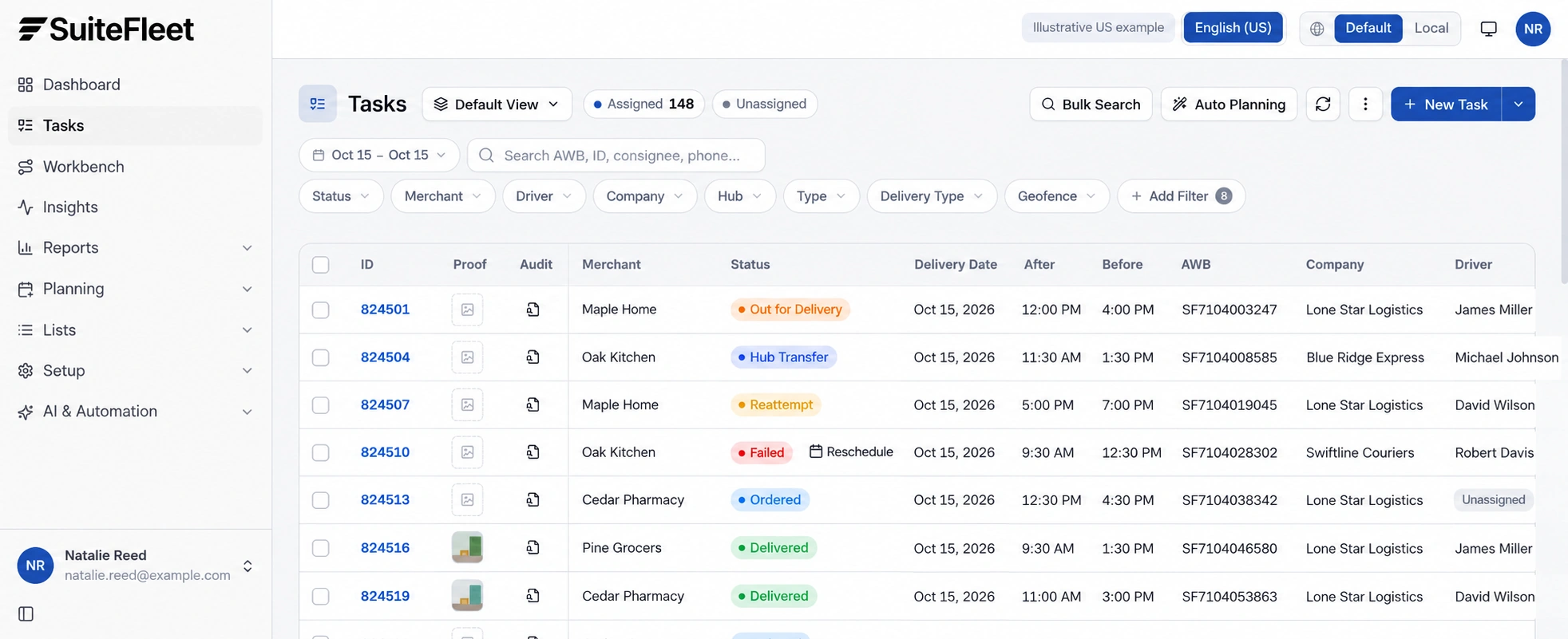
When delivery completes, match the result to the stored task and fulfillment identifiers. Review recipient and proof, validate received quantities where supported, and write actual delivery information to the configured NetSuite destination.
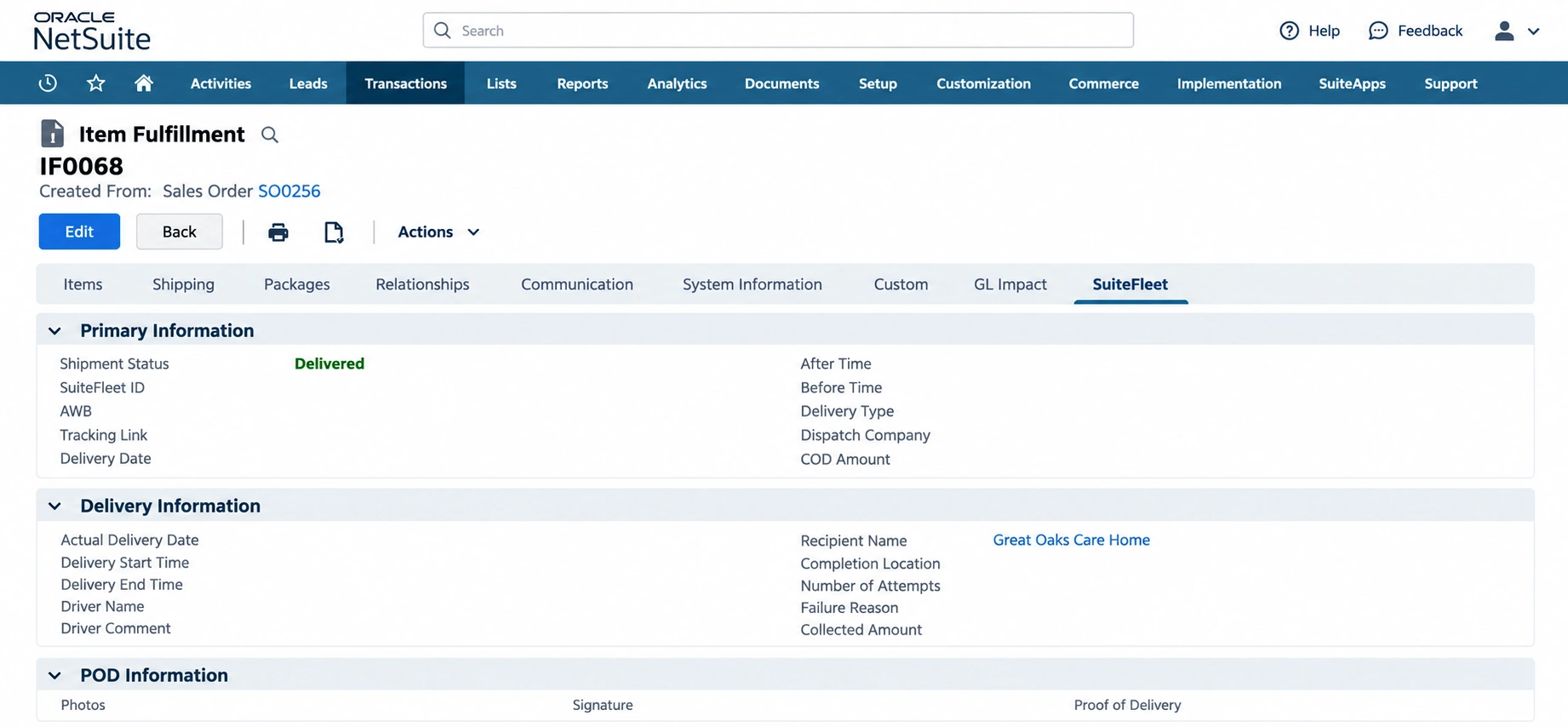
If the warehouse already created the Item Fulfillment, update its associated delivery information rather than posting another shipment. Reconcile all relevant fulfillment lines before calling the sales order fully delivered. NetSuite may still show Pending Billing after shipment with Advanced Shipping enabled.
Frequently asked questions
Which NetSuite details are needed for route planning?
Use the fulfillment warehouse as the departure point and the transaction ship-to address as the destination. Carry the customer receiving window separately from the warehouse ship date.
How are partial deliveries handled for NetSuite?
Retain each fulfillment and its line quantities. Completing one stop does not resolve outstanding quantities on another fulfillment.


.png)

.jpeg)


.png)

.svg)




.svg)


.svg)
.svg)
.svg)