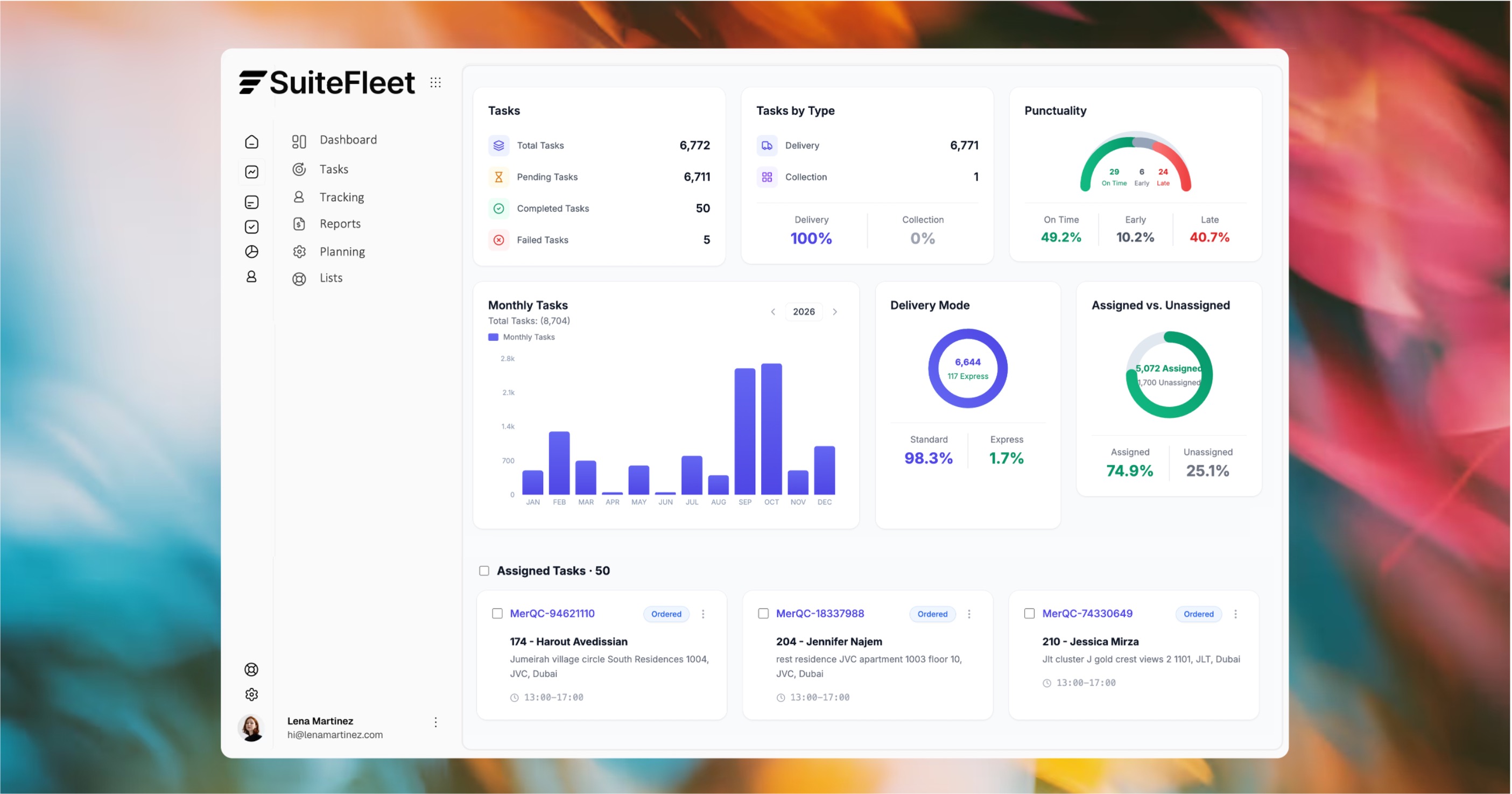
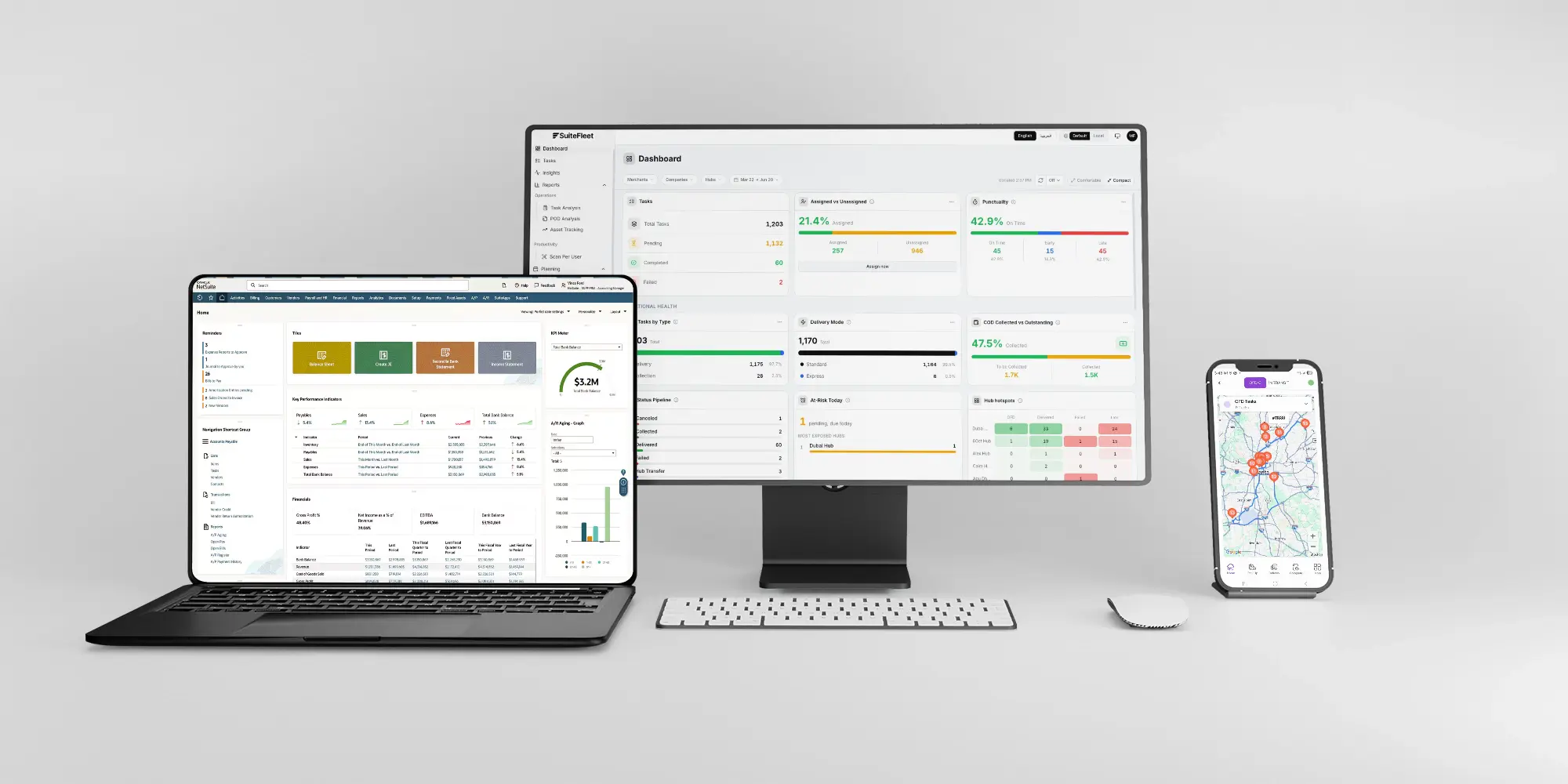



The NetSuite–SuiteFleet integration links Item Fulfillment records to delivery tasks. Dispatchers review destinations, assign drivers, and follow delivery attempts in SuiteFleet. Each result returns through the configured connection to the matching source record, preserving fulfillment lines and any outstanding quantities.
Connector availability: SuiteFleet plans to publish its Oracle NetSuite connector on SuiteApp Marketplace, subject to the marketplace review and release process.
1. Start with the NetSuite sales order
Open the sales order and review its customer, ship-to address, eligible item quantities, and SuiteFleet tab. The reference order is SO0256 for Great Oaks Care Home. Confirm that its associated shipment is ready for delivery before creating a task.
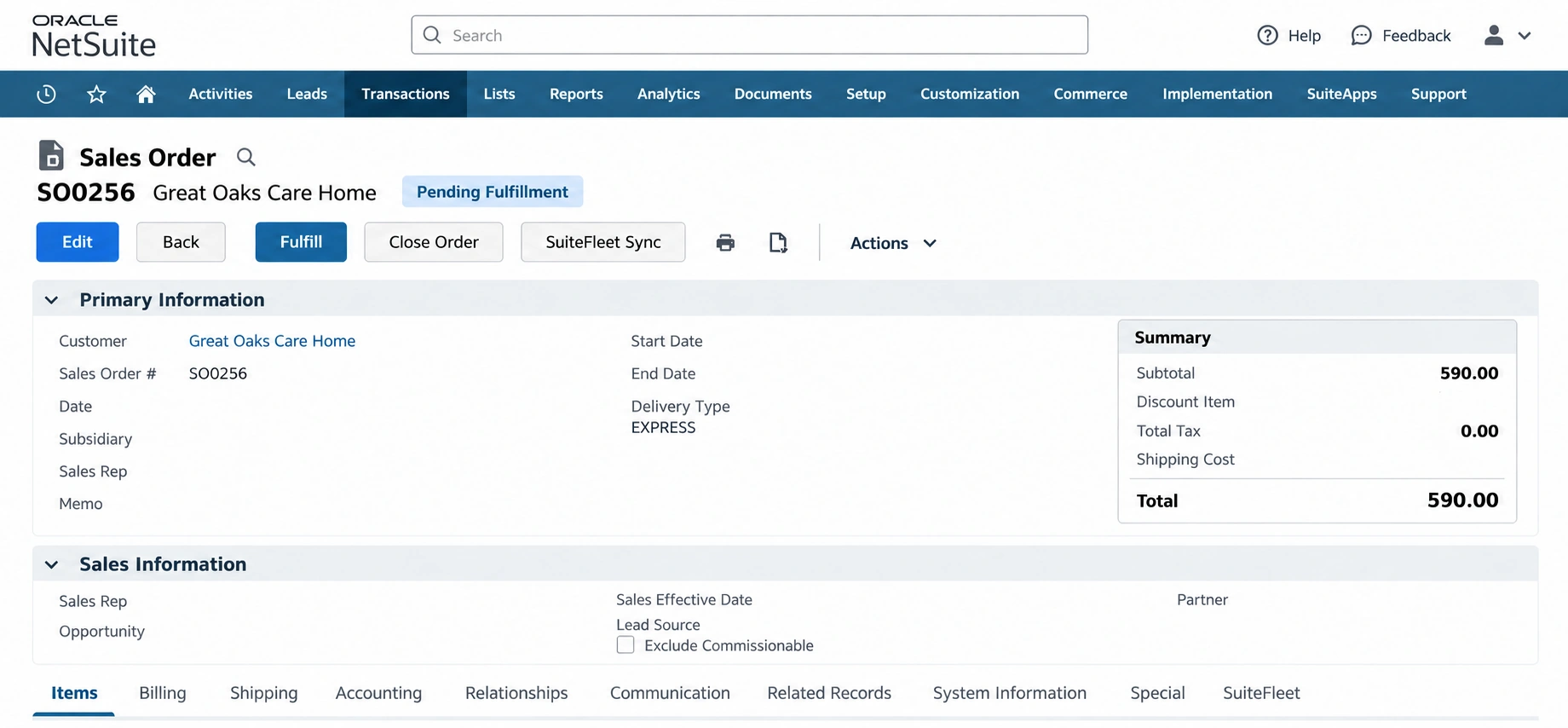
With Advanced Shipping enabled, Pending Fulfillment means the order is approved and awaiting shipment. Configure release around warehouse readiness and allocated quantities, not status alone. An outstanding balance on a partially fulfilled order must become a separate shipment allocation. Oracle defines these native statuses.
2. Map the shipment before syncing
Use a persistent chain of account ID, sales order ID, Item Fulfillment ID, source line keys, and SuiteFleet task ID. The order number helps people search; it should not be the only identifier used by the integration. Establish the correlation before processing delivery updates.
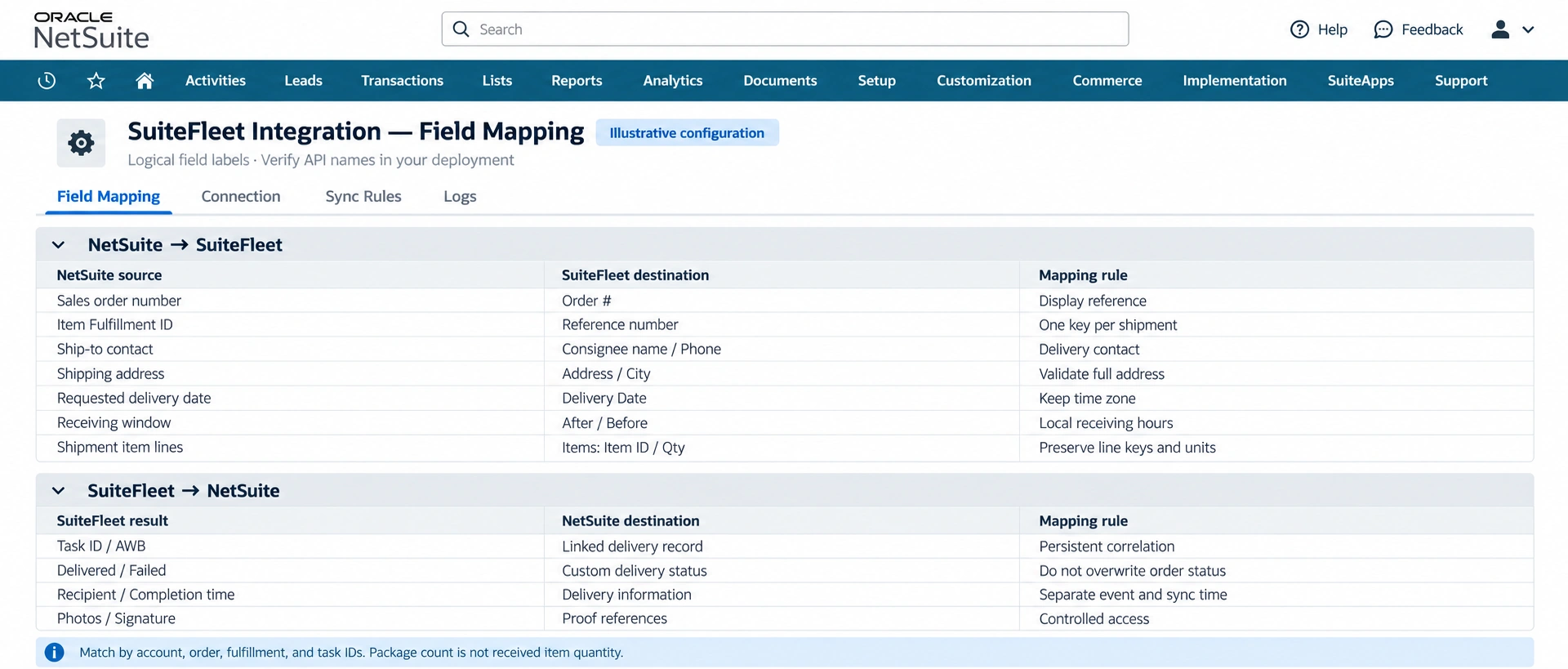
| Source → destination | Implementation rule |
|---|---|
| Sales order number → Order # | Display reference; also persist the NetSuite internal order ID. |
| Item Fulfillment → task correlation | One persistent shipment key; store the returned task ID and AWB. |
| Ship-to contact/address → Ship To | Use the transaction destination, not a default billing address. |
| Item lines → Items | Keep source line IDs, shipment quantities, and units separate from package count. |
| Delivery result → linked fulfillment | Use custom delivery fields and proof references; preserve native order status. |
Map requested delivery dates and receiving windows explicitly. A warehouse ship date is not automatically the customer’s delivery date. Keep currency and units consistent, and validate warehouse-to-hub lookups. Confirm the field names and supported operations against the connector configuration.
3. Verify the SuiteFleet task
Once the shipment is released, inspect Shipment Details, Ship To, Items, and Packages & Financials. Confirm the destination and shipment quantities before dispatch. Shipment Details includes Order #, AWB, Reference number, Delivery Date, and After/Before fields.
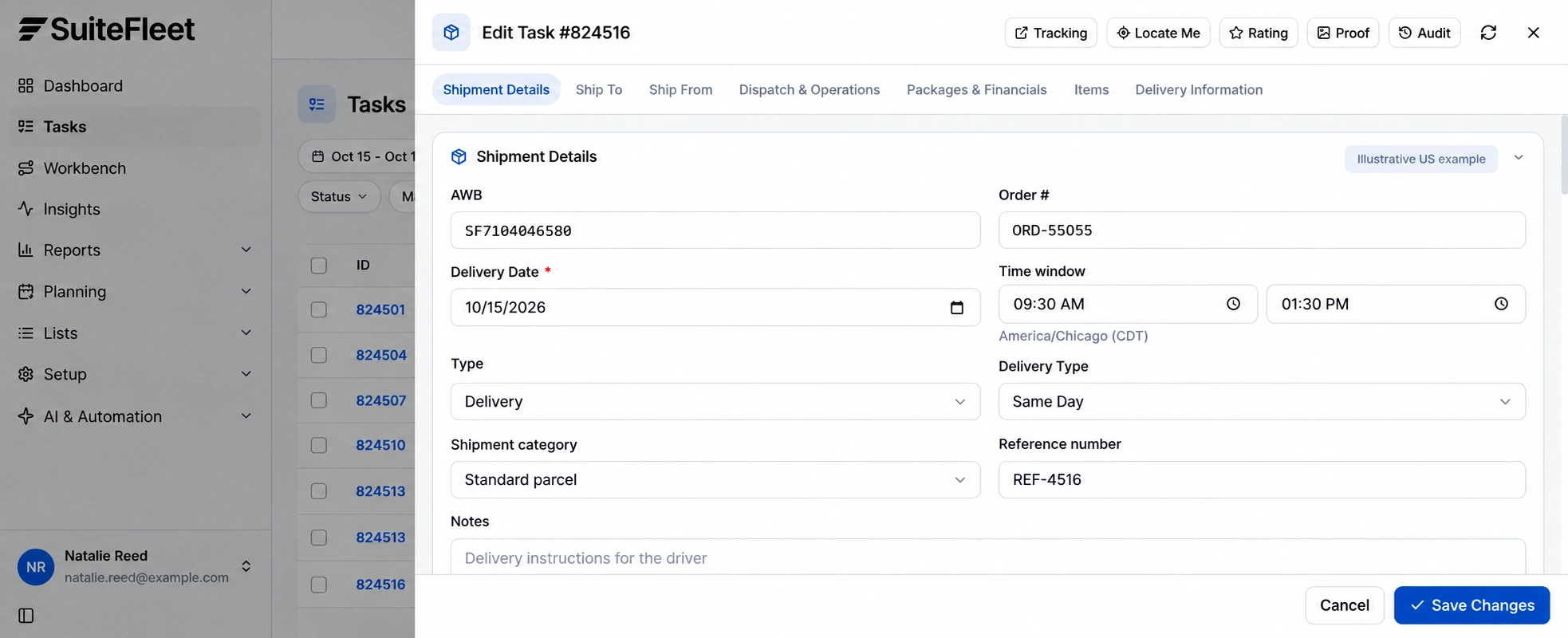
Save the returned task identifier on the integration correlation record. If a request times out, check whether the shipment already has a task before retrying creation. Show export failures and unmapped values in an actionable exception queue.
4. Assign drivers and follow delivery progress
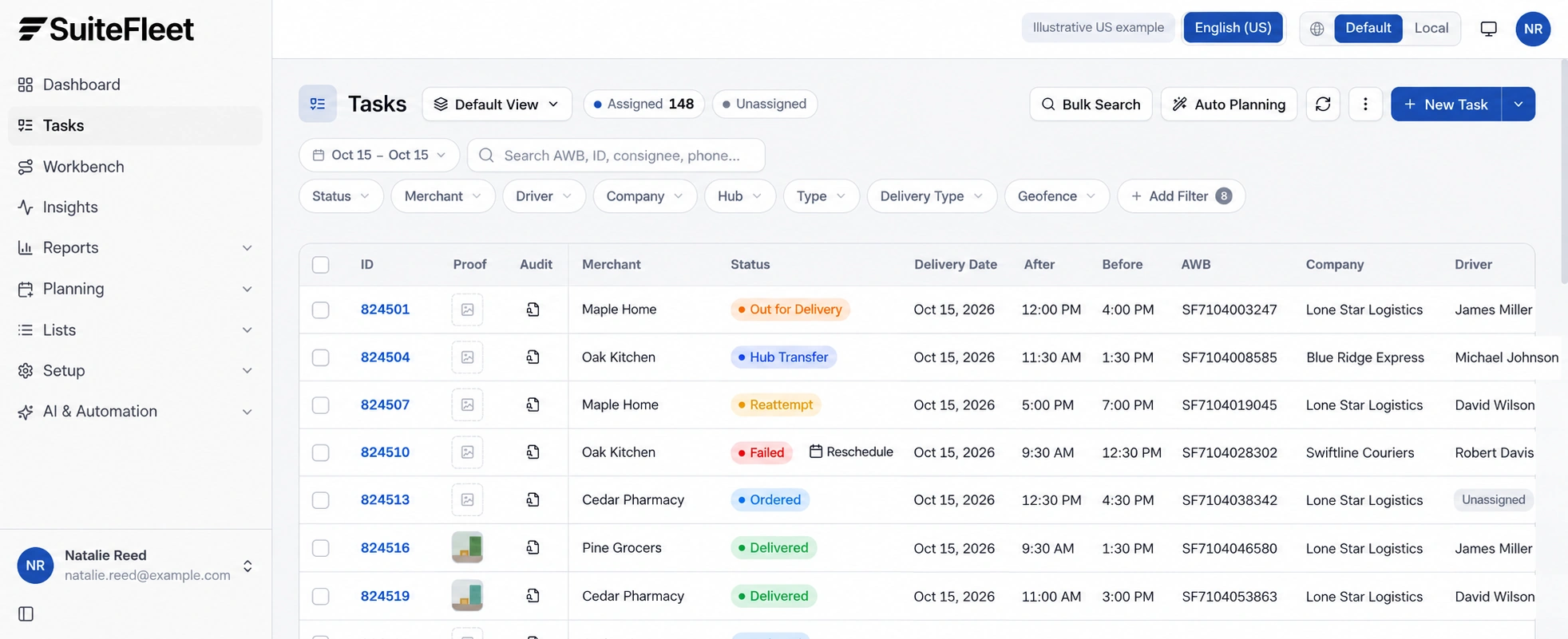
Use the Tasks view to inspect operational states, then open Dispatch & Operations to review the delivery company, driver, and hub. Decide which assignment fields dispatchers own so a later order sync does not undo their decisions.
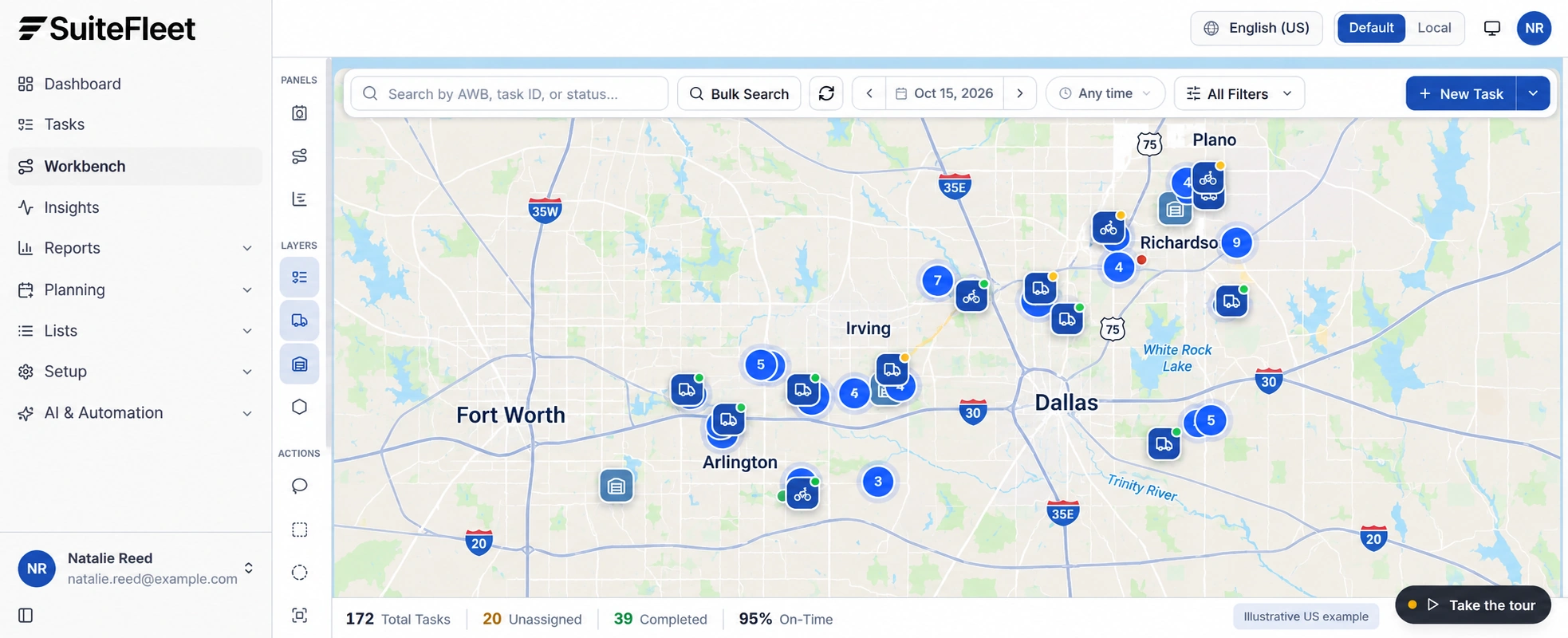
Workbench provides a geographic view of tasks, drivers, and hubs. Resolve missing locations before planning or assignment. Review the proposed driver workload before applying a route; a planned assignment does not mean the shipment was delivered.
When a stop fails or is rescheduled, preserve the attempt, reason, and shipment link. A reattempt should not create a second Item Fulfillment for goods already shipped. Handle refused goods through the configured return process.
5. Confirm delivery and return to NetSuite
Review the matched task’s recipient and proof before accepting completion. Keep delivery event time separate from integration sync time. If line-level received quantities are available, validate them against the shipment; a Delivered task and a package count are not enough to establish receipt of every ordered unit.
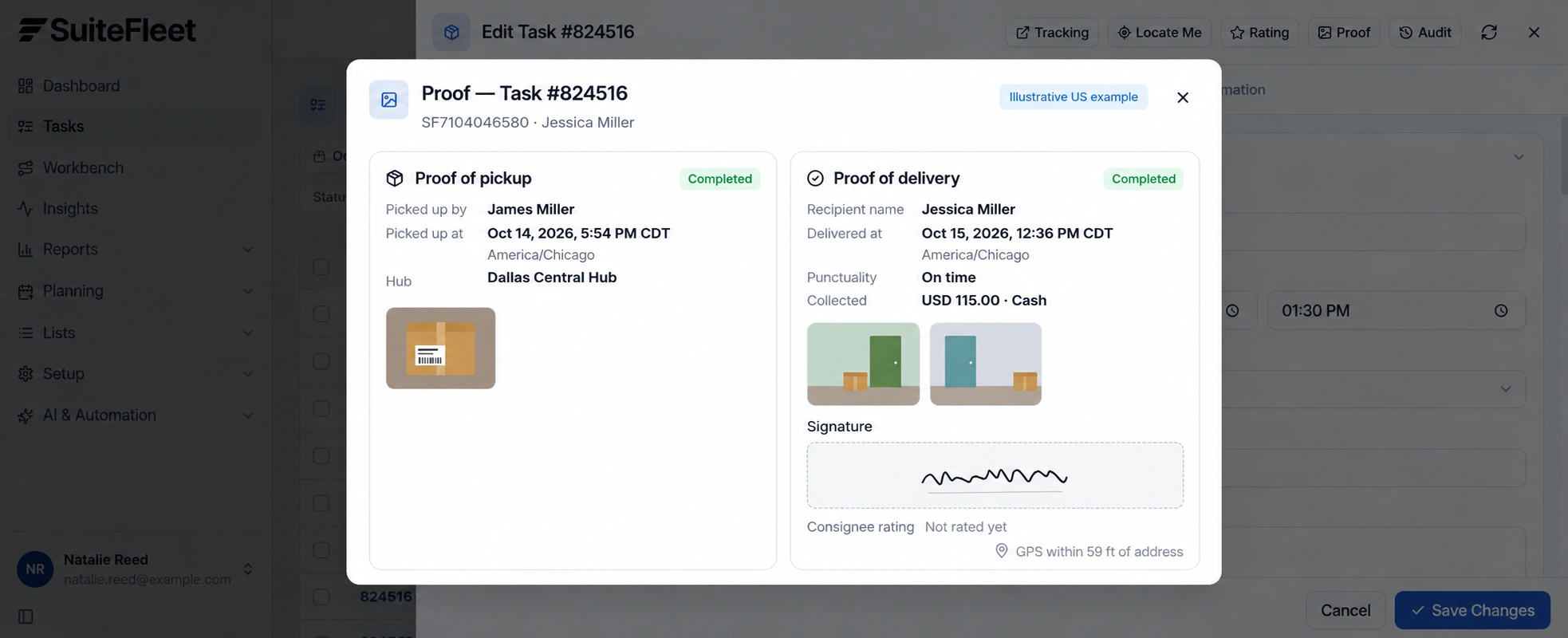
An Item Fulfillment records shipment. If it was posted at dispatch, write delivery status and proof references to its configured delivery fields. Do not create it again at the doorstep. Reopen the sales order to verify fulfilled quantities across all related shipments.
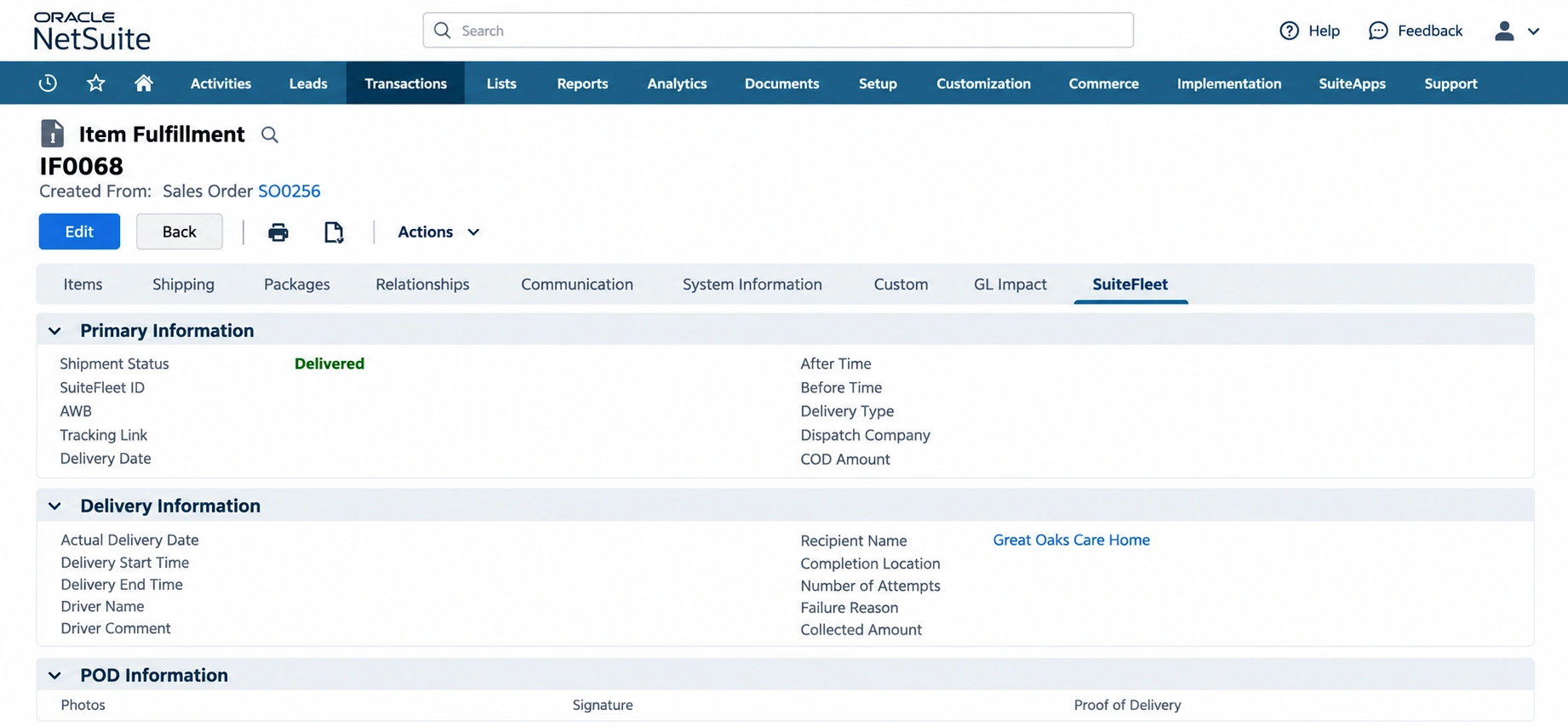
Let NetSuite calculate its native order status. A fully shipped order can remain Pending Billing with Advanced Shipping enabled. Custom delivery completion and invoice processing are separate decisions; confirm any downstream automation before enabling it.
Frequently asked questions
Which NetSuite records should link to SuiteFleet?
NetSuite Item Fulfillment records shipment. A sales order can have several fulfillments, so delivery outcomes must remain linked to the correct fulfillment and item quantities.
How should delivery completion update NetSuite?
Keep shipment, customer receipt, and billing separate. Return delivery evidence to the linked fulfillment’s configured fields; do not create another Item Fulfillment for goods already shipped.